Wie man einen Facebook-Beitrag im Jahr 2026 teilbar macht
Open the Right Audience
- Find your original post. Start on your own profile, not a friend’s reshare.
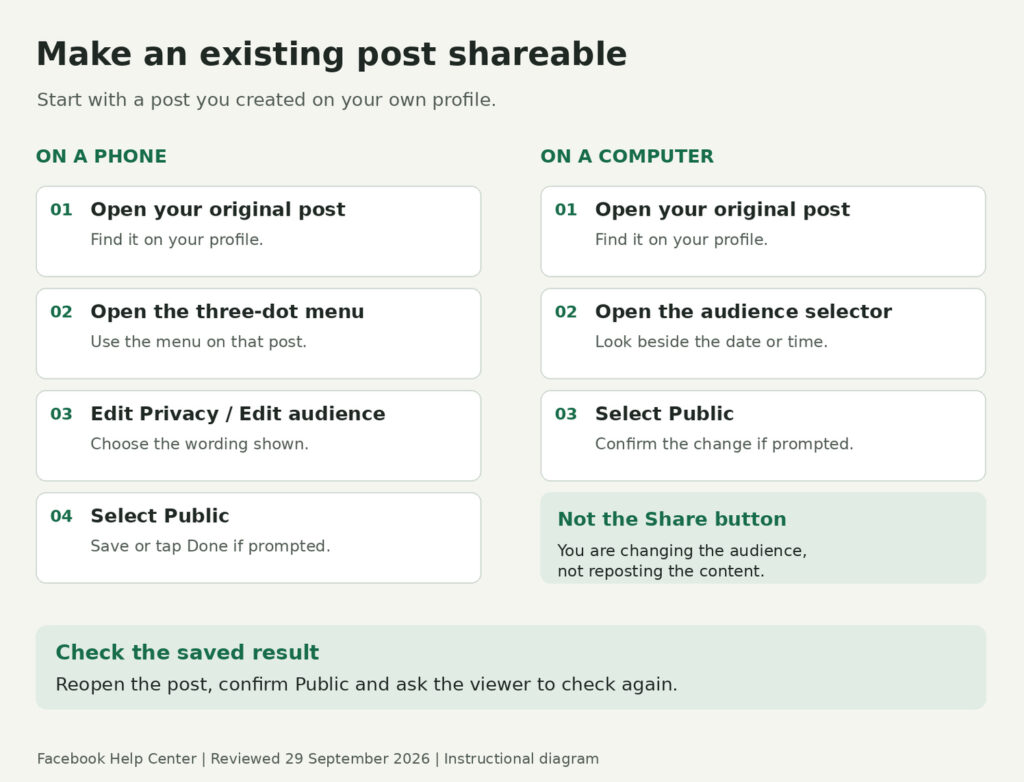
- Change that post to Public. On a phone, look under the three-dot menu for Edit Privacy or Edit audience. On a computer, use the audience selector beside the date.
- Check the result. Confirm that the post says Public, then ask someone to open the original and check the sharing options.
When someone says, “I can’t share your post,” you usually need to inspect the post itself, not redesign your Facebook profile. Start with the instructions below, then use the troubleshooting section if you are dealing with a group post, an album photo or someone else’s content.
Fördern Sie den Austausch in den Kommentaren zu Ihren Beiträgen.
Real Facebook comments from authentic profiles. Spark engagement that lasts.
Make an Existing Facebook Post Shareable
For a normal post you created on your own profile, choose Öffentlich if you want it to be available beyond your friends. Facebook’s post-audience instructions explain how to change who can see content you have already published; the exact menu wording depends on the version you are using.
On a Phone
- Open Facebook and go to your profile.
- Find the original post you want people to share.
- Tippen Sie auf die three-dot menu at the top of the post.
- Wählen Sie Datenschutz bearbeiten oder Edit audience, depending on the wording shown.
- Wählen Sie Öffentlichund tippen Sie dann auf Erledigt or save the change if prompted.
Return to the post and check its audience rather than assuming the change saved. You do not need to delete and recreate an ordinary profile post just to change that setting.
On a Computer
- Open Facebook, click your profile picture and go to your profile.
- Scroll to the post.
- Klicken Sie auf die audience selector beside the date or time.
- Wählen Sie Öffentlich and complete any confirmation shown.
The audience selector is the privacy control on that specific post. Do not confuse it with the Share button, which is used to pass content along after it has been published.
Make a New Post Shareable Before Publishing
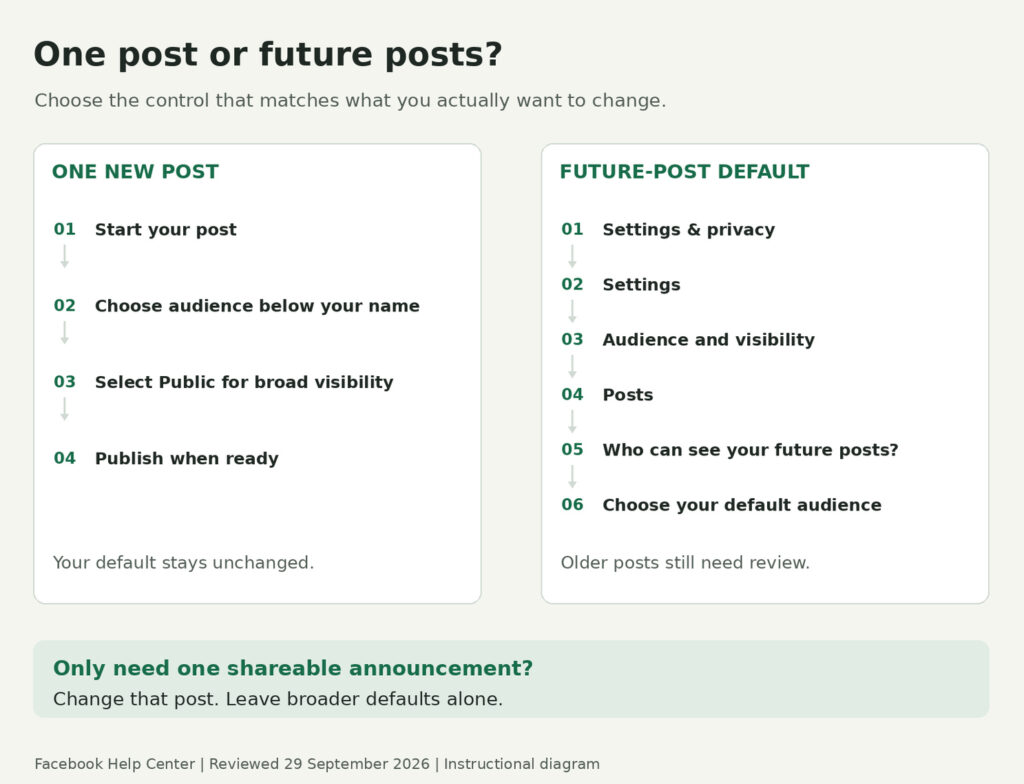
Start a post from What’s on your mind?, then select the audience shown below your name before publishing. Choose Public for an announcement intended to circulate widely, review the text and attachments, and publish when everything is ready.
For example, a community plant-swap announcement should include the event’s agreed public details. It should not also contain a private planning conversation or someone’s contact information without permission.
If your starting point is an Instagram post, use the separate guide on wie man Instagram-Beiträge für Facebook freigibt. Once it is on Facebook, check the resulting post rather than treating cross-posting and audience selection as the same task.
What the Audience Setting Actually Changes
Public means publicly visible, not merely “my friends can forward this.” It can include people outside your friend list and people off Facebook, so make the choice based on the content rather than the share count you hope to get.
| Audience | What it means for visibility |
| Öffentlich | Anyone on or off Facebook can see the content. Use it for a post intended for broad circulation. |
| Freunde | The audience is your Facebook friends; tagging can expand visibility to friends of people tagged. |
| Friends except / Specific friends / Custom | Visibility is narrowed to the people or lists you select, with exclusions where offered. |
| Nur ich | The post is visible only to you. It is not an audience setting for public sharing. |
Sharing a photo or status update does not give someone permission to expand its audience beyond the original privacy settings. A copied website link is a separate case: the website can be passed along independently of the private wording you added to your Facebook post.
If you are also reviewing who follows your profile, our guide to Facebook follower settings covers that separate topic. For this task, stay focused on the audience of the post you want people to share.
One Public Post Does Not Mean Every Future Post
Changing an individual post’s audience is different from changing your default audience. Facebook’s current guidance says the next post returns to the default selected in your privacy settings, so do not assume one public announcement makes all later posts public.
If you deliberately want to change that default, the desktop route is Settings & privacy > Settings > Audience and visibility > Posts > Who can see your future posts? Select the audience you want and click Done.
Leave the default alone if you only need one post to be shareable. Likewise, changing the future-post default is not the way to repair an older post; return to that post and edit its audience directly.
What About Facebook Pages and Groups?
The profile-post instructions are not a universal switch for every place on Facebook. Identify where the original content was published before looking for an audience selector.
Facebook Pages
Posts and comments on Facebook Pages are public, but Page posting controls are different from personal-profile controls. Open the original Page post and check its available sharing options rather than changing the default audience on your personal profile.
If you manage several profiles or Pages, also check which identity you are using. A setting on the wrong profile will not solve the problem with the original Page post.
Public and Private Groups
Public-group content is visible to people on or off Facebook, while ordinary private-group content is limited to members. You cannot use your personal profile’s Public setting to override the group’s privacy.
There is a specific exception worth knowing: Facebook’s group-privacy guidance says members can approve some private-group posts and comments to be shown publicly when group highlights are available. That is a separate approval feature, not a general Share switch for every private-group post.
For your own announcement that needs to reach non-members, create a separate public version containing only material you have permission to publish. Do not copy private replies or other members’ content into it.
Erweitern Sie Ihre Facebook-Fangemeinde.
Echte Facebook-Follower aus authentischen Profilen. Bauen Sie im Laufe der Zeit Glaubwürdigkeit auf.
Why Is the Share Option Still Missing?
First check whether the issue affects one post or several. Then work through these specific possibilities instead of repeatedly changing unrelated account settings.
- It is not your original post. You cannot change another person’s audience setting. Ask the author whether they are willing to make the original public.
- It was posted on someone else’s profile. That person controls the audience for posts on their profile. Changing your own defaults will not change it.
- It is a photo from an album. In most cases, the album’s privacy controls apply to its photos. Review the album before changing anything, because making it public may expose more than one picture.
- Your profile is locked. Facebook says locked profiles have more restricted sharing choices. Do not change a broader privacy protection without reviewing what else would become visible.
- It is a group post. Check the group’s privacy and the original post, not just the audience of a copy on your profile.
After saving a change, reopen the original post and ask the person who reported the problem to check it again. If necessary, compare the same post in the app and browser to establish whether the issue is specific to one view.
If they can open the link but see an error instead of the post, use the guide to “This Content Isn’t Available” on Facebook. Note the exact message rather than assuming every access problem is a missing Share button.
Check the Content Before Making It Public
Review more than the caption. Look at attached pictures, visible addresses, documents in the background, tags and details that were reasonable for a small audience but not for strangers.
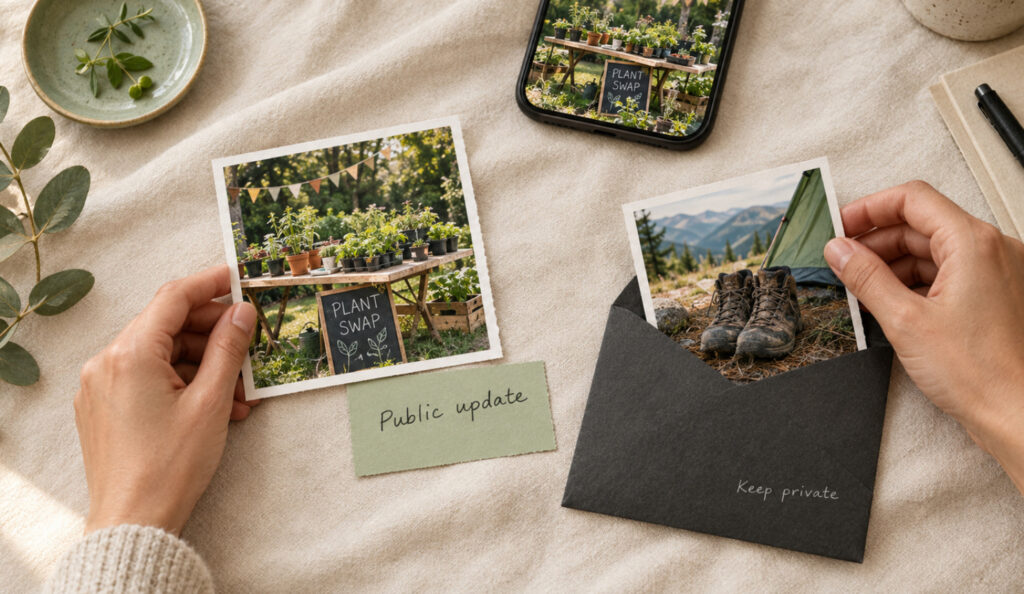
For a public event, keep the post self-contained: what is happening, the agreed public location, the date and how people can get further information. Keep private logistics in a separate conversation, and ask permission before publishing someone else’s photo or contact details.
Making a post shareable solves an access problem; it does not promise that people will share it. Aim for a clear, useful post rather than pressure such as “Share this now.”
Häufig gestellte Fragen
Can I Make Just One Facebook Post Public?
Yes. Change the audience on that individual post, leaving your default audience unchanged. Check the next post’s audience before publishing, especially when switching between public announcements and personal updates.
Can Friends Share a Post Without Making It Public?
Sharing options depend on the original audience and content. A restricted photo or status update cannot be shared through Facebook with people outside that audience; choose Public only if broader visibility is what you want.
Does Sending the Link in Messenger Bypass Privacy?
No. Sending a link does not give the recipient permission to see a restricted Facebook post. Ask the author about access rather than forwarding screenshots of private content.
Can I Make a Public Post Private Again?
For an ordinary post on your own profile, you can change its audience back to Friends or another available option. Do not treat that as a way to retrieve screenshots or copies someone already made.

BuzzVoice
BuzzVoice ist die beste Anlaufstelle, wenn Sie sofortige Engagement-Dienste in den sozialen Medien benötigen. BuzzVoice bietet eine große Auswahl an Paketen für Instagram, Youtube, Facebook, Twitter, Soundcloud und Tiktok.