How to Repost on TikTok in 2026: Share, Find and Undo
Before You Tap
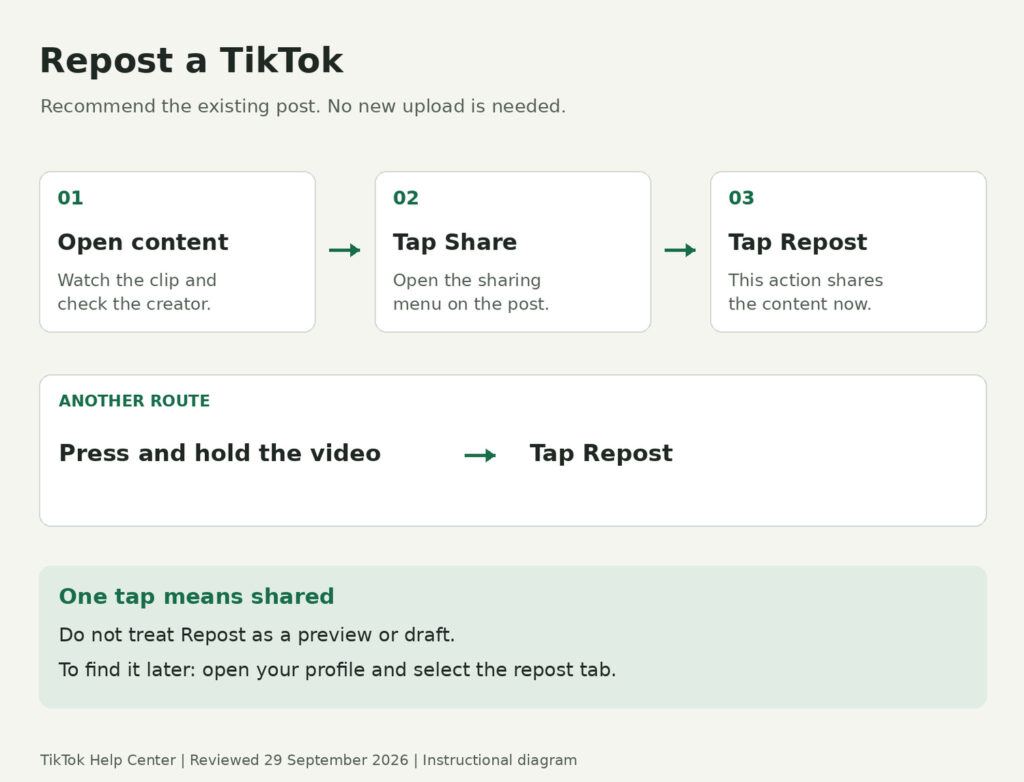
To repost on TikTok, open the content, tap Compartirentonces Repost; tapping Repost shares it immediately, and you can find it later in your profile’s repost tab, according to TikTok’s repost instructions. Do not treat that tap as a preview.
To undo it, reopen the content and use Share > Delete repost, or press and hold the video and choose Remove repost, as shown in TikTok’s removal instructions. Check the action’s wording rather than assuming every menu uses the same label.
Reposting should be a quick way to recommend something worth watching, not a confusing detour through downloads or editing tools. This guide covers the mobile-app steps, where to find a repost afterward and what to check if the option is missing.
Grow your TikTok audience.
Real followers from authentic accounts. Build credibility without risking your account.
How to Repost a TikTok
TikTok’s current app instructions give the same basic sequence: open the content, select Share and tap Repost. Work through the following steps deliberately, especially if you are exploring the sharing menu for the first time.
- Open the content you want to share. Watch it first and check who posted it. Make sure it is the exact clip you intend to recommend.
- Tap Share. Look for the sharing control on the post rather than opening the upload or recording tools.
- Tap Repost. This is the action that reposts the content, not a step toward a separate publishing screen.
The official guide also lists two alternatives: press and hold the video and select Repost, or tap a friend’s profile photo at the bottom of content they reposted and choose Repost (alternative repost methods). If you cannot find one route, check the other before moving on to troubleshooting.
Do You Have to Add a Caption First?
No caption-writing or confirmation step appears in TikTok’s documented repost sequence; it explicitly says the content is reposted once you tap Repost (TikTok’s publishing note). Do not wait for a preview screen to decide whether you meant to share it.
Where Do TikTok Reposts Go?
TikTok says reposted content can appear in friends’ and the community’s For You feeds, labeled with the reposter’s profile photo and nickname, and that your own reposted content is available under your profile’s repost tab (how repost visibility works). “Not a new original upload” therefore does not mean “hidden from your profile.”
To review what you have shared, start from your profile and look for that tab. It is a more useful starting point than scrolling through your feed hoping the same clip will reappear.
Public and Private Accounts
Under TikTok’s current repost privacy guidance, a public account’s reposted content, repost text and replies are visible to others on its profile, while a private account’s reposted content is visible to its followers on the profile and in their For You feeds. Treat reposting as sharing with an audience, not as a private bookmark.
For the separate issue of profile-visit visibility, see cómo desactivar las vistas de perfil en TikTok. Keep that setting separate from the decision to repost something.
Replying to a Repost
TikTok’s repost-reply instructions are to open the reposted content, tap your friend’s profile photo at the bottom, choose Reply, enter your response and tap Enviar. This is a conversation about the repost, so be clear about what you are responding to.
An important privacy detail: TikTok says normal comment privacy settings do not apply to repost replies, and people who can see your reposted content can choose to reply (repost reply visibility). Do not rely on comment controls alone when deciding what to share.
How to Undo or Remove a TikTok Repost
For the shortest route, open the content you reposted, tap Compartirentonces Delete repost, following TikTok’s current removal sequence. If you cannot immediately find the content, check your profile’s repost tab first.
TikTok documents two other removal routes on that same content: press and hold the video and tap Remove repost, or tap your profile photo at the bottom and then Eliminar (other removal options). These different labels are why it helps to read the menu instead of relying on an older screenshot.
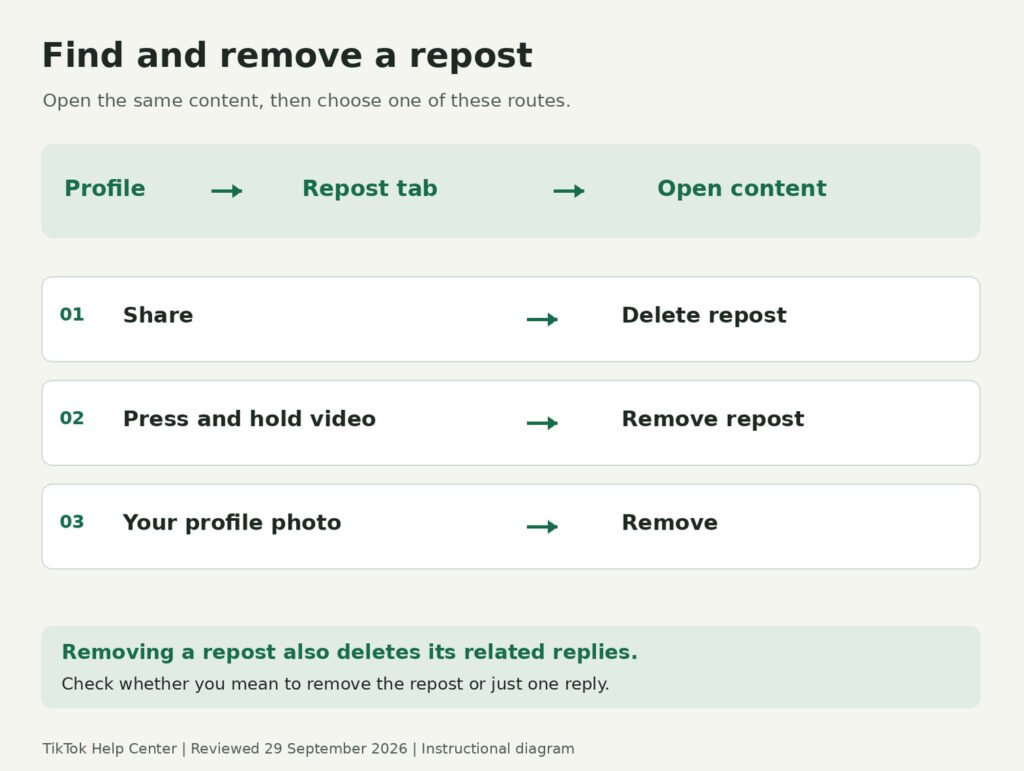
Removing the repost also deletes its related replies, according to TikTok’s management guidance. If you only want to remove a particular reply to your repost, that guide instead says to open the content, tap your profile photo, press and hold the reply and choose Delete.
Before removing anything, check whether you are acting on the repost or an individual reply. That small distinction matters if you want to keep the rest of the conversation.
Why Is the TikTok Repost Button Missing?
A missing button is a reason to check the app, not proof that your account needs more followers or a paid service. Begin with a simple comparison: is the option missing on one post, or on several different posts?
Check the Available Routes
Try both the Share menu and the press-and-hold menu documented by TikTok. If neither shows Repost, record what you see instead of assuming you have found the cause.
The current official instructions do not impose the old guide’s “For You page only” rule; they say to go to the content you want to repost (current repost steps). That is not a promise that every post will offer the option, but it is a reason not to use that old restriction as a universal diagnosis.
Work Through Basic App Checks
TikTok’s troubleshooting guidance recommends restarting the app and device, updating TikTok and the operating system, checking the connection and clearing the app cache if needed. Try one change at a time, then reopen the same content to see whether anything changed.
- Restart: Close and reopen the app; restart the device if the problem continues.
- Update: Check for available app and operating-system updates.
- Connection: Compare Wi-Fi and mobile data if you can.
- Cache: Use Profile > Menu > Settings and privacy > Free up space, then Clear next to Cache.
The same help page separates Cache, Descargas y Drafts, so choose the cache action carefully rather than deleting drafts as part of troubleshooting (storage controls). You do not need to clear every category simply because they appear together.
If It Still Does Not Appear
TikTok notes that some features or changes are tested with limited groups and may not yet be available to everyone, and offers a feedback route when troubleshooting does not resolve a problem (feature availability and support). An update is worth checking, but it is not a guaranteed way to unlock a particular button.
When reporting the issue, include the device, app version, whether it happens on multiple posts and a screenshot of the missing option. Describe the behaviour you observed rather than naming a cause you have not confirmed.
Boost likes on your TikToks.
Real likes that signal value to the FYP algorithm and lift your video's reach.
Repost, Duet or Stitch: Which Do You Need?
Choose the feature based on what you want to contribute. Sharing an existing post and recording your own response are different tasks, even if you begin from the same video.
| Característica | Para qué sirve | Choose it when |
| Repost | Shares existing content to others’ For You feeds and makes it available in your repost tab, as explained in TikTok’s repost guide. | You want to recommend the existing post. |
| Dúo | Plays your video beside another creator’s video in a split screen, according to TikTok’s Duet guide. | You want to perform, demonstrate or react alongside it. |
| Puntada | Combines part of another video with a video you create, as described in TikTok’s Stitch guidance. | You want to use a clip as the starting point for your own response. |
For example, you might repost a useful pottery tutorial because it explains a technique well. If you want to show your own attempt or discuss the result, start with an original-content idea instead; these Ideas de contenido para TikTok can help you decide what to make.
Choose Something Worth Sharing
Before reposting, watch the full clip, check the original context and ask whether it is useful or relevant to the audience you want to reach. Treat a recommendation as a choice you are comfortable standing behind, not a shortcut that guarantees more followers.
If you are browsing current TikTok trends, use them to find ideas rather than a quota of clips to repost. A tutorial, thoughtful explanation or well-made joke is a better reason to share than popularity alone.
Preguntas frecuentes
Can You Remove All TikTok Reposts at Once?
TikTok’s official removal instructions describe removing reposts individually, not a bulk-remove command. Use the documented process rather than giving an unfamiliar cleaner access to your account.
Can You Repost on TikTok From a Computer?
TikTok’s documented repost workflow is for its app, not desktop. If you cannot find the option on a computer, use the mobile app rather than assuming a browser extension is required.
Is Reposting Anonymous?
No: TikTok says reposts carry the reposter’s profile photo and nickname, with visibility governed by the account rules in its repost guide. Do not assume that the absence of a notification makes your repost invisible.

BuzzVoice
BuzzVoice es el mejor lugar al que acudir cuando necesite servicios de interacción instantánea en las redes sociales. Ofrecemos una amplia variedad de paquetes para Instagram, Youtube, Facebook, Twitter, Soundcloud y Tiktok.