How to Fix the “Checkpoint Required” Error on Instagram
Verify First, Troubleshoot Second
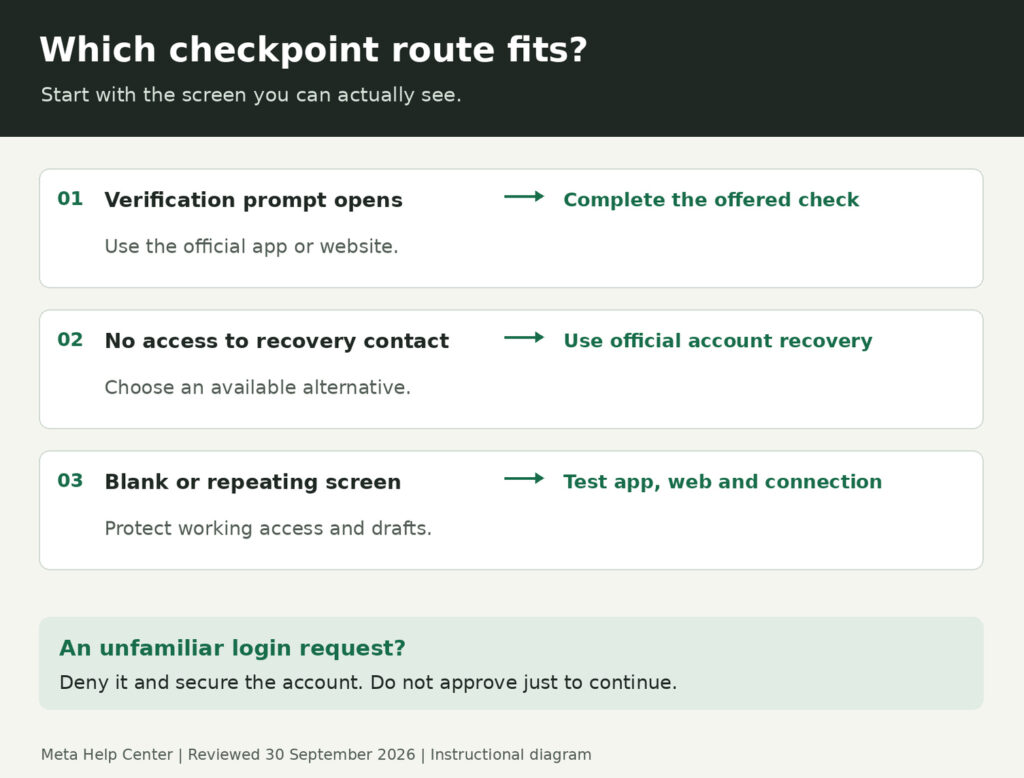
- A verification prompt opens: complete the check offered in Instagram’s official app or website. Approve a login request only when it is yours.
- You cannot receive the requested code: check the recovery destination and use the alternative or recovery options Instagram actually offers.
- The screen is blank or keeps looping: preserve any working session, then test the app, browser and connection before considering a reinstall.
Seeing “checkpoint_required” can leave you unsure whether to verify your identity, reset your password or wait. Start with the message Instagram shows next, rather than treating every login error as the same problem.
This guide separates those situations so you can choose a sensible next step. You do not need to buy engagement, hand your password to a proxy site or deactivate your account to begin troubleshooting.
Suscitez des échanges autour de vos publications.
De vrais commentaires Instagram qui suscitent l'engagement et augmentent la portée.
Open the Check in Instagram, Not an Outside Tool
If the error appears in a scheduler, analytics service or another connected tool, pause its retries. Open Instagram directly instead; an outside tool’s error message may not show the verification steps available to you.
- Use the official app or type Instagram’s website address into your browser. Do not enter your credentials on a page opened by an unsolicited “account support” message.
- Check that you are signing into the right account. This matters if you manage several profiles or have saved credentials for an older username.
- Read the next screen before changing settings. Follow the option actually offered, such as entering a code, reviewing a login request or continuing account recovery. Not every account receives the same check.
- Approve only activity you recognize. If a login request was not yours, deny it and follow the security instructions instead of choosing an approval just to get past the screen.
- Return to the account after completing the check. Confirm that your profile opens before reconnecting tools or resuming work. If the check repeats, note the exact screen where the loop starts.
If you are still signed in on a device you control, keep that session available while you work through the problem. Do not make logging out everywhere your first experiment when you are unsure whether you can sign back in.
If the message specifically says “challenge_required,” see the separate explanation of Challenge Required on Instagram. Keep the exact wording in your notes instead of assuming two similar labels describe an identical failure.
Choose the Route That Matches Your Screen
The error label alone is not enough to tell you whether someone accessed your account, Instagram is unavailable or a connection is blocked. The next screen, your access to recovery contacts and any unfamiliar account changes are more useful clues.
| What you can see | What to do next |
| A code field or login approval request | Complete that specific check through Instagram. Do not approve an attempt you did not make. |
| A masked email address or phone number you cannot access | Use an available alternative or the official account-recovery route. |
| A blank page, spinner or repeating screen | Try the app and website separately, then follow the troubleshooting checks below. |
| Contact details or account activity you did not change | Treat this as a possible account-security problem and use recovery rather than repeated login attempts. |
| A message saying the account is suspended or disabled | Follow the review or appeal instructions attached to that message. Do not treat it as a routine app glitch. |
When the Verification Code Does Not Arrive
First, look at the destination shown on the screen. A code sent to an old phone number will not reach your current phone simply because you reinstalled the app.
- Email: check the inbox for the address shown, including spam and filtered folders. If you have several accounts, confirm that the recovery address belongs to the profile you are trying to open.
- Text message: check that the displayed number is yours, your phone has service and the message has not been filtered. Follow any resend countdown rather than pressing the button repeatedly.
- Authenticator app: use it only if the screen asks for an authentication-app code and you previously set it up for this account. An email code and an authenticator code are not interchangeable.
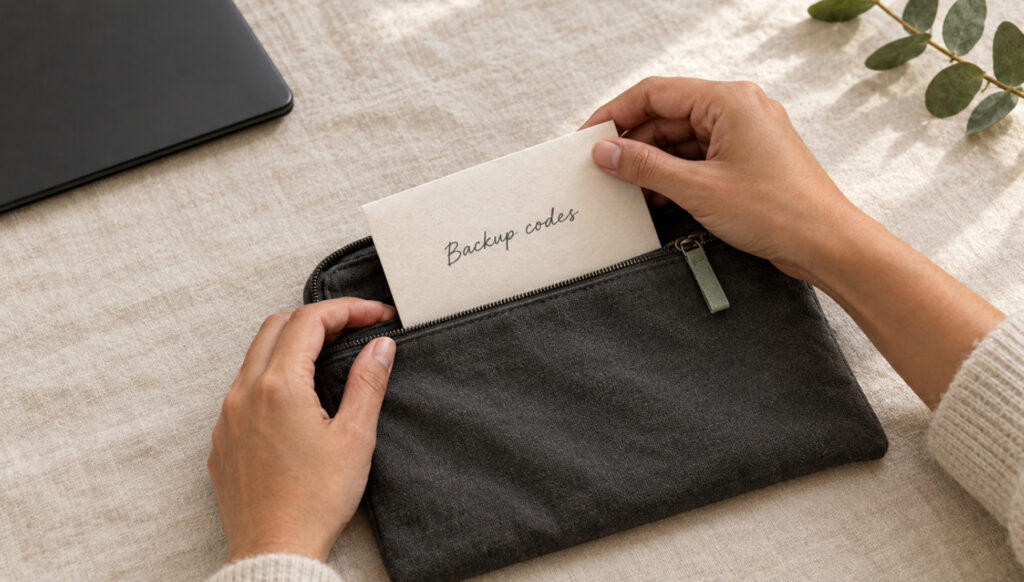
- Backup code: if you previously saved Instagram’s two-factor backup codes, use one through the corresponding option when available. A backup code is not a universal substitute for every identity check.
If you requested several messages, use the code associated with the current attempt. Keep all codes private, including when you are asking someone else to help you troubleshoot.
No access to the email address or phone number?
Move to Instagram’s official account-recovery guidance rather than trying endless resends. It covers login links, lost access and situations where account details may have been changed.
From the login screen, use Forgot password? or the recovery option displayed. Enter the username, email address or phone number requested, then follow the available instructions; a password-reset link may help with a forgotten password, but it does not promise to remove a separate verification check.
Instagram may offer further identity checks, including a video selfie in some cases. That option is not available to every account, and there is no guarantee that everyone sees the same recovery sequence.
If the process asks for a contact email you can currently access, use a secure address that only you control. Do not post recovery screenshots containing full contact details, codes or login links in a public forum.
Signal value to the IG algorithm.
Real saves from authentic profiles. The strongest engagement signal on Instagram.
Fix a Blank Screen or Repeating Checkpoint
A check that fails to load needs a different approach from a code sent to an inaccessible number. These steps are based on Instagram’s app-troubleshooting guidance, but they are tests for a technical problem, not ways to bypass verification.
- Update Instagram and your phone’s software. Use the App Store on iPhone or Google Play on Android, then close and reopen Instagram.
- Restart your phone. Try the same legitimate login route again and note whether the screen changes.
- Compare the app with the official website. If the app loops but the website loads a check, complete the available instructions there. Keep an existing working session intact.
- Test a different trusted connection. Switching between your own Wi-Fi and mobile data can help identify a connection problem. It does not prove your IP address was banned, and it is not an instruction to cycle through proxies.
- Consider reinstalling only after protecting access and drafts. Make sure you know your login details and can reach the necessary recovery methods before removing the app.
Reinstalling can cost you unpublished work. Instagram says Reel drafts are stored on your device and are lost when the app is uninstalled. Save any work you can access first, and do not casually clear app storage while troubleshooting.
Test one change at a time. If you update, switch devices, reset your password and reinstall together, you lose track of which change affected the problem.
Skip the “Fixes” That Do Not Complete Verification
Some older guides recommend changing your apparent location, becoming more active or temporarily disappearing from Instagram. None of those suggestions should replace the check Instagram is asking you to complete.
- Free proxy login pages: do not give an intermediary your Instagram password or security code. Open the official app or website yourself.
- Extra likes, comments or follows: activity is not a substitute for proving account ownership. Buying engagement is not an account-recovery method either.
- Temporary deactivation: this guide does not recommend deactivating your profile as a checkpoint repair. It adds another account-state change without resolving the underlying verification request.
- Paid “unlock” offers: do not send strangers your password, backup codes or recovery links. Use the recovery options available through Instagram.
- A guaranteed waiting period: do not assume every checkpoint disappears after a fixed number of hours. Follow a timer if your screen provides one; otherwise choose the route that matches the actual problem.
If you can use your account but see “We restrict certain activity” when performing an action, keep that message separate from this login-checkpoint workflow. Record which action is restricted rather than repeatedly attempting it.
After You Get Back In, Review Account Security
Restored access is a good moment to check whether the account still has the contact details and connections you expect. Look for the account-security controls available in your settings; wording can vary as Meta updates its account menus.
- Review signed-in devices: investigate unfamiliar sessions and remove access you do not recognize. The guide to logging someone out of your Instagram account covers that separate task.
- Check recovery contacts: confirm that your email address and phone number are current and under your control.
- Change a compromised password: choose a unique password if someone may have learned yours or you see unauthorized changes.
- Review connected apps: remove services you do not recognize or no longer need.
- Set up two-factor authentication: keep the recovery options available to you in a private, secure place, including any backup codes you save.
If you reconnect a legitimate work tool, do so only after direct access is working. Do not share your recovery material with the tool’s support agent or anyone claiming they need it to finish an unlock.
Report a Persistent Technical Problem
If you can still reach Instagram’s menus, open your profile menu and look for Help > Report a problem. Menu groupings may differ; choose the technical-report option available in your app.
Describe the exact error, your device, what you were doing and which steps you have already tried. Add a screenshot if useful, but hide security codes, private messages and recovery details.
For example: “On my iPhone, the app returns to the verification screen after I submit the requested code. The website opens normally. I updated the app and restarted the phone, but the loop continues.”
If you cannot reach those menus because you are locked out, return to the account-recovery route instead. A report form inside a signed-in session is not a practical first step for someone who cannot sign in.
Questions fréquemment posées
Does “Checkpoint Required” mean my Instagram account is banned?
The wording alone does not establish a ban. Read the next screen: a verification request calls for completing that check, while a suspension or disabled-account notice calls for the review process attached to that notice.
How long does the Checkpoint Required error last?
There is no single recovery time you should rely on for every checkpoint. Follow any waiting period shown in your account, but do not substitute a generic 24-hour promise for an unfinished verification or account-recovery step.
Can I bypass the checkpoint without a code?
Do not use a bypass service. If you cannot receive the requested code, use another method Instagram offers or continue through official account recovery. Previously saved two-factor backup codes help only when the relevant option is available.

BuzzVoice
BuzzVoice est le meilleur endroit où aller lorsque vous avez besoin de services d'engagement instantané sur les médias sociaux. Nous proposons une grande variété de forfaits pour Instagram, Youtube, Facebook, Twitter, Soundcloud et Tiktok.