Come accettare richieste di follow su Twitter (X): Guida completa
Three Taps on a Protected Account
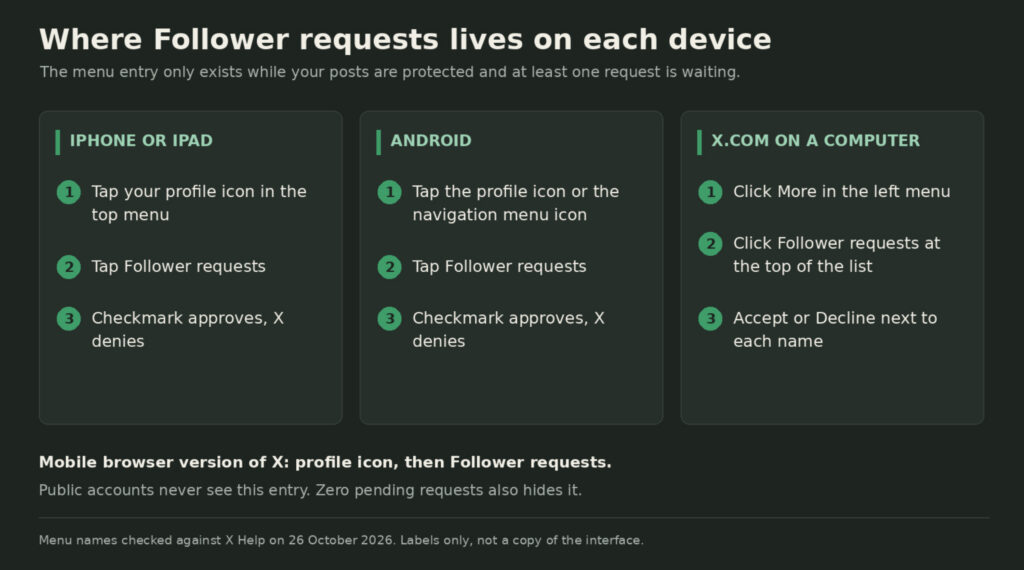
Follow requests only exist when your posts are protected. In the X app, tap your profile icon (or the navigation menu icon on some Android phones), tap Follower requests, then tap the checkmark to approve someone or the X to turn them down. On a computer, open Di più in the left menu, click Follower requests at the top of the list and choose Accept o Declino. If you cannot find the entry at all, your posts are probably public, or nobody is waiting.
Grow your X audience.
Real followers from authentic profiles. Build credibility on X without the wait.
Why You Are Getting Follow Requests at All
X posts are public by default, and public accounts never see a follow request. People simply tap Follow and start seeing your posts. The requests appear only after you turn on Proteggete i vostri messaggi in your privacy settings. From that moment, anyone new who wants to follow you has to ask, and nothing they ask for happens until you say yes.
Protection also changes what your existing followers can do. People who already followed you before you protected your posts keep following you without any approval, and they can still read and reply to everything. Your followers lose the repost option on your posts, your posts stop appearing in Google and other outside search engines, and only you and your followers can find them in X search. Replies you send to someone who does not follow you will not reach them, because they cannot see your posts in the first place.
How to Accept Follow Requests in the X App
The mobile route is the same on iPhone, iPad and Android, with one small difference in the first icon.
- Open the X app and look at the top of the screen. On iPhone and iPad you will see your profile icon. On Android you will see either your profile icon or a navigation menu icon; tap whichever one you have.
- In the menu that slides out, tap Follower requests. The entry carries a small count of how many people are waiting.
- Work through the list. Tap a name if you want to look at the account first, then tap the checkmark to approve the request or the X to deny it.
There is no accept-all button, so each request is a separate decision. If the list is long because you only just protected your posts, set aside a few minutes rather than approving on autopilot. The same screen is available in the mobile browser version of X: tap your profile icon, then Follower requests.
How to Accept Follow Requests on a Computer
On x.com the requests sit in a slightly different place, inside the More menu rather than behind your profile picture.
- Sign in on the website and find Di più in the left-hand menu, the entry with three dots.
- Click it and look at the top of the list for Follower requests. It shows a number when requests are pending.
- Cliccare Follower requests to open the list, then click Accept o Declino beside each account.
The web view is the easier place to clear a long queue, because every name sits in one scrollable list with its buttons alongside. It is also the only place where you can remove a follower afterwards, which matters if you later change your mind about someone you approved.
If You Cannot See Any Follow Requests
The Follower requests entry disappears completely whenever it has nothing to show, so an empty menu is not a bug. Run through these checks before assuming something is broken.
- Your posts are public. Public accounts never receive requests and never see this menu entry. Open Settings and privacy, then Privacy and safety, then Audience and tagging, and check whether Protect your posts is switched on.
- Nobody is waiting. When the count hits zero, the entry vanishes from the menu until the next request arrives.
- The person cancelled. If you received an email about a new request but it is not in the list, the sender most likely withdrew it after sending.
- You recently switched to public. Any requests that were pending when you turned protection off are dropped, not approved. Those people have to follow you again, and if your posts are now public they can do so without asking.
Before You Tap the Checkmark
Approving someone gives them the full picture: every protected post you have ever published, not just the ones from today onward. The decision deserves a short look at the account rather than a reflex tap. Open the profile and check whether the display name and handle match, whether there are any posts and whether they are the kind of posts a real person writes, and whether the account follows a sensible number of people for its age. An account with a long string of numbers in its handle, no posts and thousands of follows is the usual pattern for automated accounts, and it costs nothing to leave it waiting or deny it.
Approving is also reversible. If someone turns out to be a problem later, you can remove them as a follower or block them, and either action cuts off their view of your protected posts. The next section covers how.
Declining, Removing and Blocking
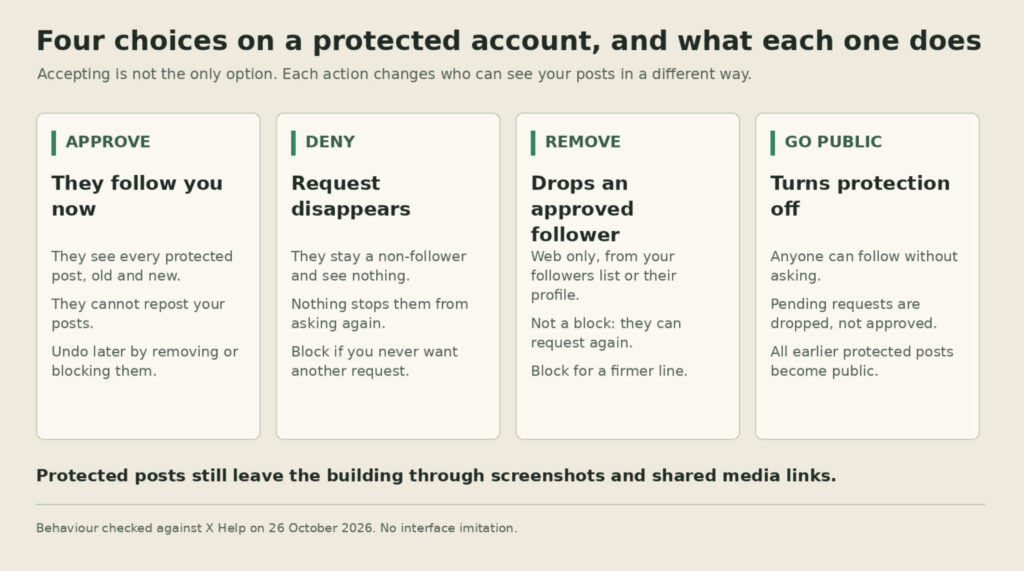
Denying a request is the lightest option. The request disappears from your list, the person stays a non-follower and sees none of your protected posts. X Help does not describe any notification for a denied request, although the person can tell from your profile whether their request is still pending. Denying does not stop them from asking again, so a persistent account may reappear in your list.
Removing a follower is for someone you already approved. On x.com, open your followers list or their profile, click the more icon next to the Follow button and choose Rimuovi questo follower, then confirm. X Help notes that this is currently available on the web only, so you cannot do it inside the app. Removal is not a block: the person can send a new request, and you will see it in the same Follower requests list as before. If you want a firmer line, block the account instead, which stops it from following you, messaging you or interacting with your posts. Our guide to removing followers on Twitter walks through the difference in more detail.
Turning Follow Requests Off
If approving requests has become a chore, the only way to stop them is to make your posts public again, because X has no separate approve-followers switch. Open Settings and privacy, go to Privacy and safety, open Audience and tagging and turn off Protect your posts. On iPhone the setting is a slider; on Android and on the web it is a checkbox. Some app versions label the section Audience, media and tagging, which is the same place.
Two consequences are worth knowing before you flip it. Every post you published while protected becomes public, including anything you would rather not have in search results. And as noted above, anyone still waiting for approval is not approved automatically; their requests are discarded and they have to follow you again. Our guide to how to see all followers on Twitter is useful once the account is public and the list starts growing without your say.
Get more love on your tweets.
Real likes from active X users. Push social proof on every post.
What Protection Does Not Cover
Protecting your posts controls who can follow you, not what approved followers do next. Anyone you approve can screenshot a post and share it anywhere. Links in protected posts are shortened to t.co addresses, and anyone who has one of those links can open the destination. Photos and videos work the same way: only followers see them inside your posts, but a direct media link can be viewed by anyone who has it. Third-party apps you have authorised may also be able to read protected posts. Our explainer on whether people can see what you like on X covers the other half of the privacy picture.
If your goal is a large audience rather than a vetted one, protected posts work against you, because nobody new can see what you publish without applying first. Most creators keep posts public and manage the occasional unwanted follower with remove or block instead. For accounts that need faster momentum on a public profile, BuzzVoice offers Seguaci X as a paid option; it is a separate decision from the privacy settings covered here.
FAQ
Can someone see my posts before I accept their request?
No. Until you approve the request, the person sees your profile header, bio and follower counts but none of your posts. The exception is anyone who already followed you before you protected your posts, since existing followers keep access without a new request.
Do follow requests expire on X?
X Help does not give an expiry period for pending requests. A request can disappear from your list if the sender cancels it, if you deny it, or if you switch your posts to public, which discards everything still pending.
Why does the Follower requests option keep disappearing?
The entry is hidden whenever there is nothing to show. If you have zero pending requests, or your posts are public, the menu simply does not include it. It comes back as soon as a new request arrives on a protected account.
Can I approve all follow requests at once?
No. Each request has its own approve and deny controls and there is no bulk option, on the app or on the website. If you want everyone to be able to follow you without a queue, turn off Protect your posts instead.

BuzzVoice
BuzzVoice è il posto migliore dove andare quando si ha bisogno di servizi di engagement immediato sui social media. Offre un'ampia gamma di pacchetti per Instagram, Youtube, Facebook, Twitter, Soundcloud e Tiktok.
![Quanto possono essere lunghi i video su Twitter? Guida [anno]](https://buzzvoice.com/app/uploads/2026/08/How-Long-Can-Twitter-Videos-Be-2026-Guide-4-573x338.jpg)