How to Hide Chat on TikTok Live Streams: 5 Steps
Wondering how to hide chat on TikTok Live stream? TikTok Live is an excellent way to interact with your favorite creators in real time. But let’s be honest, the live chat can be distracting at times, especially if all you want to do is watch the video.
Fortunately, TikTok has a built-in option to turn off chat on TikTok Live, allowing you to enjoy a more immersive, distraction-free viewing experience. In this guide, we’ll walk you through the process, as well as tips to improve your viewing experience and even how creators can manage their TikTok Live chat settings to create a more positive environment.
If you’re a creator looking to get on FYP page, check out BuzzVoice’s TikTok engagement services, which include TikTok likes, comments, shares, and followers.
How to Hide Chat on TikTok Live (Step by Step)
TikTok has made it easy to hide comments while watching TikTok Live, giving users greater control over their viewing experience. As of 2026, here’s how to do it on both iPhone and Android devices using the TikTok app:
Open TikTok Live – Begin by tapping on any live broadcast in your feed or under the “Live” tab in the TikTok app.
Tap Anywhere on the Screen– This activates the on-screen controls and renders the interface responsive.
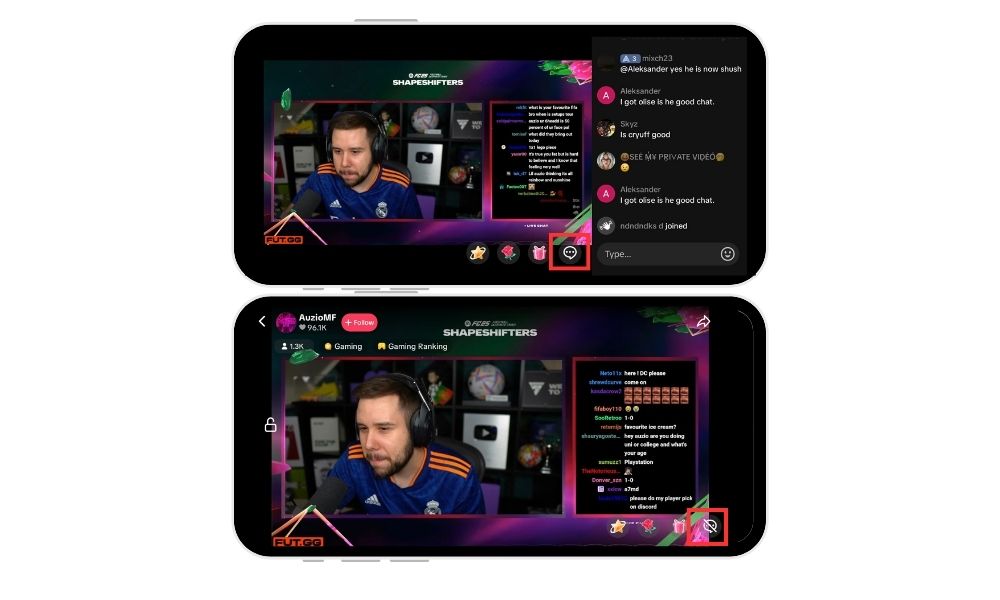
Look for the small message icon or use a swipe gesture. You’ll either see a small message bubble icon (usually appearing in the middle or lower part of the screen), or you can swipe right.
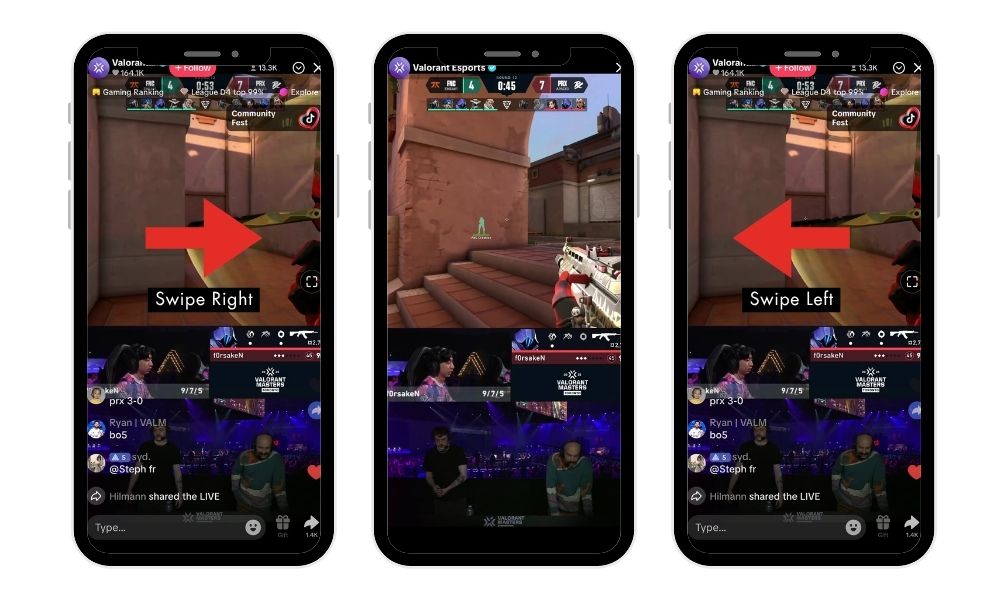
Tap the Icon to Hide Comments– When tapped, the chat overlay hides, making comments no longer visible and rendering them hidden from the screen. This results in a cleaner, almost TikTok Live full-screen experience without the chat feel.
To bring the Chat Back, Tap Again or Swipe left – Do you want to see what people are saying again? To restore the chat, simply tap the same area or swipe left, and comments will start appearing again.
Tip: You can also adjust settings in the TikTok app or set up additional preferences for live streams to achieve the best results for a distraction-free experience during any TikTok live stream.
This method works on most iOS and Android devices and is especially useful when watching various videos, including tutorials, performances, or ASMR videos, where focus is required. Comments appearing on the screen can be managed using these steps.
Minimizing chat clutter can also help creators increase viewer retention, especially when combined with BuzzVoice’s TikTok Followers, Comments, and Views services, which keep your content front and center.
Introduction to Live Streaming on TikTok
TikTok Live is an exciting feature that brings creators and their audience together in real time, making every live stream a unique opportunity for connection and engagement. When watching TikTok Live, viewers can participate in the conversation by sending comments, which appear instantly on the screen.
This interactive chat on TikTok Live helps foster a lively community, but it can sometimes become overwhelming, especially if the chat fills up with too many messages or inappropriate comments.
Whether you’re a viewer who wants to enjoy the content without interruptions or a host aiming to create a positive environment, hiding chat can make your experience more enjoyable. In this article, we’ll explore the different ways to manage and hide comments on TikTok Live, so you can engage with your favorite creators and content in the way that suits you best.
Related: Best time to do a live on TikTok
Why You Might Want to Hide Chat During Lives
While TikTok Live is designed for real-time interaction, there are several reasons why viewers may choose to disable chat on TikTok Live. Hiding chat can help create a positive experience for viewers by reducing distractions and making the content more enjoyable.
1. Reduce Distractions
Live chat discussions can sometimes detract from the main content, making it harder for viewers to focus. While TikTok users can interact and connect with creators in real time through chat, some may choose to hide chat for a more focused experience.
2. Avoid Negative Comments and Spam
Some viewers may want to avoid seeing negative or inappropriate comments that can appear in the chat during a live stream. Live chats can be fast, sometimes too fast. Viewers may reveal spoilers while watching live storytelling, event streams, or games. Others may fill the chat with spam, emojis, or off-topic comments. By muting live chat on TikTok, you can protect your experience and focus on the content itself.
3. Privacy and Control
Adjusting account privacy settings can help restrict who can participate in chat, giving users more control over their experience. Additionally, users can visit a creator’s page to view content without chat distractions.
4. Better View of the Creator’s Content
Sometimes all you want to do is appreciate what’s happening on screen without being distracted. Whether it’s a cooking demo, makeup tutorial, or live concert, hiding the chat allows you to watch TikTok Live full screen without interruption, making the most of your screen space.
5. Reduce Visual Clutter
The chat can take up an unexpected amount of space, particularly on smaller devices. Removing it cleans up the interface, makes it less chaotic, and easier on the eyes—perfect for late-night scrolling or passive viewing.
BuzzVoice’s TikTok Shares, Likes, and Comments services allow you to amplify your content and increase real-time interaction on your terms.
Host Control: What Creators Can Do About Chat
As a host on TikTok Live, you have powerful tools at your fingertips to ensure your live stream remains a positive space for your audience. TikTok allows you to manage the chat by adjusting the settings menu before or during your broadcast.
You can choose to hide comments entirely, limit who can comment, or even mute specific users if the conversation becomes crowded or inappropriate. For even more control, the share icon gives you access to the “Clear Display” feature, which removes chat comments from the screen, helping you maintain a clean and focused stream.
Related: TikTok Caption Ideas that get more likes and views
Customization Options for Your TikTok Live Experience
TikTok offers a range of customization options to help you get the most out of your live streaming experience. As a viewer, you can easily hide comments while watching TikTok Live by swiping left on the screen or tapping the “Clear Display” button, instantly creating a distraction-free environment.
If you find comments on TikTok Live consistently disruptive, you can also adjust your settings to minimize or hide them for future streams, ensuring a clear display every time you tune in. These features allow you to focus on the live video and enjoy the content without unnecessary interruptions.
TikTok Live Tips for a Clean Viewing Experience
If you want to have a distraction-free TikTok Live session, hiding the chat is only the beginning. Here are a few more tips to help you have a smoother, more focused viewing experience.
1. Use Full-Screen Mode if Available
Some TikTok Lives now offer a more immersive full-screen layout, particularly on newer devices or during high-production streams. This works perfectly with the option to hide comments while watching TikTok, providing a minimal and cinematic experience.
2. Enable “Do Not Disturb” Mode
Even if you’ve successfully removed comments from TikTok Live, push notifications from other apps may still interrupt your experience. Turning on Do Not Disturb prevents you from being distracted by calls, texts, or app alerts while watching.
3. Use Headphones for Better Audio Clarity
A lot of TikTok Lives include music, ambient sounds, or important speeches. Using headphones allows you to focus on the creator’s message while drowning out background noise especially useful if you’re multitasking or in a noisy environment.
For content creators, maintaining viewer engagement with a clean, enjoyable Live stream is critical to growth. For content creators, maintaining viewer engagement with a clean, enjoyable Live stream is critical to growth.
Conclusion
Hiding chat on TikTok Live is simple, and it can greatly improve your experience with live content. Whether you want to avoid spam, focus on a tutorial, or simply have a cleaner screen, this simple feature gives you more control as a viewer in 2026.
As TikTok grows in popularity, knowing how to adjust your TikTok Live chat settings menu can help you personalize your experience for maximum enjoyment.
If you’re a creator looking to reach a larger audience, tools like BuzzVoice’s TikTok Followers, Likes, Views, Comments, and Shares can help you increase your visibility and make every live session count.
FAQs on how to hide chat on TikTok live
Can I hide chat on all Lives by default?
TikTok currently does not provide a setting to automatically turn off chat on TikTok Live for each stream. Every time you join a Live, you will need to manually hide comments. Hopefully, a future update will include a default option for users who want a cleaner interface.
Does hiding chat block messages from others?
No. When you hide comments while watching TikTok, they are only removed from your screen. You are not blocking or muting anyone, and they can still see and send messages in the chat.
Can creators disable chat for viewers?
Yes, creators can manage their TikTok Live chat settings. They can restrict who can comment, mute specific viewers, or even disable chat entirely during a broadcast. This is especially useful for reducing spam and maintaining a focused and respectful environment.
Why doesn’t the “hide chat” option sometimes show up?
If the option to hide chat does not appear, it could be due to a temporary bug, an outdated app version, or a specific Live setup (such as shopping Lives or collaborative streams). Instead of using an icon, try updating your app, restarting TikTok, or swiping to find the mute live chat TikTok gesture.

BuzzVoice
BuzzVoice is the best place to go when you need instant engagement services on social media. Offering a wide variety of packages for Instagram, Youtube, Facebook, Twitter, Soundcloud & Tiktok.