How to Hide Followers on SoundCloud
Managing privacy on digital platforms has become a priority for creators, musicians, and listeners alike. SoundCloud, known for its large and engaged community, gives users powerful tools to upload, share, and promote music. However, one question keeps surfacing among users — how to hide followers on SoundCloud?
If you’ve ever wanted to make your SoundCloud profile more private or wondered whether it’s possible to hide your followers completely, this in-depth guide explains everything clearly. You’ll learn what SoundCloud allows, what limitations exist, and how to optimize your account settings for maximum privacy and security.
Unlock SoundCloud success by gaining reposts, followers, and likes that attract new fans daily.
Understanding SoundCloud and Its Privacy Features
SoundCloud is a major music streaming platform that allows users to upload original tracks, discover new artists, and build an audience. With millions of creators across genres like hip-hop, EDM, pop, and podcasts, it’s more than just a streaming platform — it’s a creative ecosystem.
When you create your SoundCloud account, you automatically get a profile that displays your uploads, followers, likes, and reposts. Every public profile is accessible to anyone, meaning people can see who follows you and whom you follow.
This visibility is useful for professional growth, especially if you’re trying to gain traction or network with other artists. But for some, the public nature of followers can raise privacy concerns.
Related: How to See Your Followers on SoundCloud?
Can You Hide Followers on SoundCloud?
Let’s get straight to the point:
It’s not possible to completely hide your followers on SoundCloud. The SoundCloud Help Center clearly states that your followers, the people you follow, your likes, reposts, and comments are always public.
So, even if you make some parts of your account private, your followers list will still remain visible. However, you can control who interacts with you, who sees your tracks, and what content appears public.
The key is learning to adjust your privacy settings effectively.
Why People Want to Hide Followers
There are several reasons why someone may wish to hide or manage followers:
- Professional privacy: You may want to separate your professional artist profile from your personal one.
- Avoid unwanted attention: Some users attract spam or fake accounts that clutter their followers list.
- Control audience visibility: Musicians might prefer only selected people to access their content.
- Security concerns: With increasing digital risks, managing visibility can enhance performance security.
- Personal preference: Some simply value their privacy and wish to reduce exposure.
While SoundCloud doesn’t yet provide a “Hide Followers” button, there are still strategic ways to limit exposure and manage followers indirectly.
💡 Pro Tip: More SoundCloud followers equals stronger social proof. Build trust with fans and industry professionals alike.
Step-by-Step Guide: How to Hide Followers on SoundCloud (Indirectly)
Although you cannot directly hide your followers, you can reduce their visibility through a combination of privacy and account settings adjustments. Here’s a simple step-by-step breakdown:
Step 1: Log In to Your SoundCloud Account
Start by visiting the official SoundCloud website or launching the SoundCloud app.
Use your login credentials to log into your account.
If you’re using a new device or location, SoundCloud may ask you to verify you are human before granting access. You’ll see a message like:
“help.soundcloud.com needs to review the security of your connection before proceeding.”
This verification process ensures performance security and confirms that a real human is accessing the account, not a bot.
Once verification successful, click Continue to move forward.
Step 2: Go to Account Settings
After logging in, click your profile image in the upper-right corner of the SoundCloud app or website.
From the dropdown menu, select Settings.
This section allows you to modify your account, privacy, and security preferences.
If SoundCloud detects suspicious activity, you might again see a message like:
“Review the security of your connection before proceeding.”
Wait for help.soundcloud.com to respond and confirm your connection before making any changes.
Step 3: Manage Privacy Settings
In the Settings menu, select the Privacy tab. This is where you control what’s visible to the public and who can interact with your tracks and activity.
Here are a few adjustments you can make:
- Make your tracks private: Click on any track, go to share, and select Private. This ensures that only you or people with the private link can access it.
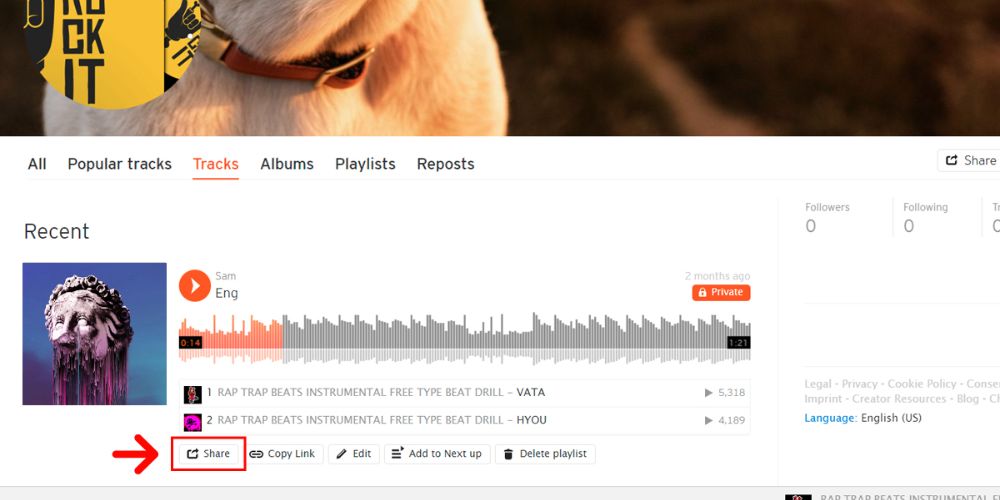
- Use secret playlists: If you want to share music selectively, create a secret playlist. Share the link only with specific users or collaborators.
- Control comments and likes visibility: You can disable comments or make likes less visible by adjusting who can interact with your uploads.
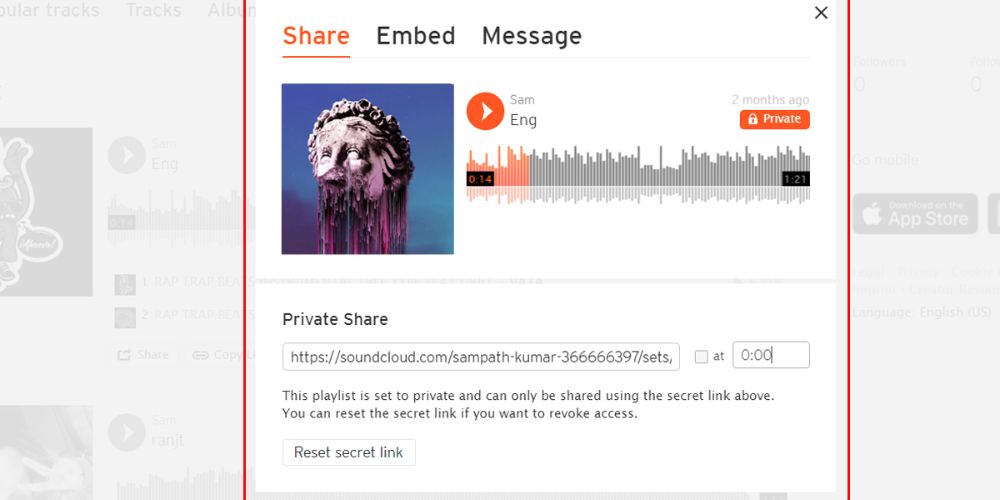
These options don’t hide your followers, but they limit what they can see or engage with — a practical approach to enhancing privacy.
Step 4: Block or Remove Followers
If you want to stop certain users from following or viewing your activity, you can block them manually.
To remove or block a follower:
- Visit the follower’s profile.
- Click the three dots (•••) next to their name.
- Choose Block.
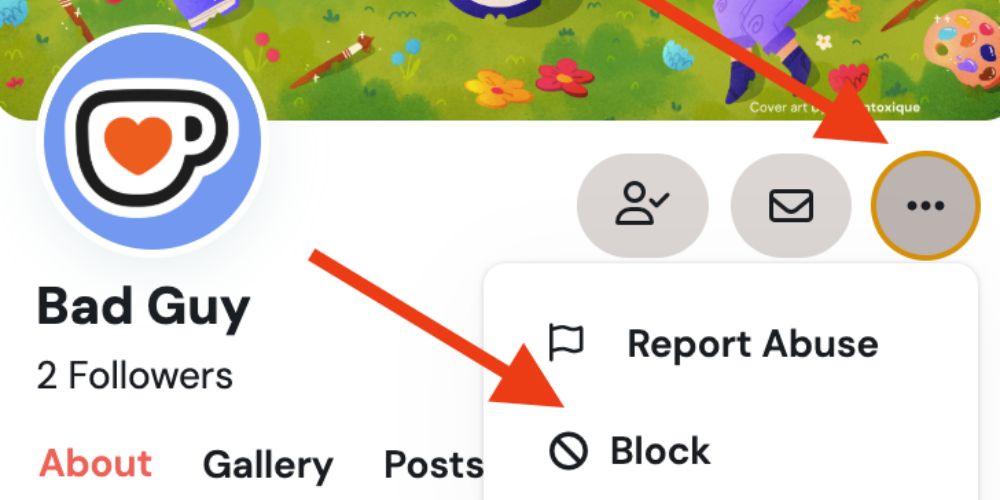
Once blocked, they’ll no longer be able to follow you, comment, or interact with your tracks.
This is particularly helpful for dealing with spam or fake accounts — or when you notice a lot of followers coming from untrusted locations.
Step 5: Make Your Profile Private (Limited Control)
SoundCloud does not allow fully private profiles like some other platforms (for instance, YouTube or Instagram). However, you can make your uploads private and restrict who interacts with you.
When you adjust account settings to private mode, only approved users can see your content. This helps you maintain a professional image while managing privacy.
Remember, even with a private profile, your followers remain visible, but your activity and uploads can be tightly controlled.
Step 6: Review Security Before Proceeding
Whenever you make changes, SoundCloud may prompt:
“help.soundcloud.com needs to review the security of your connection before proceeding.”
This extra step ensures safe modification of your account settings.
Wait for help.soundcloud.com to respond, and when you see verification successful waiting, click Continue to complete the process.
Related: How Many Followers on SoundCloud to Get Paid?
Extra Tips to Enhance Privacy and Control
While SoundCloud’s privacy options are limited, combining several actions can give you strong control over your digital identity. Below are additional ways to improve your experience:
1. Use a Professional Image and Description
A clean profile image, well-written bio, and correct genre tags make your SoundCloud profile look more credible.
Avoid sharing personal location details or contact info publicly if privacy is your concern.
2. Regularly Review Your Followers
Every few weeks, review your followers list. Remove any suspicious accounts, bots, or fake users.
This helps maintain your performance security and ensures a healthy follower base.
3. Limit Linked Accounts
SoundCloud allows linking to other platforms like YouTube, Instagram, or Twitter.
If privacy matters, unlink your YouTube or social accounts to prevent public cross-promotion.
Go to Settings → Connections and review which accounts are linked before proceeding.
4. Be Selective When Sharing Music
When you upload a track, select its privacy status carefully. Choose Private if it’s not meant for everyone.
You can later switch it to Public once you’re ready for wider activity.
5. Check SoundCloud’s Security and Privacy Updates
SoundCloud occasionally updates its policies for security, verification, and privacy.
Keep an eye on the latest notices through help.soundcloud.com to stay informed.
Sometimes, while accessing help pages, you may encounter:
“Verification successful, waiting for help.soundcloud.com to respond.”
This message simply means your connection is being checked before displaying sensitive information.
How SoundCloud Verification Works
When SoundCloud detects an unusual log or suspicious location, you may see prompts like:
- “Verify you are human.”
- “Review the security of your connection before proceeding.”
- “Verification successful waiting for help.soundcloud.com to respond.”
This verification process is a standard security feature that ensures the human behind the account is legitimate.
Completing the action helps protect your account from unauthorized access.
What Happens After You Complete the Action
Once you’ve gone through the verification process, SoundCloud confirms it by displaying:
“Verification successful.”
You can then safely adjust your account settings, make your tracks private, or update your profile.
If you ever see “waiting for help.soundcloud.com” for too long, refresh your connection and retry — it’s usually a temporary server check or Ray ID verification step for security performance.
Managing Followers Like a Professional
Even though you can’t hide followers entirely, you can still manage them smartly.
Here’s how professionals do it:
- Engage selectively: Respond only to genuine comments and avoid spam.
- Post strategically: Upload music that fits your genre and target audience.
- Keep it clean: Use a consistent image and description for credibility.
- Control exposure: Share private tracks only with trusted collaborators.
- Use secret playlists: Great for sharing drafts or unreleased content with a limited audience.
By balancing privacy, engagement, and security, you’ll have a safer and more controlled SoundCloud experience.
Common SoundCloud Privacy Issues (and Fixes)
- Spam Followers: If you’re getting a lot of spam followers, remove or block them. This not only protects your profile but also improves performance security.
- Unauthorized Logins” SoundCloud may detect log attempts from unusual locations. When that happens, it triggers the verify you are human prompt to secure your account.
- Playback or Upload Problems: Issues with tracks may occur due to unstable connections. Always review the security of your connection before proceeding to upload.
- Support Delays: When reaching out to SoundCloud support, you might notice messages like:
“Help.soundcloud.com needs to review the security of your connection before proceeding.”
Be patient — it’s part of the verification cycle. Once the verification successful message appears, your query will process automatically.
Why Privacy Matters on SoundCloud
Privacy is not just about hiding data — it’s about controlling what others see and how they interact with you. On platforms like SoundCloud, your visibility shapes your reputation.
For emerging artists, keeping things public helps with discovery. But for producers or professionals managing collaborations, private settings help maintain a selective experience.
Balancing both sides ensures you keep your artistic freedom while staying secure.
💡 Pro Tip: SoundCloud plays make your tracks more discoverable and appealing to both fans and industry experts.
Final Words
In conclusion, while SoundCloud doesn’t offer a direct way to hide your followers, you can still protect your privacy and manage visibility through smart account settings. Making tracks private, using secret playlists, and blocking unwanted users are effective ways to control who interacts with your content. Always verify your identity when prompted and review the security of your connection before proceeding with any changes. These steps not only enhance your privacy but also maintain a professional and secure SoundCloud profile. Stay proactive with privacy settings to ensure a safer, more controlled experience on the platform.
FAQs
Can you see your followers on SoundCloud?
Yes, you can view your followers on SoundCloud by visiting your profile and selecting the “Followers” tab. This list shows every user who follows your account publicly.
Are SoundCloud likes public?
Yes, your likes are visible to anyone who visits your SoundCloud profile. Each track or playlist you like appears under the “Likes” section unless the track itself is private.
Can you be anonymous on SoundCloud?
Yes, SoundCloud allows anonymous browsing. Simply go to Settings → Account tab and check the box labeled “Anonymous Listening.” This hides your activity while you explore music.
Can I hide my followers on SoundCloud?
No, SoundCloud does not currently offer a feature to hide followers. Your follower and following lists remain visible to everyone who views your public profile.
How can I make my activity private on SoundCloud?
You can make individual tracks or playlists private through their settings. This ensures only users with a private link can access them, giving you more control over your visibility.

BuzzVoice
BuzzVoice is the best place to go when you need instant engagement services on social media. Offering a wide variety of packages for Instagram, Youtube, Facebook, Twitter, Soundcloud & Tiktok.