How to Edit TikTok Videos: The Ultimate Beginner’s Guide (2026)
The good news is that you don’t need to be a professional editor to create high-quality videos with TikTok’s built-in editing tools that are fun and easy to use, even for complete beginners. Whether you’re cutting clips, adding music, or layering effects, this guide will show you exactly how to edit TikTok videos and make them shine in 2026.
And if you want to boost your video’s reach after editing, explore Buzz Voice TikTok services to buy TikTok likes, and increase your number of followers, comments, video views, and shares.
1. Where to Edit: TikTok’s Built-In Tools vs External Apps
The first step in creating your TikTok content is deciding where to edit your videos.
Using the TikTok App for Editing
The integrated editor on TikTok is designed specifically for producing content quickly and with social media in mind. After recording or uploading your clips, you can:
Trim and split clips easily using the timeline
Add trending sounds and voiceovers
Add text using unique fonts and timing.
Add stickers, filters, and dynamic effects in layers.
Use auto-captions and smart tools to improve accessibility
When to Use External Apps like CapCut, InShot, VN, or Adobe Rush
Although TikTok’s editor is excellent for speed and ease of use, you may wish for additional control or features not offered by the app. This is where third-party apps are useful:
CapCut provides motion tracking, AI effects, and sophisticated transitions.
InShot is perfect for adding layered background music, precisely trimming, and resizing videos.
For multi-track timelines, color grading, and cinematic edits, VN and Adobe Premiere Rush are ideal.
2. Basic TikTok Editing Features Explained
You must become proficient with the fundamental TikTok video editing tools before attempting complex transitions or elaborate effects. Any successful video is built on these elements, which let you organize your content succinctly and clearly. TikTok offers a range of editing options to customize and enhance your video content.
Clips for cutting and trimming
Want to start your video off strong or cut out any blanks? Use TikTok’s trimming tool. To access the timeline after recording or uploading your clip, select “Adjust clips.” You can remove extraneous footage from the start or finish of each clip by dragging its ends here.
Rearranging Video Order
TikTok allows you to quickly rearrange clips if your video consists of multiple clips. To move a clip in the sequence, tap “Adjust clips,” then hold and drag the clip. Storytelling, detailed instructions, or any video with a narrative flow can benefit from this. Rearranging clips thoughtfully can help create captivating videos that maintain viewer interest.
Adjusting Clip Length
Drag the edges of each clip after selecting it in the “Adjust clips” editor to fine-tune its length. This makes it easier to maintain a steady tempo throughout your video. Every second counts, whether you’re trying to fit within TikTok’s time constraints (up to 10 minutes) or synchronize visuals with audio. Adjusting clip length is crucial for maintaining the desired video length and ensuring smooth transitions.
Splitting Clips
One of the most popular TikTok video editing tools is the split tool. Do you want to break up a long shot or add a transition? Select “Split” from the menu to split a clip in half. After that, you can separately add text or effects to each segment.
3. How to Add Music, Voiceovers & Sounds
Sound is everything on TikTok. From viral songs to custom voiceovers, audio helps set the tone, add humor, and make your content more memorable.
Using TikTok’s Music Library
Once your video has been recorded, tap “Sounds” at the top of the screen to browse TikTok’s music library. You can check what’s trending or search by mood or genre. To add the sound of your choice to your video, tap the checkmark after previewing tracks with the play button.
TikTok’s algorithm can increase discoverability by using popular sounds, increasing the likelihood that your video will appear on the For You Page.
You can also improve your engagement with Buzz Voice followers, likes, comments, videos views and shares services.
Recording Voiceovers
To add a voiceover:
Record or upload your clips
In the editing screen, tap the microphone icon.
Press and hold the red record button to narrate certain segments of your video.
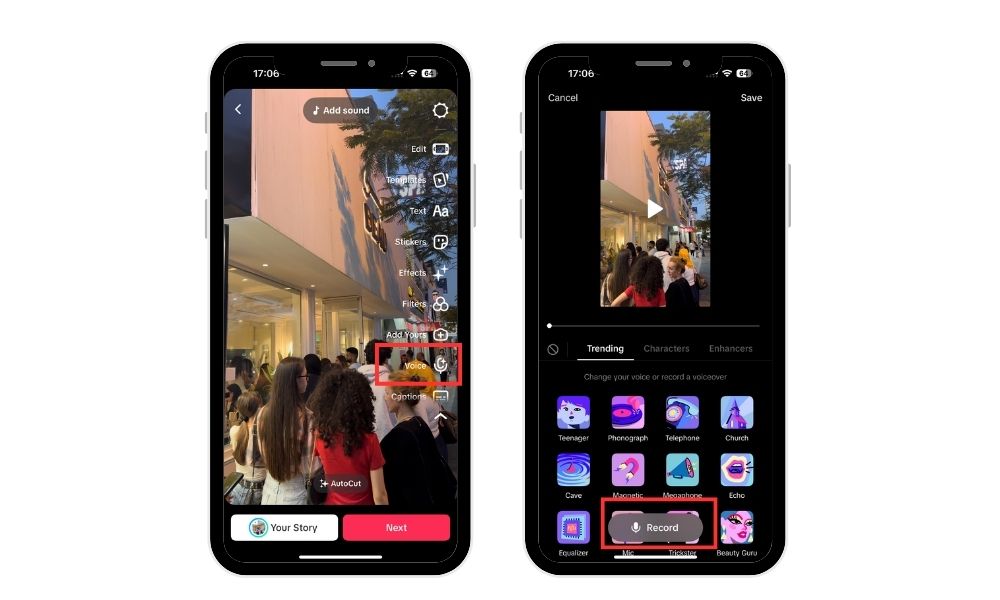
This works well for storytelling formats, tutorials, and reactions where your voice can provide humor or context.
Adjusting Volume Levels
Proper audio mixing is essential for well-produced content. To change the levels of your added music and your original sound, tap “Volume.” Mute the original clip completely if necessary, or turn down the background music if it’s drowning out your voiceover.
4. Using Effects, Filters & Transitions
One of the simplest ways to elevate your TikTok content is to add visual flair. TikTok’s visual effects and transitions can make your videos stand out, whether you’re going full sci-fi or evoking a dreamlike atmosphere.
How to Apply Filters
Adding filters to your video is a quick way to improve its appearance. After uploading your clip, or on the right side of the recording screen, tap “Filters.”
Effects During Recording vs Post-Edit
You can apply effects on TikTok in two steps:
Before you start recording, tap “Effects” in the lower left corner to instantly add green-screen backgrounds, AR features, or face filters.
After recording, select “Effects” from the editing screen to add dynamic visual components like time warp, motion blur, or glitch.
Adding Transitions Between Clips
Smooth transitions between split clips are now supported by TikTok. To select options like Slide, Zoom, or Spin, tap the transition icon after dividing your clip (using the “Adjust clips” tool).
Using TikTok’s video editor allows for seamless transitions between clips, enhancing the overall flow of your video.
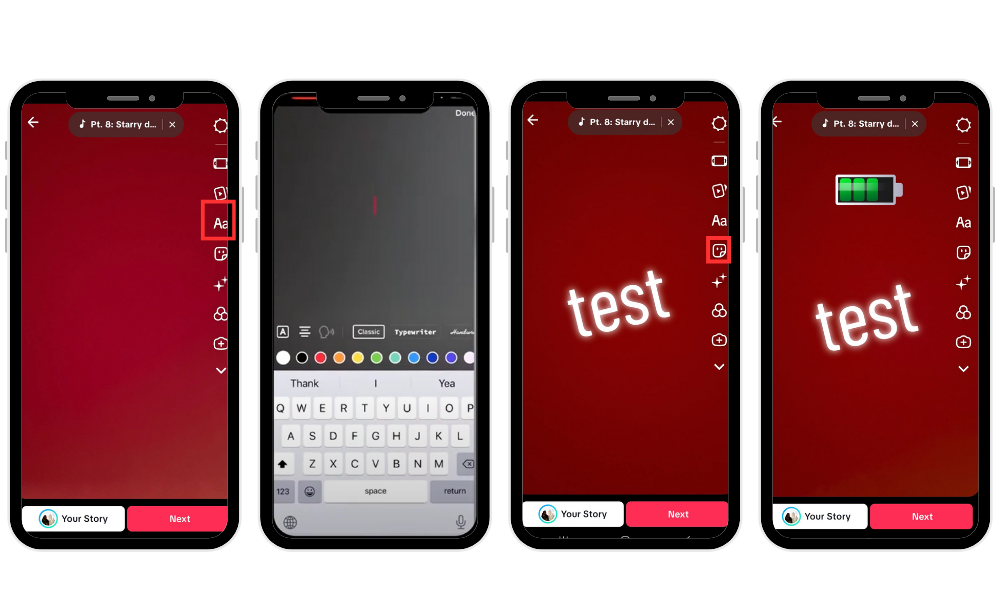
5. Adding Text and Stickers
Not only are graphics and captions decorative, but they also increase accessibility, increase engagement, and tell your story. TikTok captions play a crucial role in enhancing engagement and making your videos more accessible.
How to Overlay Text
Once you’ve uploaded or recorded, tap the “Text” tool on the right. Type your message and then click “Done.” To change its size, pinch or drag it anywhere on the screen.
Syncing Text with Specific Times
To regulate when text shows up and goes away:
- Tap the text box
- Select “Set duration”
- Drag the start and end points on the timeline
This is a must in any beginner TikTok editing guide and is crucial for synchronizing with speech, jokes, or dramatic revelations. Additionally, editing captions to sync with specific times ensures that your message is conveyed clearly and effectively.
Customizing Font, Color, and Style
A variety of fonts, colors, and styles are available on TikTok to fit your brand or aesthetic. To experiment, tap through the text editor’s bottom options. To make your text stand out from the background, use contrasting colors.
Adding Emojis, GIFs, and Stickers
Use the “Stickers” button to add entertaining components. These elements boost interactivity and help your videos blend into TikTok’s playful ecosystem.
6. Editing Drafts and Existing Videos
Perhaps you want to polish a partially developed idea, or you’re not yet ready to publish. In these cases, you can keep your videos as a draft and publish them when you’re ready.
How to Find Your Drafts
Go to your TikTok profile
Tap the “Drafts” folder at the top of your video list
From there, tap a draft to reopen it in the editor and continue refining.
Limitations of Editing After Saving
Most of a draft can be edited again, including the text, music, and filters, but once the draft is saved, you can’t change the original video order or replace clips.
Tips for Better Draft Organization
Add a placeholder title or caption to remember your concept
Name things consistently (for example, “Tutorial Part 1,” “Behind the Scenes”).
Save your best drafts only to prevent clutter.
7. Pro Editing Tips to Level Up Your TikToks
After mastering the fundamentals, it’s time to refine your edits using some cutting-edge strategies that TikTok pros employ to get their content viral. Creating high-quality explainer videos can enhance your brand’s visibility and engagement on TikTok.
Use Cuts to Match Beat Drops
Adding sound effects or music beats to your video cuts adds impact and rhythm. To give your edits a more deliberate and cinematic feel, use the “Adjust clips” feature to position cuts immediately before or on the beat drop.
Keep Clips Short and Engaging
TikTok users scroll quickly. One to three seconds is typically the ideal clip length. Keep the action flowing and cut out any pauses. Shorter videos keep viewers’ interest and enhance retention, which increases your algorithmic reach.
Leverage Trends and Sounds
Editing formats and jumping on popular sounds will keep your content current. Every day, check out TikTok’s Discover tab to see what’s trending. For extra originality and interaction, you can also remix trends with your own spin.
Use External Tools Like CapCut for Advanced Transitions
CapCut is TikTok’s unofficial editing sidekick. Use it to:
Use sophisticated transitions, such as masking or 3D zoom.
Make dynamic text animations.
Blend clips seamlessly with keyframe control
Using a free TikTok video editor like CapCut can provide advanced editing features to enhance your content. Import your final video into TikTok once it’s polished and ready to post.
Need a little push after you post? BuzzVoice can help you skyrocket your views and engagement with real results.
Final Steps: Preview, Caption & Post
Now that your editing is complete, it’s time to prepare your TikTok for publication. The post screen allows users to add a video description, hashtags, and select a cover image before publishing.
Watch Your Video Before Posting
Before hitting “Post,” always tap “Preview” to watch your video from start to finish. Look for:
Text or sound synchronization problems
Jumpiness or unwanted cuts
Using typos in your overlays
To watch your video before posting, tap the preview button located in the bottom right corner.
Add Engaging Captions and Hashtags
The tone of your post is established by your caption. Use pertinent hashtags and keep it succinct.
Using humor or inquiries to elicit feedback
2–5 hashtags, one of which is trending
Indicate clearly if your video is a part of a series.
Select Cover Thumbnail
To select the frame that will serve as your profile’s video representation, tap “Select Cover.” Add text, such as “Before & After” or “Step 1,” to give a sneak peek at the topic of the video.
Creating a unified feed and encouraging profile views depend on this.
Modify the Post and Privacy Settings
Lastly, adjust the post settings:
Configure visibility (Private, Friends, or Public).
Decide whether users can comment, stitch, or duet.
If it’s supported by your account, schedule posts.
Before you upload videos, you can adjust privacy settings to control who can view and interact with your content. Then hit “Post” or “Save to Draft” if you’re still finalizing.
FAQ
Can I edit a TikTok after it’s been posted?
Not directly. The original must be removed, and a revised version must be reposted. Before publishing, always do a thorough preview. If you need to make changes to captions or other elements after posting, you must delete the original post and re-upload the edited version.
What’s the best external app for TikTok editing?
CapCut is the most effective and user-friendly TikTok app. Adobe Rush, VN, and InShot are also excellent options based on your editing requirements and style. Using a video editor like CapCut or Adobe Rush can provide advanced editing features to enhance your TikTok videos.
How long should my TikTok be?
In order to increase viewing time and engagement, aim for 15–30 seconds. But TikTok now allows up to 10-minute uploads. Just make sure every second adds value. Selecting the right video length is crucial for maintaining viewer engagement and maximizing reach.
Do I need expensive tools to edit well?
Nope! This beginner TikTok editing guide proves that TikTok’s own tools are more than enough to get started. Advanced tools are optional.
How can I make my videos more engaging?
Get people’s attention in the first one to three seconds. Use dynamic visuals, captions, sounds, and ask questions to encourage comments. End with a CTA like “Follow for more!” Creating dynamic and visually appealing video content is key to capturing and maintaining viewer interest.

BuzzVoice
BuzzVoice is the best place to go when you need instant engagement services on social media. Offering a wide variety of packages for Instagram, Youtube, Facebook, Twitter, Soundcloud & Tiktok.