How to Block Content on YouTube in 2026 (Step-by-Step Guide)
YouTube continues to dominate the video-sharing world in 2026, offering everything from educational videos to entertainment and news. However, with such a vast library of content, not everything you see will be relevant or appropriate. Whether you’re trying to avoid spoilers, filter out low-quality videos, or set up parental controls for kids, knowing how to block content on YouTube is essential.
This comprehensive guide covers everything you need: how to hide videos on YouTube, block YouTube channels, use parental controls in 2026, and more. Let’s break it down step by step. Let’s dive in!
Would you like to increase your views for your YouTube videos and grow your subscribers faster than the algorithm allows? BuzzVoice lets you quickly amplify your content’s reach and attract the viewers you need to succeed.
Can You Block Content on YouTube in 2026?
In 2026, YouTube still doesn’t allow you to block content based on keywords directly. You can’t filter out every video with certain words in the title. There is also no straightforward ability to fully block channels or specific content on regular YouTube, which is especially annoying for users who want to avoid certain types of content or ads. This limitation makes it difficult to manage unwanted or inappropriate material, and the lack of control over annoying ads and channels is a common frustration.
Your options depend on two factors:
- The platform you’re using: YouTube main platform vs. YouTube Kids
- Your role: regular viewer vs. parent or guardian
YouTube offers features like Restricted Mode, Don’t recommend channel, and block features on YouTube Kids.
For parents, YouTube Kids provides stricter filtering, including the ability to block entire channels. However, regular YouTube lacks a dedicated ‘block channel’ feature, making blocking inappropriate content and entire channels more difficult for general users.
For general users, while keyword blocking isn’t available, there are ways to limit exposure to certain types of content through tools and plugins, but the benefit of a more effective and straightforward block channel feature is clear, as current options are not always effective.
Managing YouTube content requires ongoing support and improvements to blocking features, and future updates could enhance user control and the effectiveness of blocking annoying or inappropriate content. Even YouTube Premium does not currently offer a way to block entire channels or filter out all ads, which many users would find beneficial.
How to Block Specific YouTube Channels
Blocking channels is one of the easiest and most effective ways to control what you see on YouTube. It helps you remove unwanted creators from your recommendations, homepage, and sometimes even search results. Here’s how you can do it across different YouTube platforms:
On YouTube:
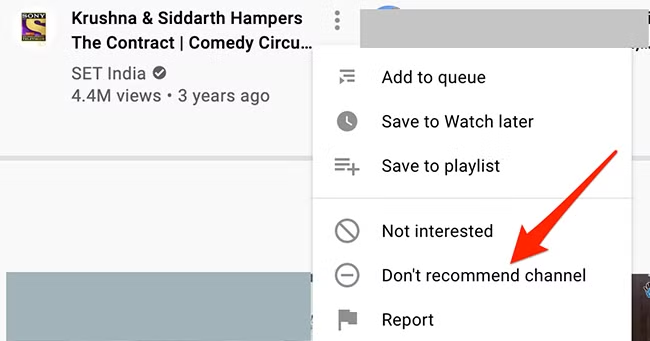
Visit the channel’s page — simply click on the channel name under any video.
Click the three-dot menu next to the Subscribe button.
Choose “Don’t recommend channel”. This stops YouTube from suggesting their videos in your recommendations or homepage.
On YouTube Kids:
Open the app and tap the three dots on any video or channel.
Select “Block this channel”, then confirm using the parental passcode.
The blocked channel will no longer appear on the child’s account.
How to Block Inappropriate Videos or Topics
Even though you can’t block every specific topic on YouTube, there are effective tools and methods to filter out a large portion of inappropriate or unwanted content. YouTube uses algorithms and community flagging systems to identify and filter mature or harmful material, but you can take more control by activating certain features:
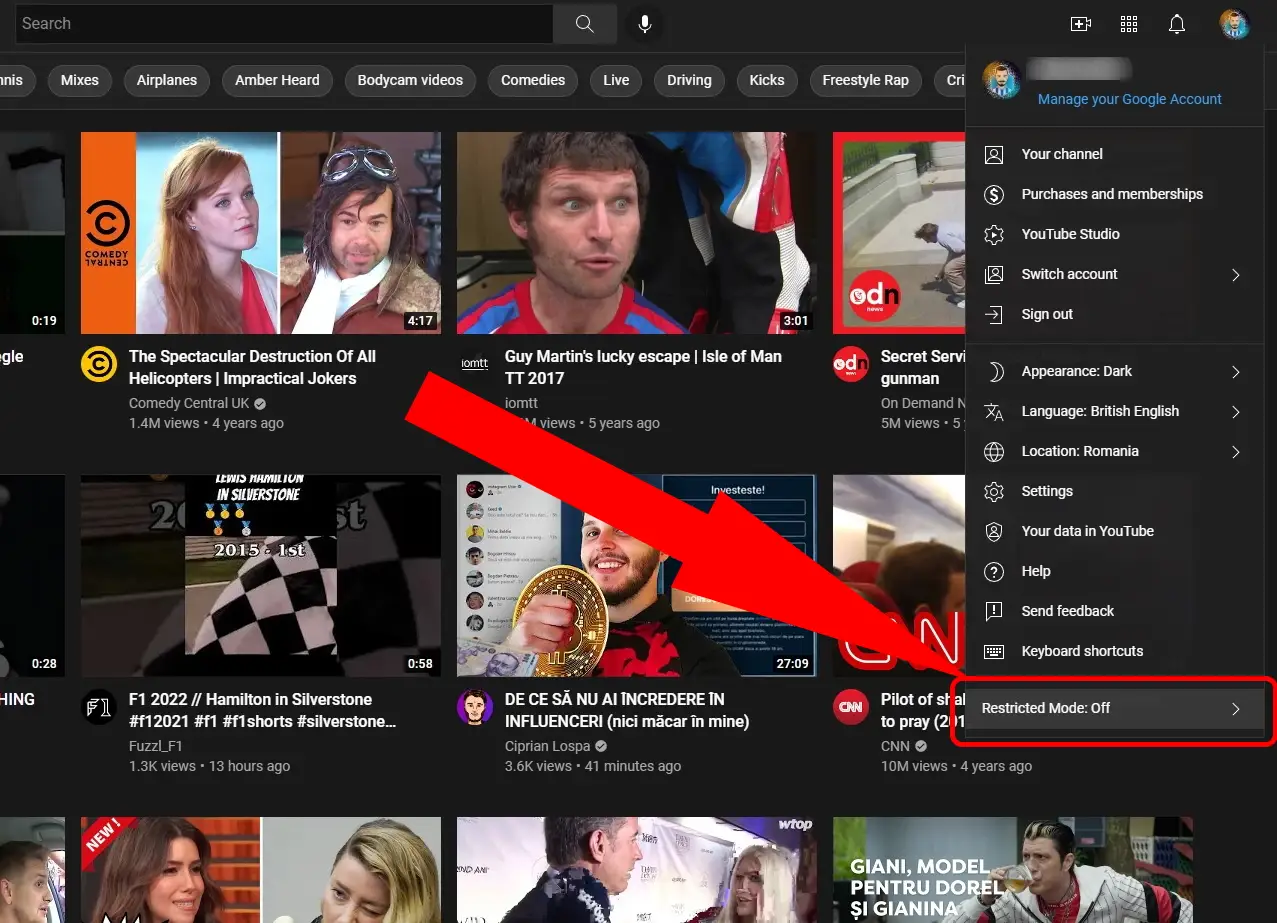
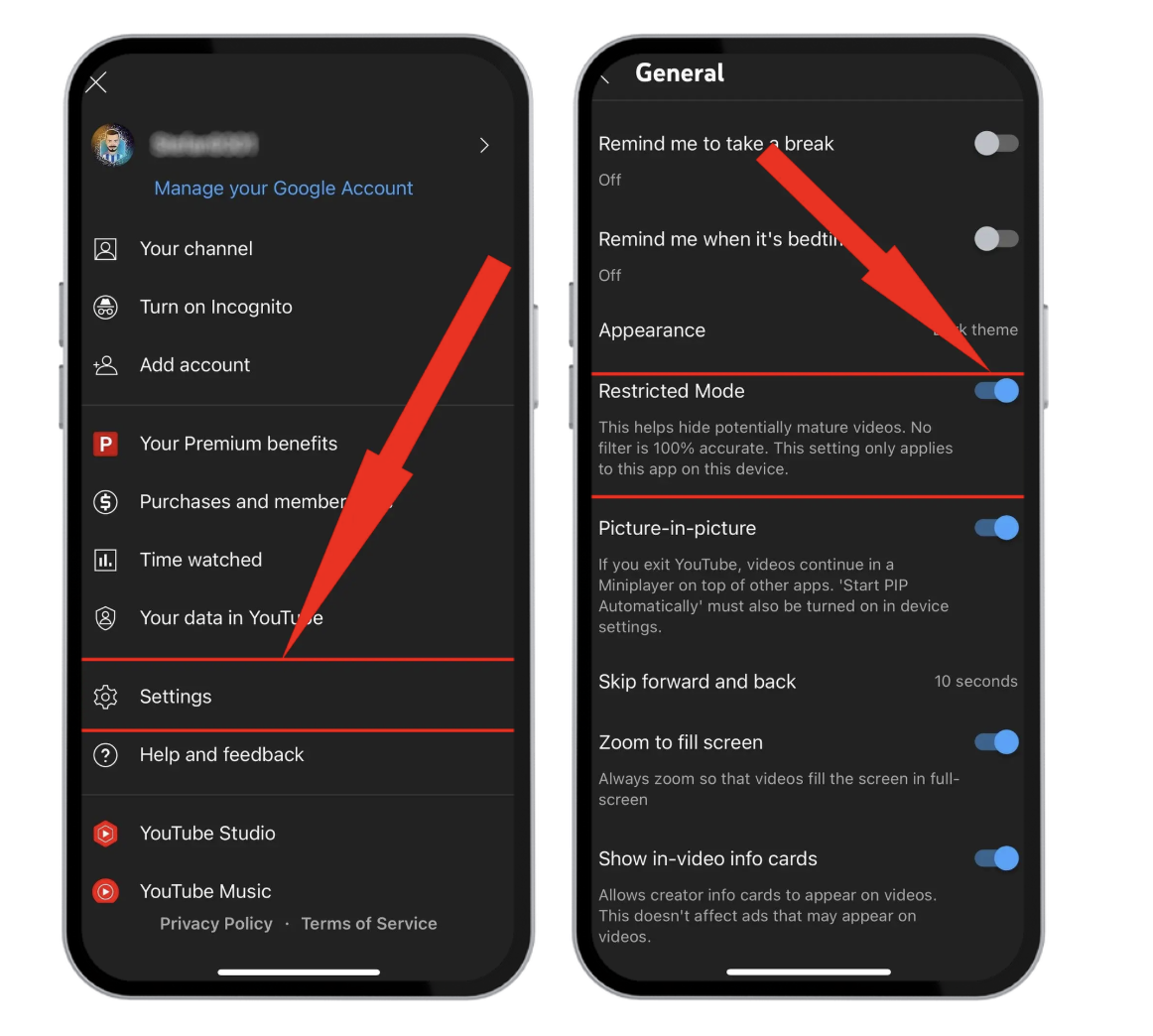
Use Restricted Mode
Restricted Mode filters out videos flagged for mature content.
Desktop: Click your profile picture > Restricted Mode > Activate.
Mobile: Go to Settings > General > Restricted Mode and turn it on.
Use browser extensions (e.g., Video Blocker, BlockTube)
If you primarily watch YouTube on a web browser, using third-party extensions is an effective way to filter out unwanted content. Tools like Video Blocker or BlockTube allow you to block specific videos, channels, or even entire topics by simply entering keywords or channel names into their settings. Once configured, these extensions automatically hide any videos that match your filters, keeping your feed cleaner.
Customize YouTube Kids filters (age-appropriate content only)
YouTube Kids gives you extra tools to restrict content and create a safer experience for children. With a few simple settings, you can better control what your child watches:
Choose age-based filters: Select from Preschool, Younger, or Older content levels to ensure age-appropriate recommendations.
Manually block videos or channels: Easily block individual videos or entire channels you don’t approve of by tapping the three-dot menu.
Disable search option: Turn off the search feature to limit access strictly to YouTube’s recommended content.
Approve content manually: For full control, switch to “Approved Content Only,” where kids can only see videos you select.
If you’re serious about growing your channel, BuzzVoice is here to help. Grow your Youtube channel by buying high retention views, video likes and subscribers, BuzzVoice helps creators not only look professional but get seen.
How to Block Specific Words or Topics (Indirect Method)
Since YouTube doesn’t have a built-in keyword filter, you can still manage content by using supervised accounts, browser extensions that block videos based on keywords, and regularly reviewing your watch and search history. These indirect methods help reduce unwanted content and give you more control over what appears in your feed:
1. Use Supervised Accounts to manage what children can watch
Parents can create Supervised Google Accounts for their children. These accounts allow you to monitor activity, control content levels, and limit features like comments or live chat.
2. Use browser plugins/extensions to block by keyword
Extensions such as BlockTube let you create custom keyword lists. Videos matching those keywords are automatically hidden from search results and recommendations.
3. Regularly monitor search history and suggested videos
YouTube’s algorithm is influenced by your viewing and search history. Regularly clear or reset history (under Settings > History & privacy) to prevent unwanted topics from being recommended.
Related: Want to loop a YouTube video?
How to Manage Content for Kids on YouTube
Parental controls on YouTube Kids in 2026 have become more advanced and flexible, making it easier than ever to ensure your children only watch appropriate content. Here’s a step-by-step guide to help you set up and manage a safe viewing environment:
1. Set up a YouTube Kids Profile
Start by downloading the YouTube Kids app and setting up a profile tailored to your child. You can customize the settings based on your child’s age, which helps the app deliver age-appropriate videos and channels.
2. Choose Content Levels by Age Group (Preschool, Younger, Older)
YouTube Kids organizes content into different age groups:
Preschool (ages 4 and under): Access is limited to very basic, safe videos suitable for toddlers.
Younger (ages 5-8): This level offers a broader selection but remains family-friendly.
Older (ages 9-12): Provides more independence, with educational content and shows suitable for pre-teens.
3. Manually Approve or Block Specific Videos and Channels
Parents have the option to manually curate what their children watch by approving content or creating a custom playlist. You can also block specific channels or videos by tapping the three-dot menu next to any video and selecting “Block.” This feature helps prevent unwanted content from slipping through.
4. Set Screen Time Limits and Disable Search if Needed
Within the Parent Settings, you can establish daily screen time limits to promote healthy viewing habits. Disabling the search function is another powerful tool, preventing children from exploring beyond the curated content and keeping their experience controlled.
Tips to Keep Your Feed Clean and Safe
If you’re looking to maintain a cleaner YouTube feed, here are practical tips to use year-round:
1. Use “Not Interested” on unwanted videos
Actively marking videos or channels as “Not interested” will gradually train the algorithm to avoid recommending similar content.
2. Clear or reset your watch/search history
Every few weeks, clear your watch and search history via Settings > History & privacy. This helps reset your recommendations if they’ve gone off track.
3. Use family link accounts to control what children can access
Parents can link YouTube Kids accounts to Google Family Link for an added layer of control over YouTube apps, screen time, and video suggestions.
4. Report Content that violates guidelines
If you encounter harmful or inappropriate content, use the Report button to flag them. YouTube uses this data to refine its recommendation system and improve platform safety.
Following these steps keeps your YouTube experience more enjoyable and your children’s viewing habits safer.
Final Thoughts
Whether you want to avoid clickbait, prevent exposure to offensive content, or control what your children see, YouTube offers tools to help you customize your experience.
While you can’t directly block specific keywords, you can still take effective actions—blocking channels, activating Restricted Mode, using supervised accounts, and exploring browser extensions. YouTube Kids remains the best option for younger viewers thanks to its stronger parental controls.
Ultimately, YouTube offers a high degree of flexibility if you know where to look. With these strategies, you can take control of your feed and create a safer, more focused viewing experience for yourself and your family.
For YouTube content creators and businesses, BuzzVoice is here to accelerate your journey with YouTube growth services: high retention YouTube views, subscribers, and video likes! BuzzVoice helps creators kick-start their growth and reach the milestones that matter.
FAQs
Can I block videos with specific words or titles?
YouTube doesn’t provide a built-in way to block specific words or titles. However, you can use browser extensions like BlockTube to hide videos with unwanted keywords. You can also influence recommendations by clicking “Not interested” on irrelevant videos.
How do I block adult content on YouTube?
You can block adult content by turning on Restricted Mode in your YouTube settings. Additionally, use supervised accounts for children and enable YouTube Kids with strict filters. For extra security on browsers, use plugins that block explicit keywords.
Is YouTube Kids safer for children?
Yes, YouTube Kids is designed for children, with strict content filters and parental control options. You can set age-appropriate content levels, block specific channels, and disable search. For added protection, regularly review the child’s viewing activity to ensure their experience remains safe and educational.
Can I completely remove a channel from search results?
You can’t fully remove a channel from YouTube’s search results. However, by using the “Don’t recommend channel” feature and browser plugins like Video Blocker, you can hide most unwanted channels from recommendations and home feeds.

BuzzVoice
BuzzVoice is the best place to go when you need instant engagement services on social media. Offering a wide variety of packages for Instagram, Youtube, Facebook, Twitter, Soundcloud & Tiktok.
Learn more →