How Long Can Twitter Videos Be? 2026 Guide
In 2026, Twitter, now rebranded as X, has become a hub for creators and brands who use video to capture attention. But there’s one question everyone still asks: how long can Twitter videos be?
Whether you’re posting short viral clips or long-form content, Twitter’s video limits depend on your account type and upload method. As standard users (the typical or basic account), most users are subject to a maximum video length of 2 minutes and 20 seconds.
In contrast, X Premium subscribers (formerly Twitter Blue subscribers) can upload videos up to approximately 3 hours in 1080p on both the web and the iOS app, giving content creators and marketers a significant advantage with longer uploads and larger file sizes.
And if you’re serious about growing your visibility, boosting engagement, and mastering social media strategy, BuzzVoice can help you get there faster with X followers, likes and retweets! Because in 2026, it’s not just about how long your videos are, it’s about how far they can go.
How Long Can Twitter Videos Be?
If you’re wondering how long your Twitter video can be, here’s the breakdown:
Standard users: You can upload videos up to 2 minutes and 20 seconds (140 seconds) long. This is the video limit for standard users and represents the maximum Twitter video length for most accounts, also known as Twitter’s video length limit. This applies to both mobile and desktop uploads.
Twitter Blue (Premium) subscribers: You can upload videos up to 2 hours long in 1080p resolution, but only via the web version of Twitter/X.
It’s also important to note the file size limits:
Standard users: Up to 512 MB per video.
Premium (Twitter Blue) users: Up to 2 GB per video.
Twitter video size limits are crucial for successful uploads. Adhering to the file size limit ensures your video uploads smoothly and meets platform requirements. If your video exceeds these limits, you’ll need to trim or compress it before uploading.
When uploading videos through the new tweet interface, make sure your content stays within these video limit and size restrictions to maintain optimal video quality. If you need help putting a longer video on Twitter, here is a link with an illustrative video:
Related: How to see comments on Twitter
Twitter Video Specs and Requirements
For successful uploads, it’s important to follow these key specifications to ensure your video meets Twitter’s requirements and maintains high video quality:
Formats supported: MP4 (recommended) and MOV.
Maximum frame rate: 60 FPS.
Resolution: Up to 1920×1080 (Full HD). The minimum resolution accepted by Twitter is 32×32 pixels, so make sure your video meets or exceeds this to avoid quality issues.
Aspect ratios: Maintaining the correct aspect ratio is crucial for optimal display and to prevent unwanted cropping or resizing. Use:
16:9 for landscape
1:1 for square
9:16 for vertical (mobile-friendly)
Audio: AAC or MP3 audio format.
These key specifications help your video look clean, load faster, and play correctly across all devices, whether someone’s scrolling on mobile or watching on desktop.
For those wanting to boost their Twitter impact, BuzzVoice offers tailored growth and engagement strategies to help you gain followers and increase retweets and likes faster!
How to Upload a Video to Twitter
When uploading from the Twitter website, make sure to follow the recommended video specifications for optimal quality and engagement. After selecting your video file, ensure you have a stable internet connection, especially if you are uploading large or high-quality videos, to prevent interruptions and ensure a smooth upload process.
Uploading a video to Twitter/X is simple and takes just a few steps:
On Mobile (iOS & Android)
Open the Twitter/X app.
Tap the compose button (+).
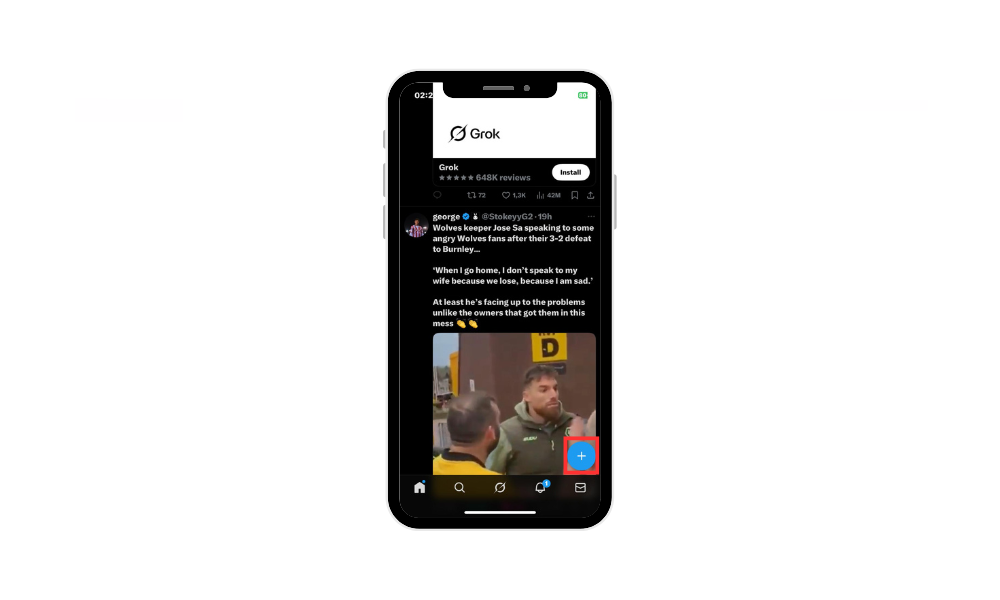
Select the camera icon or upload from your gallery.
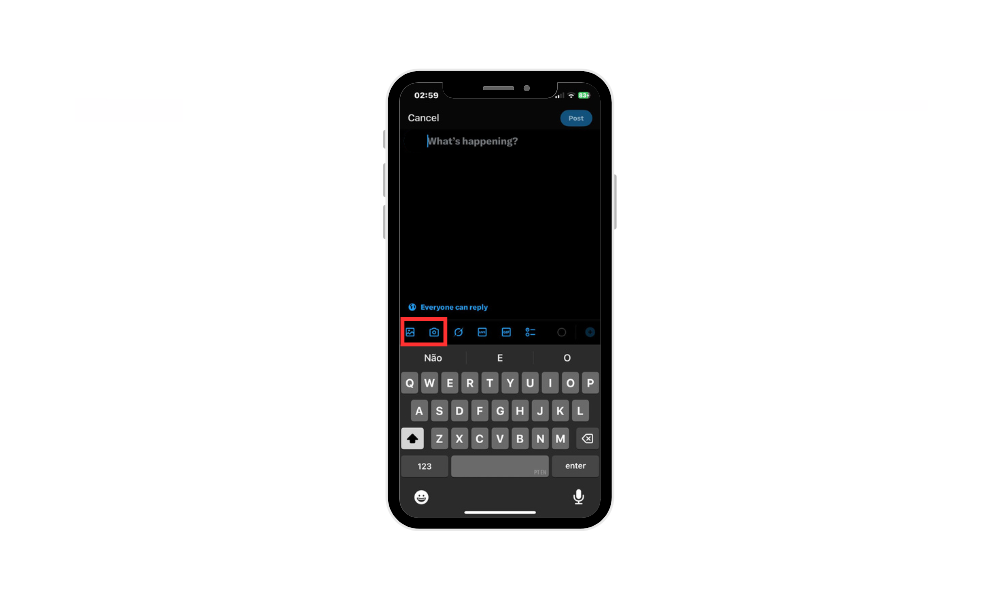
Choose your video (up to the length limit).
Add your caption, hashtags, and post!
On Desktop (Web Browser)
Go to your Twitter/X home page.
Click inside the “What’s happening?” box.
Upload your video file (drag-and-drop or select manually).
Add text or tags, then hit Post.
Pro tip: Twitter also offers a built-in video trimming tool before upload, perfect for keeping your clips within the time limit.
Tips for Creating Engaging Twitter Videos
Strategic planning is essential for maximizing video engagement on Twitter—focus on capturing attention quickly and optimizing your content for the platform’s unique constraints.
Since attention spans on social media are short, your video needs to grab interest immediately. Here are a few tips to boost engagement:
Hook viewers in the first 3 seconds: Start strong with high-quality visuals, bold text, or compelling imagery, and front-load important content to capture attention right away.
Use captions or subtitles: Add captions to improve accessibility for viewers watching without sound, and use text overlays to highlight your key message. Tools like WayinVideo can help generate and customize captions, making your videos more accessible and engaging.
Keep it short and punchy: Even if you can post long videos, shorter clips (under 1 minute) tend to perform best. Consider creating portrait videos or square videos, as these formats are optimized for Twitter and help maintain viewer interest.
Optimize thumbnails: A good preview image with text overlays can highlight your key message and make users stop scrolling.
Monitor analytics: Use Twitter’s metrics to see which videos get the most engagement and adjust your strategy.
Remember: the goal isn’t just to post long videos, it’s to post videos people actually watch to the end. BuzzVoice tools also help you gain authentic followers and boost interactions on your tweets!
Optimizing Video for Mobile Viewing
With most Twitter users accessing the platform on mobile devices, optimizing your video content for mobile viewing is essential. To capture attention quickly, consider using vertical or square aspect ratios that fill the screen and make your videos stand out in the feed.
Adding captions or subtitles ensures your message gets across, even when viewers watch with the sound off. Front-loading important content in the first few seconds can help hook your audience and increase retention. AI tools like WayinVideo can assist in adjusting aspect ratios and generating animated captions, making your videos more engaging and accessible.
Additionally, keeping an eye on Twitter’s video size limits and using tools like VEED can help you maintain high quality while avoiding upload errors. By tailoring your videos for mobile devices, you’ll improve user experience and boost engagement with your Twitter audience.
Related: How To Make Money on Twitter (5 Ways)
Common Upload Errors and How to Fix Them
Sometimes Twitter/X can be picky about uploads. Here are some common issues and how to fix them:
“Video too long” error: Trim the video or shorten it using editing software like CapCut or iMovie.
“Unsupported format” error: Convert your video to MP4 before uploading.
Compression issues: If your video looks blurry, export it in 1080p with a smaller file size to balance quality and performance.
Tools like HandBrake or Adobe Media Encoder can help compress your video without losing clarity.
Advanced Topics
Using Third-Party Tools
Leveraging third-party tools can take your Twitter video strategy to the next level. Platforms like Typefully allow you to schedule and post Twitter videos up to 10 minutes long, even if you don’t have an X Premium subscription, giving you more flexibility in your content planning.
Tools like TweetDelete make it easy to manage your Twitter profile by removing tweets with videos, helping you curate your visible video content and maintain a polished online presence. By incorporating these tools into your workflow, you can streamline content creation, optimize video performance, and ensure your posts reach the right audience at the right time.
Understanding Twitter’s video length limit and using cheat sheets for best practices can help you consistently create engaging video content that resonates with your followers and adapts to the platform’s evolving features.
Related: Can You Remove Followers on X (Twitter)? And How?
Conclusion
Understanding the length limits for Twitter videos in 2026 helps creators make the most of every second. Whether you’re posting quick viral clips or long-form commentary, knowing the limits ensures smoother uploads and better viewer experiences.
Short videos still dominate in engagement, but with Premium access, longer formats are opening doors for deeper storytelling and brand growth.
And if you’re looking to grow your reach, boost engagement, or make your videos trend? BuzzVoice can help you optimize your social presence with the right strategies and visibility tools. Because on Twitter/X, it’s not just about how long your videos are, it’s about how much they make people watch, react, and share.
Related: 15 Tips How Not To Get Suspended on Twitter
FAQ
Can I upload longer videos on Twitter?
Yes, but only if you’re a Twitter Blue (Premium) subscriber. Free accounts are limited to 2 minutes and 20 seconds. Premium users can upload videos up to 2 hours long, making it ideal for podcasts, interviews, and vlogs. Longer videos, however, work best when they’re engaging from start to finish.
What’s the maximum video length for Twitter Blue?
Twitter Blue users can upload videos up to 2 hours in length with a maximum file size of 2 GB. This feature is currently available only via the web version of Twitter/X. It’s perfect for creators who post full-length content or brand videos.
Does Twitter compress videos?
Yes, Twitter automatically compresses videos to optimize playback and reduce load times. This may slightly reduce quality, so upload videos in high resolution (1080p) to maintain clarity. Using the recommended specs also minimizes quality loss.
Can I post videos longer than 2 hours?
No, the maximum allowed length is currently 2 hours for Premium users. If you want to share longer content, consider splitting it into multiple parts or linking to an external platform like YouTube. This approach keeps your followers engaged across posts.

BuzzVoice
BuzzVoice is the best place to go when you need instant engagement services on social media. Offering a wide variety of packages for Instagram, Youtube, Facebook, Twitter, Soundcloud & Tiktok.
Learn more →