How To Hide Comments on Instagram Live (In 4 Steps)
Instagram Live is a powerful way to connect with your followers in real time. However, the comments that appear during a live session can sometimes be distracting or even disruptive. Fortunately, Instagram offers tools to control or hide these comments without ending your stream. In this article, we’ll show you how to hide comments on Instagram Live quickly and easily, so you can stay focused on your content.
And if you’re looking to boost your engagement and reach a wider audience, BuzzVoice offers effective and secure services to increase your Instagram followers, comments and views.
Introduction to Comment Management
Managing comments is a vital part of creating a positive and engaging experience on Instagram, especially when hosting or watching an Instagram Live. With the fast-paced nature of live comments, both hosts and viewers can quickly become overwhelmed by the constant stream of messages.
Hiding comments, particularly when you hide Instagram Live comments, allows hosts to maintain control over their live sessions and helps viewers focus on the content without unnecessary distractions. Effective comment management ensures that Instagram Live remains a welcoming space, free from negativity and interruptions, making it easier for everyone to connect and enjoy the broadcast.
How to Start an Instagram Live
Here’s a simple guide with simple steps to start an Instagram Live:
Step-by-Step Setup
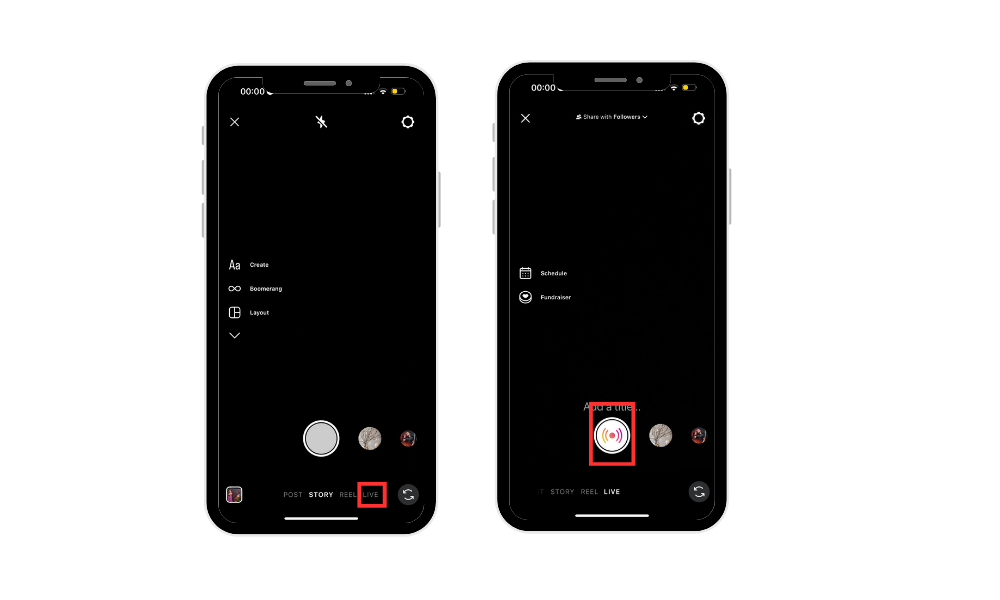
Open the Instagram app.
Swipe right or tap your profile picture to access the camera.
Scroll through the camera modes and select “Live”.
Tap the circular button to start your broadcast.
Accessing the Comments Section
Comments will show up at the bottom of the screen while you’re live. You can choose to interact with them or hide them if needed.
How to Turn Off or Hide Comments on Instagram Live
Using the Comment Toggle
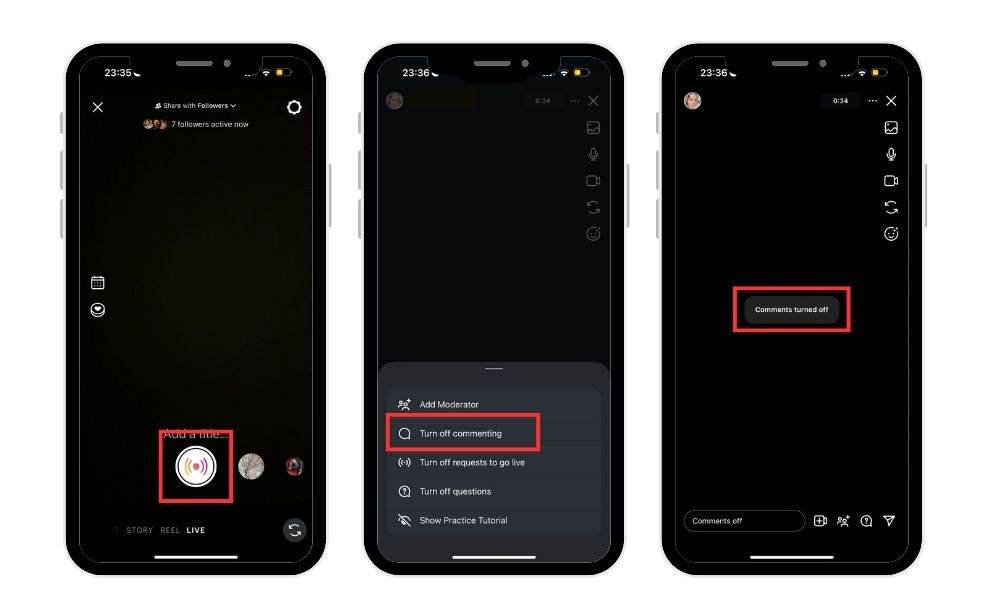
During your broadcast, select the three vertical dots near the comment area. Select “Turn Off Commenting” to hide comments. You can reverse this at any time by tapping the same three dots and choosing “Turn On Commenting”. In case you don’t want to see them anymore, you can also delete comments.
Hiding Comments Without Ending the Stream
If you want to hide comments without stopping your live video, simply use the toggle mentioned above. This lets you keep streaming while maintaining a distraction-free experience, which is especially helpful if you are watching live as a viewer and want to minimize distractions.
For Creators and Brands
In addition to turning off comments, you can also block specific users from commenting during your live session. Setting up keyword filters in your Instagram privacy settings under “Comments” helps you control comments from specific users by blocking specific terms, maintaining a clean and respectful chat environment.
Can You Turn Comments Back On During a Live?
Re-enabling Live Chat Mid-Stream
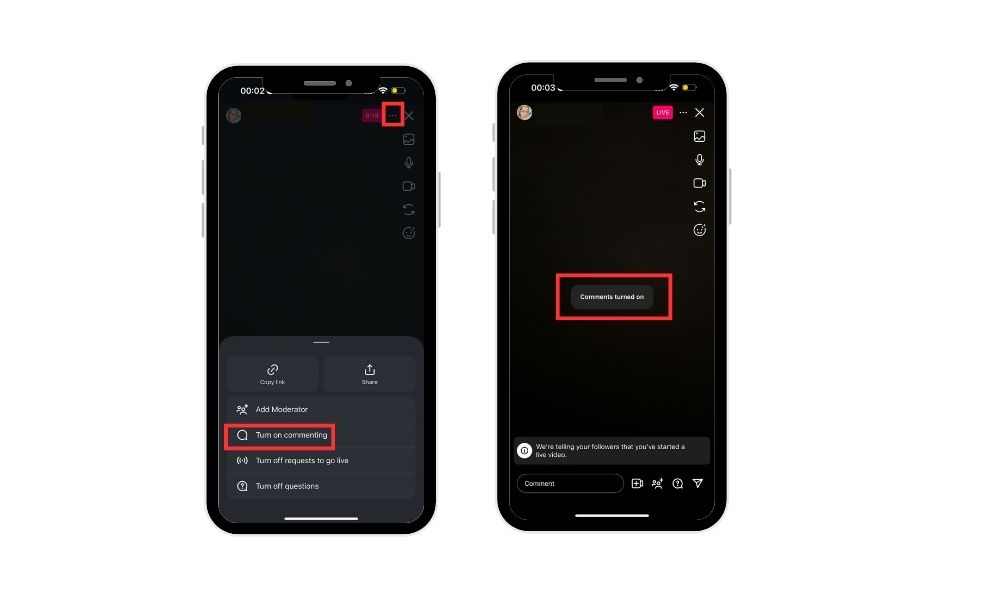
Yes, you can turn comments back on at any time during your live session. Simply tap the three vertical dots next to the comment box and select “Turn On Commenting.”
What Your Audience Sees
When you re-enable comments, viewers will see all messages sent before and after the change, ensuring a seamless, interactive experience. Friends can also continue to interact and comment once comments are visible again.
Why You Might Want to Hide Comments
Hiding comments during an Instagram Live stream offers several key benefits for both creators and viewers. During an Instagram live session, the host can control comments to improve the experience for everyone involved. Here’s why this feature can be useful:
- Avoid Spam or Negativity– Live chats can attract unwanted messages. Hiding comments helps you stay focused and maintain a positive environment.
- Keep Your Audience Focused– Without a stream of messages, viewers are more likely to concentrate on what you’re saying or showing, improving engagement.
- Maintain a Professional Look– For brands and creators, a clean screen without distracting comments supports a more polished, professional image.
- Reduce Distractions– Eliminating visible comments allows you to focus on your content without reacting to off-topic or inappropriate remarks.
- Full Control of the Screen– As the host, you can control comments during the Instagram live session, deciding what appears during your live, giving you total control over the experience you deliver.
- Improve Content Visibility– Hiding comments can make your visuals stand out—ideal when showcasing products, graphics, or visual tutorials.
- Create a Safer Environment– If you’re facing trolling or intrusive comments, disabling the chat or hiding inappropriate comments during a live broadcast ensures a more secure and comfortable space for both you and your audience.
In case you want to hide photos as well, take a look at this article so you know more.
Managing Hidden Comments
Once you hide comments on Instagram, they become hidden comments—removed from public view in the comments section but not permanently deleted. This allows users, hosts, and viewers to review and manage hidden comments at any time, ensuring that nothing important is missed while still keeping the conversation respectful.
Instagram’s comment filters can automatically hide comments containing specific words or phrases, making it easier to manage large volumes of comments during live sessions. By actively managing hidden comments, users can maintain a positive presence, engage meaningfully with followers, and ensure that their Instagram Live sessions remain safe and enjoyable for everyone.
Alternatives to Hiding Comments
Using Moderators
You can assign moderators to manage comments during your live stream. They can remove unwanted messages or block users who violate community guidelines, keeping the chat clean and respectful.
Filtering Keywords
Set up keyword filters to block specific terms. This helps keep the conversation on-topic and prevents disruptive or offensive content from appearing in the chat.
Reporting or Blocking Disruptive Users
If someone continues to behave inappropriately, you can report or block them directly through Instagram. This helps maintain a safer and more comfortable environment for everyone.
How BuzzVoice Can Help You Grow on Instagram Live
While hiding comments enhances your live experience, true growth on Instagram requires a solid strategy. BuzzVoice offers a range of services designed to help you reach more people, boost engagement, and grow your follower base with real users. Here’s how:
Follower Growth
BuzzVoice helps you gain real, engaged Instagram followers, which leads to more visibility and interactions during your lives.Increased Views
The platform offers services that boost the reach of your posts and live videos, ensuring that more people watch your broadcasts.Strategic Engagement
Using proven strategies and algorithmic insights, BuzzVoice helps maximize engagement on your content, including lives, to attract a broader and more targeted audience.
These services can be the key to turning your Instagram Lives into a powerful tool for growth and success.
Final Tips for Managing Your Instagram Live Experience
Engage While Staying in Control
Interacting with your audience is essential, but maintaining control over comments helps you stay focused and avoid distractions.
Use Features Like Badges and Questions
Encourage meaningful participation by using features like badges, which let viewers support your stream financially, and question stickers, which foster real-time interaction and engagement.
Promote Replays for Greater Reach
After your live session ends, share the replay in your Stories or feed to reach viewers who couldn’t tune in live and keep the engagement going.
FAQs
1. How can I hide comments while watching a live stream?
While it’s not possible to completely hide comments while watching a live stream, you can minimize the comment section by swiping down or using video mode, which focuses solely on the visual content.
2. Is there a way to block offensive comments automatically?
Yes, Instagram offers an option to automatically block offensive comments. You can enable this feature in your privacy settings under “Comments” by selecting “Hide Offensive Comments”.
3. How can I filter specific words in comments?
To filter specific words, go to “Settings” > “Privacy” > “Comments”, and activate the “Manual Filter”. Enter the words or phrases you want to block, separated by commas.
4. How can I ensure more people watch my lives?
Advance promotion, genuine interaction with your followers, and using strategies to increase engagement can help ensure more viewers for your live sessions. BuzzVoice services, such as increasing views, can also be valuable in this process.

BuzzVoice
BuzzVoice is the best place to go when you need instant engagement services on social media. Offering a wide variety of packages for Instagram, Youtube, Facebook, Twitter, Soundcloud & Tiktok.