Want to Loop a YouTube Video? Use This Simple Built-In Method
Looping a YouTube video used to be tricky, often requiring third-party tools or constantly restarting videos manually. But in 2026, YouTube has made it incredibly easy to loop videos with a built-in repeat feature available on both computer and mobile platforms. This guide covers everything you need to know about the YouTube video loop option.
Would you like to increase your views for your YouTube videos and grow your subscribers faster than the algorithm allows? BuzzVoice lets you quickly amplify your content’s reach and attract the viewers you need to succeed.
Can You Loop a YouTube Video in 2026?
Yes! YouTube now offers a straightforward built-in loop feature. You no longer need to download extra apps or rely on third-party websites to repeat videos. Whether you’re on a PC, Mac, Android phone, or iPhone, the YouTube video loop option is just a few clicks or taps away. This native loop feature makes it easy to repeat a video on YouTube effortlessly.
How to Loop a YouTube Video on Desktop (PC or Mac)
YouTube videos on desktop browsers like Chrome, Firefox, or Safari are simple thanks to YouTube’s built-in loop option. This method works perfectly for playing background songs, studying with tutorials, or repeating your favorite videos.
Right-click Method to Enable “Loop”
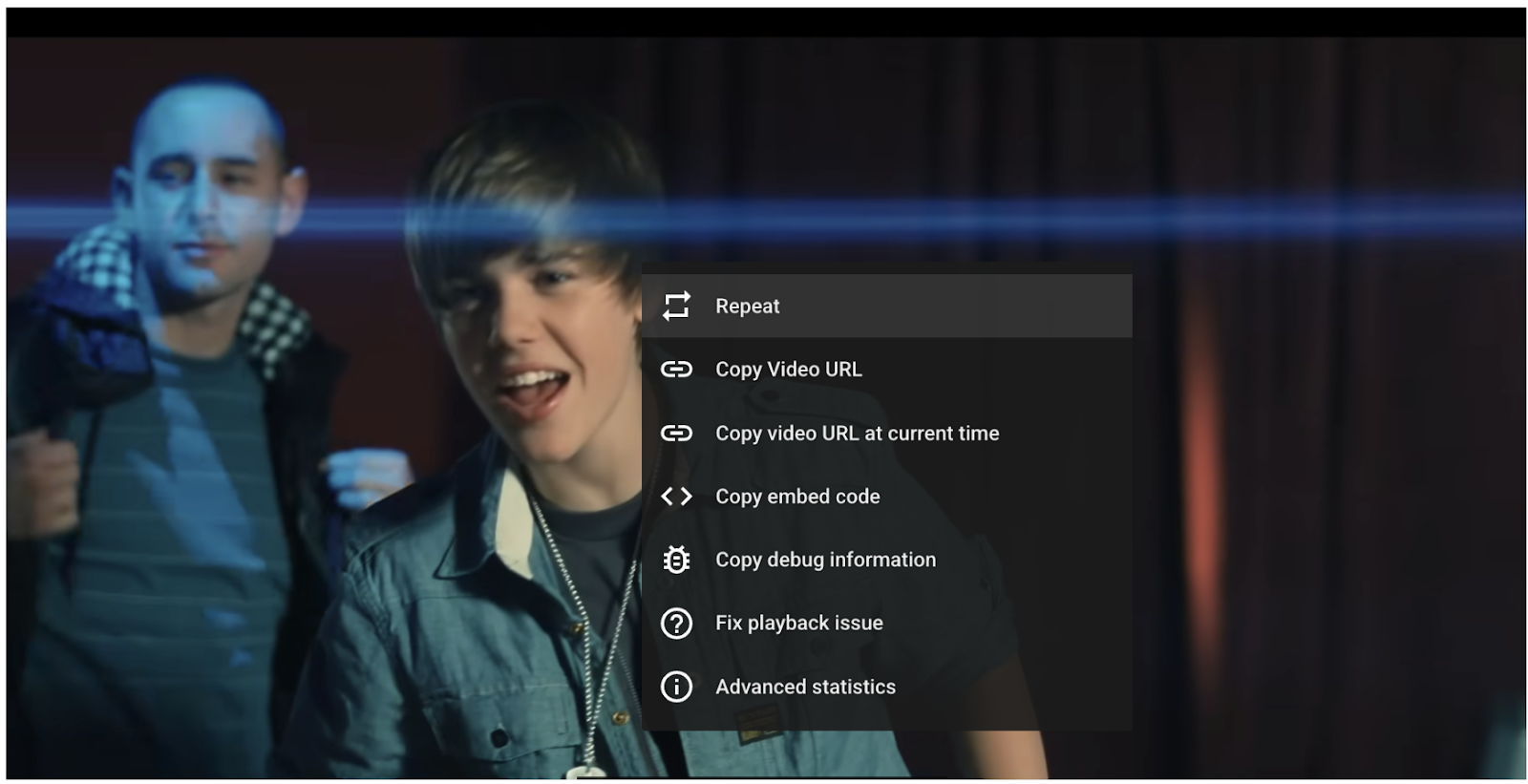
Play the YouTube video you want to repeat continuously.
Right-click directly on the video screen (avoid right-clicking on the controls or title).
In the menu that appears, click “Repeat”.
The video will now automatically restart every time it ends, allowing you to repeat video on YouTube indefinitely.
What to Do If Right-Click Doesn’t Show the Loop Option
Sometimes, especially with embedded videos or specific browser configurations, right-clicking might open the browser’s default context menu instead of YouTube’s loop menu. If this happens:
Try right-clicking twice — the first might bring up the browser menu, the second should show YouTube’s menu.
Make sure you click on the video playback area itself, not on the timeline or title.
Refresh the page or try a different browser to check if the loop option appears.
Use Browser Extensions for Advanced Looping (Optional)
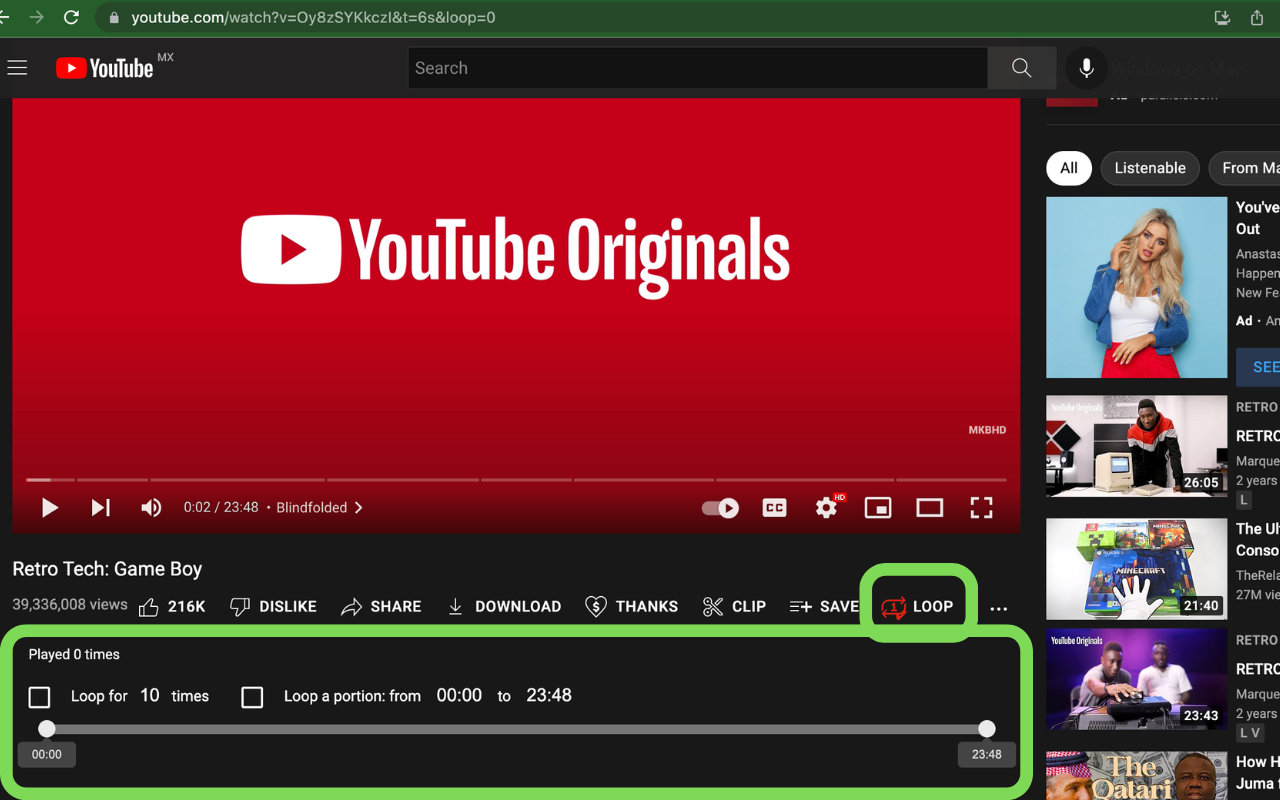
For users wanting more control, like looping a specific section of a video or setting how many times to repeat, browser extensions are available. Some extensions allow you to create an AB loop by setting custom start and end points:
- Looper for YouTube (available for Chrome and Firefox)
- Enhancer for YouTube
You may need to paste a video ID or URL into the tool, or paste code snippets if using scripts or macros. They are perfect if you want to repeat YouTube videos for practice, such as learning a music riff or repeating a tutorial segment.
Alternatively, you can use video editing software or QuickTime Player to loop YouTube videos offline.
If you have a YouTube channel and you want to increase the number of your subscribers, check out BuzzVoice services.
How to Loop a YouTube Video on Mobile (iOS or Android)
YouTube’s built-in repeat setting 2026 is also available on mobile, making it easy to loop videos on your Android or iPhone without third-party apps.
Using the “Loop” Option in the Three-Dot Menu
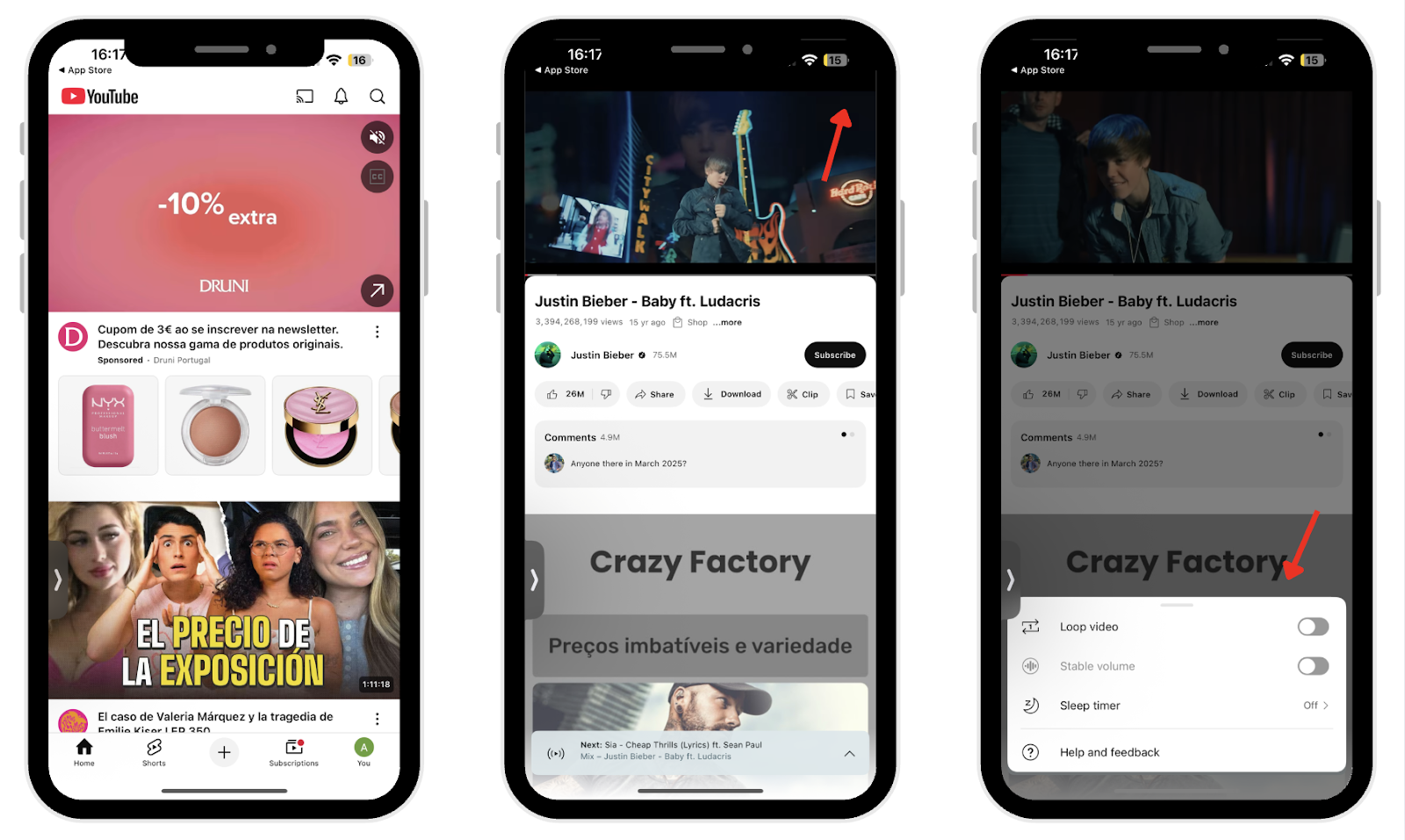
Open the YouTube app and start playing the video you want to loop.
Tap the three-dot menu icon located in the upper-right corner of the video player.
Click Loop video.
Your video will now automatically repeat. This is ideal for relaxing music, workout videos, or background audio on mobile.
Steps for Looping Playlists on Mobile
Looping an entire playlist on mobile is just as simple:
Navigate to the playlist you want to repeat and start playing it.
Tap the mini player bar to open the full player view.
Tap the loop icon (two arrows forming a circle) until you see a small “1” to loop a single video, or no number to loop the entire playlist.
Ensure Autoplay is toggled on so the playlist continues without manual intervention.
Workarounds If the Loop Option Is Missing
If you don’t see the loop option on mobile, it might be due to:
Outdated YouTube app — update it via the App Store or Google Play Store.
Regional restrictions or network issues — try switching to a mobile browser like Chrome and enable desktop mode.
If still unavailable, consider using third-party apps or copying the video link to a desktop browser with looping extensions.
Can You Loop an Entire Playlist on YouTube?
Yes! YouTube supports looping entire playlists on both desktop and mobile, making it easy to enjoy continuous playback without restarting manually. There are different methods to loop playlists, including options for looping on TV devices, which is convenient for group watching or background playback.
This feature is great for long listening sessions, multi-part tutorials, or themed video compilations. You can access your playlists from the playlist panel on the YouTube interface, making it simple to manage and play your favorite collections. Looping playlists is especially useful for learning different kinds of skills, such as languages, sports, or music, where repeated viewing enhances mastery.
How to Use the Autoplay Toggle and Repeat Button
Open your playlist and start playing it.
Click the loop icon on the playlist player to enable repeat.
Turn on autoplay to ensure smooth transitions between videos.
This combination of autoplay and playlist looping creates an ideal experience for studying music, workout routines, or any long-form content consumption.
Benefits for Creators and Productivity
Looping playlists isn’t just useful for viewers; content creators also benefit. Looping increases total watch time and boosts viewer retention, improving video rankings in search results.
When viewers keep playlists running, it signals YouTube that the content is engaging and valuable. YouTube can also log watch time and engagement to assess the quality of content, which can further impact rankings and recommendations. Additionally, platforms like Buzzvoice can help grow your following, encourage viewers to subscribe to your channel, and increase Youtube views and engagement.
Why Loop a YouTube Video?
Looping is more than just a convenience—it can dramatically improve how you use YouTube for learning, entertainment, and productivity.
Studying or Relaxing to Music
Looping lo-fi beats, ambient soundtracks, or nature sounds can create a distraction-free environment. Continuous repetition of soothing music helps maintain concentration during study sessions or work marathons by preventing interruptions from changing tracks.
Tutorials and Skill Practice
When mastering new skills like guitar solos, yoga flows, or language lessons, looping helps you absorb details through repetition. Replaying specific video sections enables better retention and muscle memory, which leads to improved mastery over time.
Background Ambiance or Motivational Loops
Sometimes you want a video running in the background to set the mood. Looping motivational speeches, cinematic visuals, or ambient art creates an inspiring or relaxing environment for work, creativity, or downtime.
Conclusion
The days of manually restarting YouTube videos are over. Thanks to YouTube’s built-in loop feature introduced in 2026, repeating videos is now fast, simple, and available across all devices. Whether you want to learn a new skill, relax with ambient music, or replay your favorite content repeatedly, looping is just a click or tap away.
Boost your YouTube channel with BuzzVoice services and increase your visibility by buying YouTube views to help your videos rank higher and appear first when a user searches for your niche.
FAQs
Why doesn’t the loop option show up for me?
This can happen if your app or browser is outdated, or if the video is embedded somewhere that restricts looping. Try updating your app or using YouTube directly in a browser or on another device to see if the loop option appears.
Can I loop YouTube videos without ads?
Ads will still play unless you have a YouTube Premium subscription. Some people use ad blockers, but that may violate YouTube’s terms. Another option is downloading videos for offline viewing with Premium, which skips ads entirely.
Will looping videos affect my watch history?
Yes, every loop counts as a new view and is recorded in your watch history. This can influence your recommendations since YouTube’s algorithm uses your viewing habits to suggest content.
Can I loop YouTube Shorts?
YouTube Shorts automatically loop by design, so there’s no manual loop button. Each Short will keep playing repeatedly as long as you stay on it.

BuzzVoice
BuzzVoice is the best place to go when you need instant engagement services on social media. Offering a wide variety of packages for Instagram, Youtube, Facebook, Twitter, Soundcloud & Tiktok.