How To Change the Instagram App Icon on iPhone / Android
How to change Instagram Icon? Whether you’re into minimalist aesthetics or nostalgic vibes, changing the Instagram icon on your phone is still possible in 2026 — even if the app itself no longer supports built-in icon changes.
In this guide, we’ll show you exactly how to customize the Instagram icon on both iPhone (iOS) and Android, where to find aesthetic app icons, and answer some frequently asked questions.
If you are struggling to gain traction on Instagram, BuzzVoice can provide services which offer a helpful boost in Instagram likes, custom comments, video views and real followers.
Instagram App Icon Customization: How Does It Work?
Personalizing your Instagram app icon isn’t just about looks—it can also help you organize your apps, making it easier to find Instagram among your other apps. You might want to hide the original icon, give your shortcut a new name, or group your favorite social media apps for quick access. With just a few taps in your device’s settings page or search bar, you can adjust your home screen to suit your needs.
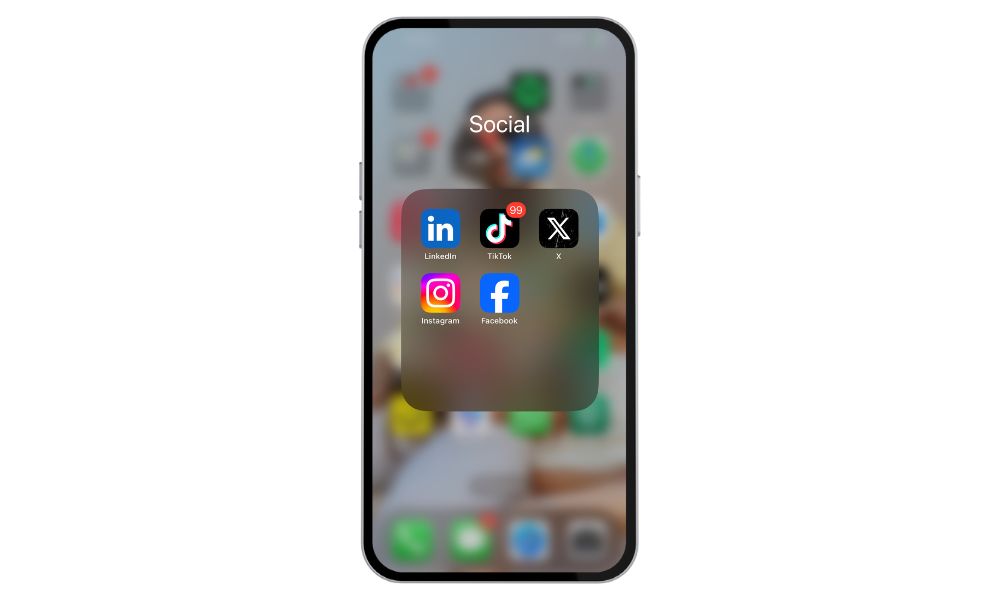
Can You Still Change the Instagram App Icon in 2026?
No, Instagram’s official in-app icon customization — which was introduced for its anniversary in 2020 — is no longer available. That feature allowed users to switch to classic or alternative Instagram icons with just a tap inside the app. However, users still have the option to change the Instagram icon manually using device tools.
But don’t worry — you can still change the Instagram logo manually using tools already available on your device.
- On iOS devices, this works using the Shortcuts app
- On Android phones, you can customize app icons using launchers like Nova Launcher
These methods are safe, and straightforward, and don’t affect how Instagram works.
How to Change the Instagram Icon on iPhone (iOS)
Changing the Instagram icon on iOS involves creating a shortcut that opens the Instagram app with a custom image. Here’s how:
- Open the Shortcuts app (pre-installed on your iPhone)
- Tap the + button (top right corner) to create a new shortcut
- Tap Add Action > Search for Open App
- Tap App, then choose Instagram
- Tap the Share icon at the bottom > Add to Home Screen
- Tap the icon image > choose Photo or File (you may need to scroll through your photo library or files to find your custom icon image)
- Select your custom Instagram icon image
- (Optional) Rename the shortcut to “Instagram”
- Tap Add
Now, you’ll see the new custom Instagram icon on your home screen. You can even remove or move the original app icon into a folder if you want to keep things tidy.
In case you are looking to grow your Instagram account, check this article here to learn how to grow your followers.
How to Change the Instagram Icon on Android
On Android, changing your Instagram icon depends on the phone model and launcher. Many Android users use launchers like Nova Launcher or Smart Launcher to personalize icons easily. The launcher acts as the host for your customized icons, providing the environment where you can make these changes. Launchers like Nova Launcher can be downloaded from various sites or app stores.
Here’s how to do it using Nova Launcher:
- Long-press the Instagram app icon on your home screen
- Tap Edit
- Tap the app icon to open the icon selection menu
- Choose Gallery apps, Icon packs, or Photos
- Select the image you want to use as your new Instagram icon (you may need to scroll through your gallery or icon packs to find the desired image)
- Tap Done or Save
If you want only the custom icon to be visible, you can remove the original Instagram app icon from the home screen. Your custom icon will now replace the original one on your home screen.
Where to Get Custom Instagram Icons
You’ll find tons of custom Instagram icons online — from clean and minimalist to bold and colorful. Users have the option to choose from a wide variety of icon designs to suit their style. Here are some great sources (and remember, there are many sites where you can find custom Instagram icons):
- Etsy – Buy full aesthetic app icon packs in themed bundles (pastel, neon, Y2K, vintage, etc.)
- Pinterest – Browse and download free Instagram icons and home screen themes
- Canva – Design your app icons using templates (ideal for branding or influencers)
- Icon Archive Websites – Download icons in PNG or SVG format from free resources like Flaticon or Iconfinder
Select the icon style you prefer for your home screen to personalize your device.
Tip: Make sure the icons are high-resolution and transparent (PNG format) for best results.
Final Thoughts
Although Instagram no longer offers in-app icon customization, you can still change the Instagram icon on both iPhone and Android using device tools. There are many options available for customizing the Instagram icon, so you can choose the icon style you prefer.
With just a few steps and a bit of creativity, you can create a phone’s home screen that reflects your style, from minimalist chic to playful and colorful. It’s a small change that makes your phone feel a lot more personal.
Continue exploring different customization methods, and if you want to learn more about home screen customization, check out guides or tutorials to help you personalize your app icons and names even further.
Want to boost your visibility on Instagram instantly? Buy Instagram Followers, Likes, and Views from BuzzVoice to grow faster, build trust, and reach your target audience today.
FAQs
Can I get the classic Instagram icon back?
Yes! You can download the old Instagram icon — like the vintage Polaroid-style camera — from icon archives, Pinterest, or aesthetic packs on Etsy. Just make sure the image is high-resolution and in PNG format to look sharp on your screen.
Will changing the icon affect how the app works?
No — this is purely a visual customization and doesn’t interfere with Instagram’s functionality or updates. You’ll still receive notifications and access all features as usual.
Can I use custom icons without third-party apps?
On iPhones, yes — the Shortcuts app lets you do it without installing anything else. On Android, though, most built-in systems don’t support icon changes, so a launcher app like Nova is typically needed.
Is this allowed by Instagram?
Yes. Instagram doesn’t restrict how you organize your home screen or use system tools to customize icons. Since the change happens at the device level, not within the app, it’s completely safe and permitted.

BuzzVoice
BuzzVoice is the best place to go when you need instant engagement services on social media. Offering a wide variety of packages for Instagram, Youtube, Facebook, Twitter, Soundcloud & Tiktok.