What Does Challenge Required Mean on Instagram and How to Fix It?
If you’ve recently tried logging into your account and saw the message “Challenge Required,” you’re probably wondering what does challenge required mean on Instagram and why it suddenly appeared. This notification can be confusing, especially if you haven’t done anything unusual.
In most cases, it’s not a serious problem but a built-in security measure designed to protect your Instagram account from suspicious activity. Whether you logged in from a new device, switched your IP address, or experienced a poor internet connection, Instagram may ask you to verify your identity.
Understanding why this happens and how to fix it can help you quickly regain access and prevent it from happening again in the future.
- The Challenge Required error is a security measure that protects your Instagram account from unauthorized access.
- A new device, different IP address, or automation tools can trigger this warning.
- Poor internet connection, outdated app, or corrupted cache may cause login problems.
- Completing identity verification and following on-screen instructions usually restores access.
- Enable two-factor authentication, keep the app updated, and use a stable connection to prevent future issues.
More activity equals more growth. BuzzVoice helps you get Instagram followers, likes, and views that increase trust, reach, and engagement.
What Is Instagram Challenge Required Error?
The Instagram challenge required error is a security notification triggered by Instagram when it detects suspicious activity related to your Instagram account.
This error message usually appears as:
“challenge_required”
It means that Instagram wants you to complete an authentication process before you can continue accessing Instagram. This security measure ensures that the account owner is genuinely trying to log in.
When the error occurs, the app prompted you to verify your identity through on screen instructions such as:
- Entering a verification code
- Confirming login from a recognized device
- Verifying via email or phone number
This is part of Instagram’s security protocols to protect user accounts from hackers, bots, and automation tools.
Related: Does Instagram Notify When You Screenshot a DM?
What Are the Reasons for the “Challenge_Required” Error on Instagram?
There are several common causes behind the challenge_required error on Instagram. Let’s break them down one by one.
1. Logging in With an Unrecognized or New Device
If you log into your Instagram account using an unknown device or new mobile device, Instagram may detect it as suspicious activity.
For example:
- Switching from Android devices to iPhone and iPad users.
- Logging in from a friend’s phone.
- Using a desktop browser after always using the Instagram app.
When this happens, Instagram may trigger the Instagram challenge required as part of proper security protocols.
2. Logging in from an Unrecognized IP
Your IP address plays a major role in Instagram’s security protocols. If your current IP address changes suddenly, Instagram may suspect unauthorized access.
This often happens when:
- Using a virtual private network
- Connecting through a proxy server
- Switching to a different IP address
- Traveling to another country
If Instagram detects a specific IP address it doesn’t recognize, the challenge required error may appear.
3. A Failed/Poor Connection
A poor internet connection or failed connection during login can also cause the error occurs issue.
Common scenarios:
- Weak mobile data
- Slow upload or download speed
- Interrupted Wi Fi connection
- Huge data load causing delays
Instagram may interpret unstable network activity as suspicious.
4. Outdated Instagram App
Using an out of date version of the Instagram app can create compatibility problems with the web server or Instagram server.
If you haven’t installed recent Instagram updates from the Google Play Store or App Store, the required error on Instagram may appear.
5. The App Servers Are Down
Sometimes the issue isn’t from your side. The Instagram server may be experiencing downtime.
When the web server struggles due to huge data load, many users report Instagram error issues like challenge required.
Checking the Instagram server status can help confirm this.
6. Clogged-up Instagram Cache
The app cache stores temporary data to improve performance. However, a messed up cache file can trigger the challenge_required error.
If the cache stores temporary data incorrectly, it can interfere with the authentication process.
💡 Pro Tip: Strengthen your profile credibility with BuzzVoice. Buy Instagram comments to make your content lively and engaging.
How Long Does the Challenge_Required Error Last?
The duration of the challenge required error depends on the cause.
- If it’s a simple authentication process, it may last only a few minutes.
- If Instagram flags suspicious activity, it may take 24–48 hours.
- In rare cases, access may remain restricted until identity verification is completed.
Most Instagram user accounts regain access quickly after completing verification steps.
How to Fix the Challenge_Required Error on Instagram?
If you’re facing the challenge_required error on Instagram, don’t panic. This issue is usually triggered by Instagram’s security protocols when suspicious activity, a new IP address, or a poor internet connection is detected. Below are proven methods to fix challenge required issues and safely regain access to your Instagram account.
1. Verify Your Account When Required
The first and most important step is to complete the authentication process. When the Instagram app prompted you with on screen instructions, follow them carefully.
Instagram may:
- Send a verification code via SMS
- Email a confirmation link
- Ask you to confirm login from a recognized device
This security measure ensures the account owner is trying to log in. Enter the correct verification code and complete all required steps. In most cases, the challenge_required error disappears immediately after successful verification.
2. Check Your Internet Connection
A poor internet connection is one of the most common reasons the error occurs. Instagram may block access if it detects unstable login behavior caused by a failed connection.
To fix this:
- Switch between mobile data and Wi Fi connection
- Run an internet speed test
- Ensure you have a stable Wi Fi connection
- Check upload and download speeds
If your mobile data plan is slow or experiencing interruptions, connect to a stronger network. A steady connection reduces authentication errors and prevents login failures.
3. Log in from Another IP Address
Sometimes your current IP address may be flagged due to unusual activity. Switching to a different IP address can resolve the challenge_required error.
You can:
- Turn off your virtual private network
- Disconnect from a proxy server
- Restart your router to generate a new IP address
However, avoid frequently switching IPs, as Instagram’s security systems may see this as suspicious behavior. Always use a consistent and secure network when accessing Instagram.
4. Restart the App
Temporary glitches inside the Instagram app can also trigger the required error on Instagram. Simply closing and reopening the app may solve the issue.
- Close the app completely from the app window
- Wait 10–15 seconds
- Reopen the app and try logging in again
This refreshes the session and clears minor bugs affecting the login process.
5. Check for Instagram Updates
Using an out of date version of the app can cause compatibility problems with the Instagram server.
To update:
- Open the Google Play Store (for Android users)
- Open the App Store (for iPhone and iPad users)
- Search for Instagram
- Tap Update if available
Installing the latest Instagram updates ensures the app works smoothly with Instagram’s official web server and current security patches.
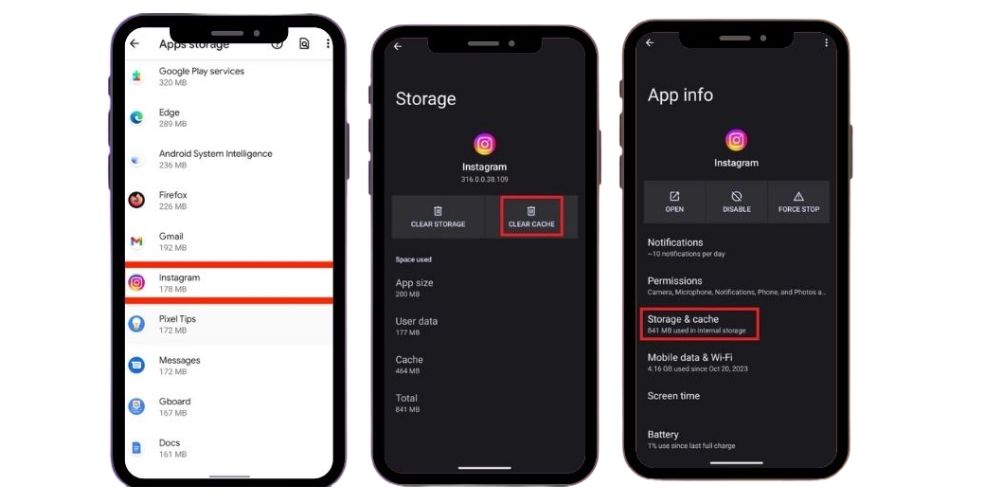
6. Clear the Instagram App Cache
Over time, the app cache stores temporary data that may become corrupted. A messed up cache file can interfere with login verification.
For Android users:
- Go to Settings
- Tap Apps
- Select Instagram
- Tap Clear Cache
Clearing cache removes temporary files without deleting your account data. This often fixes the Instagram challenge required error quickly.
7. Access Data in Instagram
If you suspect suspicious activity, review your login sessions directly inside the app.
- Open your Instagram profile
- Tap the three line menu icon
- Go to Settings
- Check login activity
Remove unknown device sessions and secure your account. Monitoring user accounts activity helps prevent repeated challenge_required error issues.
8. Uninstall/Reinstall the App
If clearing cache doesn’t work, reinstalling the Instagram app may help.
- Delete the app from your mobile device
- Reinstall it from the Google Play Store or App Store
- Log in again
This removes corrupted files and refreshes the application completely.
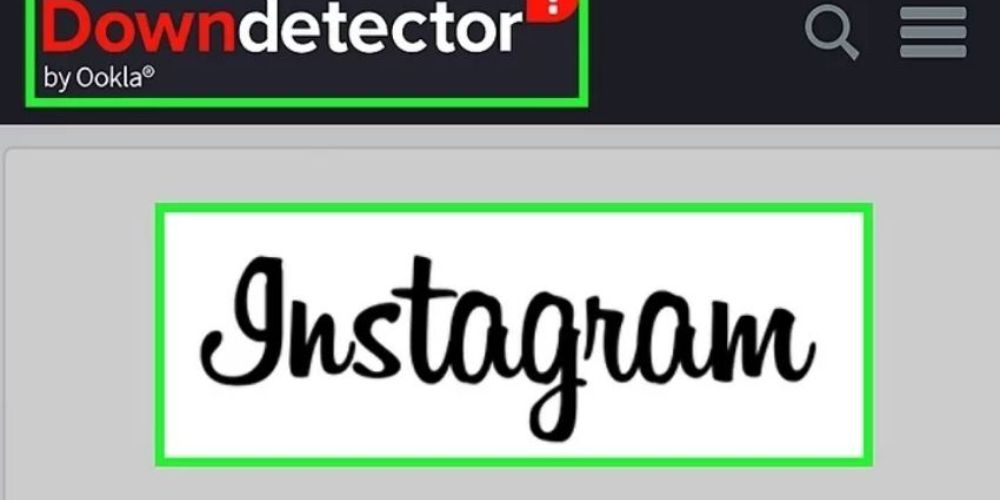
9. Check the Instagram Server Status
Sometimes the issue isn’t on your end. The Instagram server may be down due to a huge data load or technical maintenance.
You can:
- Visit a down detector site
- Check Instagram’s official social channels
- Search online for Instagram server status updates
If the platform is experiencing downtime, wait until services are restored. Once the server is stable, you should be able to access your Instagram account without further issues.
By following these steps carefully, most users can fix challenge required problems quickly and regain access without long delays.
10. Secure Your Account
Enable two factor authentication for added security.
This prevents unauthorized access and reduces challenge required issues.
Related: How to Invite a Collaborator on Instagram and Maximize Your Reach?
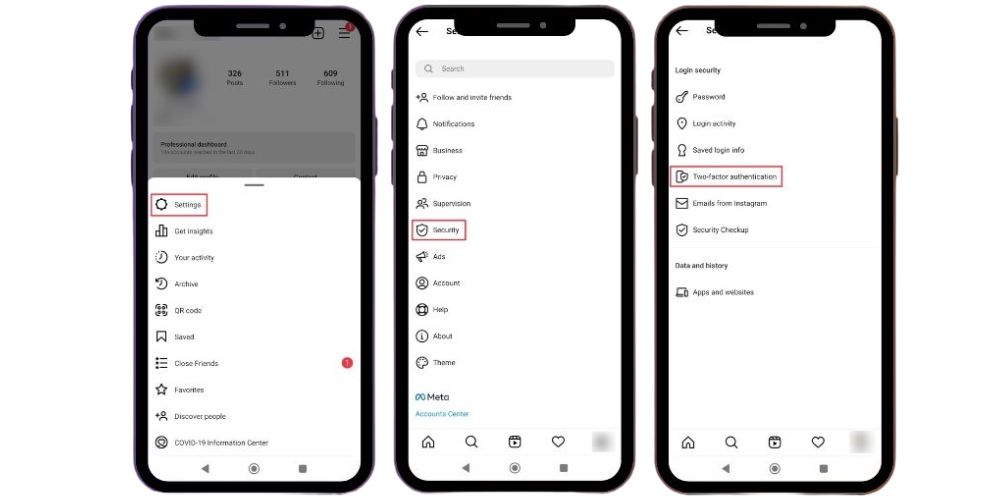
How to Set Up Two-Factor Authentication for Your Instagram App
- Open the Instagram app
- Go to your Instagram profile
- Tap the three line menu icon
- Select Settings
- Tap Security
- Choose two factor authentication
- Follow on screen instructions
This adds extra protection beyond password security.
11. Contact Instagram Support
If none of the methods work, contact Instagram’s official support team through the Instagram website.
Explain the error message clearly to speed up assistance.
How to Make Your Instagram Bot Behave Like a Human
If you use automation tools for managing multiple accounts, follow proper security protocols to avoid triggering Instagram challenge.
Tips:
- Avoid excessive actions in a short time.
- Use consistent IP address instead of switching frequently.
- Limit follows, likes, and comments.
- Avoid using suspicious proxy server networks.
- Mimic natural human behavior patterns.
Instagram monitors suspicious activity closely. Bots that send huge data load requests or act unnaturally often face the challenge_required error.
💡 Pro Tip: BuzzVoice helps you get Instagram comments that build discussions, attract attention, and strengthen your social proof effectively.
Final Thoughts
So, what does challenge required mean on Instagram?
It is a security measure designed to protect your Instagram account from unauthorized access. The challenge_required error on Instagram appears when suspicious activity, new IP address, unknown device login, poor internet connection, or outdated app version is detected.
In most cases, following on screen instructions, verifying your identity, and securing your account with two factor authentication helps you quickly regain access.
By maintaining a stable internet connection, updating the Instagram app, clearing app cache, and avoiding risky third-party tools, you can prevent the challenge required error and enjoy uninterrupted access to your Instagram profile.
FAQs
How long does challenge required last on Instagram?
The challenge required error usually lasts a few minutes to 48 hours, depending on the reason. If it’s just identity verification, it resolves quickly. If triggered by suspicious activity or IP changes, Instagram may temporarily limit access longer.
Why is my Instagram not allowing me to log in?
Instagram may block login attempts due to a poor internet connection, incorrect password, suspicious activity, or login from an unknown device. Sometimes server issues or an outdated Instagram app can also prevent you from accessing your account.
How do you know if you got restricted on IG?
If restricted on Instagram, your comments may only be visible to you, direct messages might move to message requests, and certain interactions become limited. You won’t receive a clear notification, but engagement changes can signal restrictions.
What does a challenge is required to process this secured action mean?
This message means Instagram needs to verify your identity before allowing the action. It’s a security measure triggered by unusual behavior, new login locations, or sensitive changes to your account settings.
Why is Instagram not letting me reset my password?
Instagram may block password resets due to suspicious activity, incorrect email or phone details, or too many reset attempts. Server problems or a weak internet connection can also prevent the reset link from working properly.

BuzzVoice
BuzzVoice is the best place to go when you need instant engagement services on social media. Offering a wide variety of packages for Instagram, Youtube, Facebook, Twitter, Soundcloud & Tiktok.