How To Cancel A Soundcloud Subscription: Step-by-Step Guide
Popular music streaming service SoundCloud provides a range of subscription options to improve user satisfaction. Whether you have a SoundCloud Go or SoundCloud Go+ subscription, you might eventually need to cancel it. However, the specific procedures may differ based on the device you are using and how you signed up initially.
Every subscription method necessitates a distinct cancellation strategy. You can cancel your SoundCloud subscription in several ways with this thorough guide, which will make sure there are no unforeseen fees or hassles. This guide will provide you with all the information you need to manage your SoundCloud subscription status properly.
If you’re interested in growing your SoundCloud account with likes, followers, and reposts, check out BuzzVoice’s SoundCloud services for promotion options.
1. Canceling SoundCloud Subscription on Desktop
Regardless of how you originally subscribed, desktop cancellation is frequently the most straightforward option. All of the subscription management features are easily accessible through the web interface.
For Direct SoundCloud Subscriptions:
Click on Setting
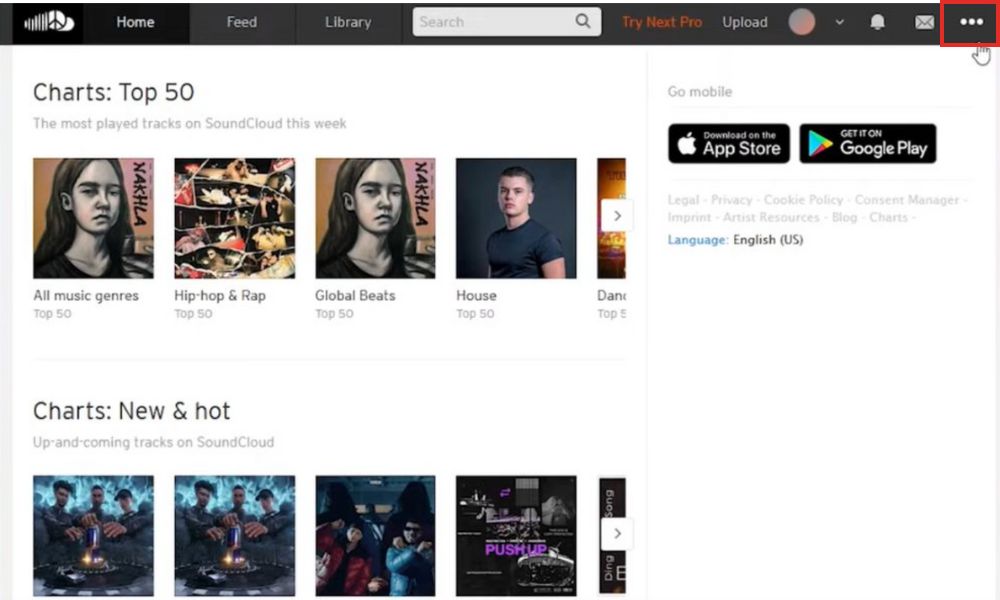
Go to the Subscription tab in the left sidebar.
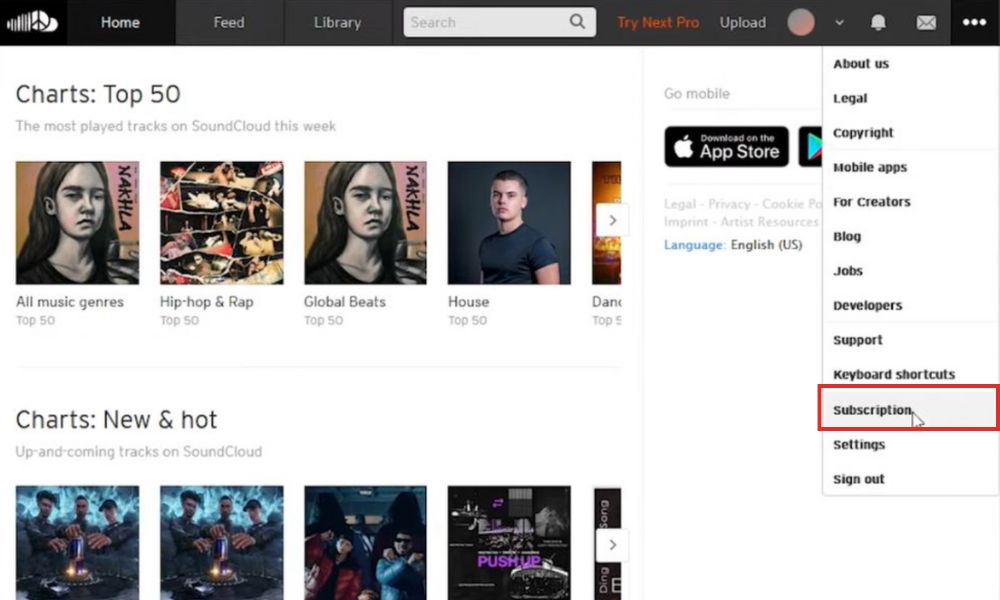
Click on Cancel subscription. SoundCloud might offer you incentives to stay, like a free month or a discounted rate.
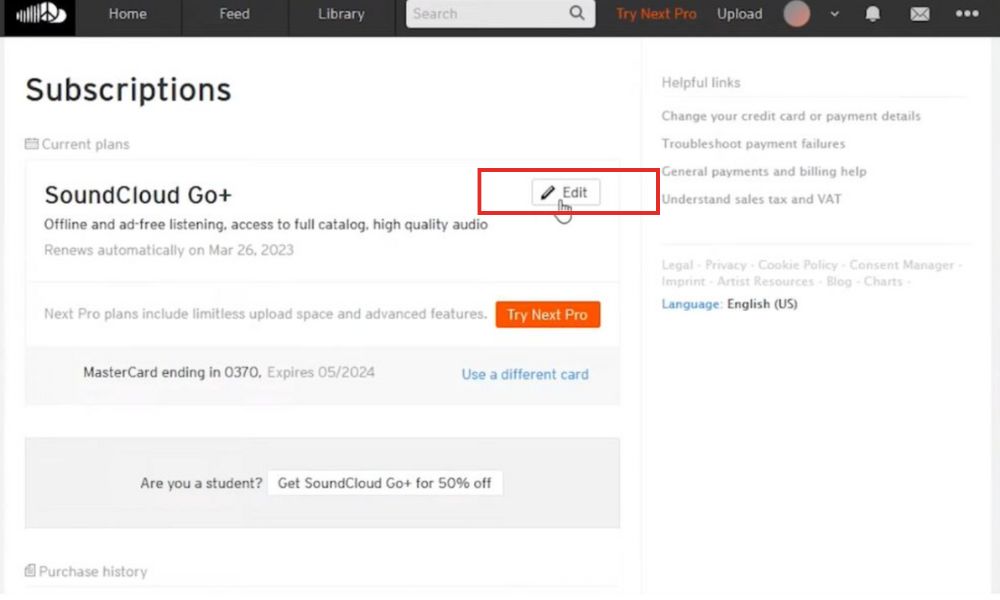
Follow the instructions and confirm that you want to cancel.
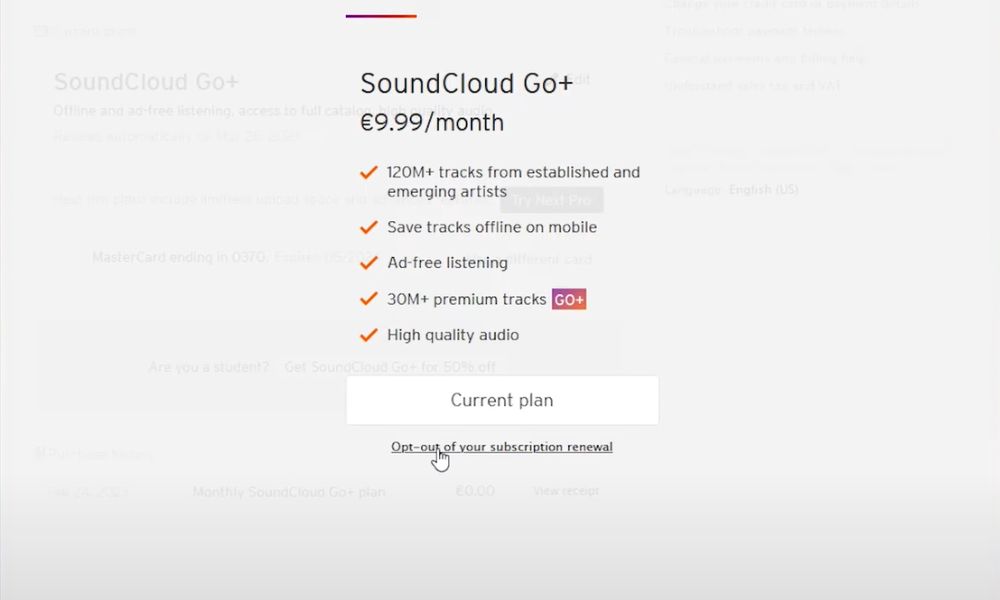
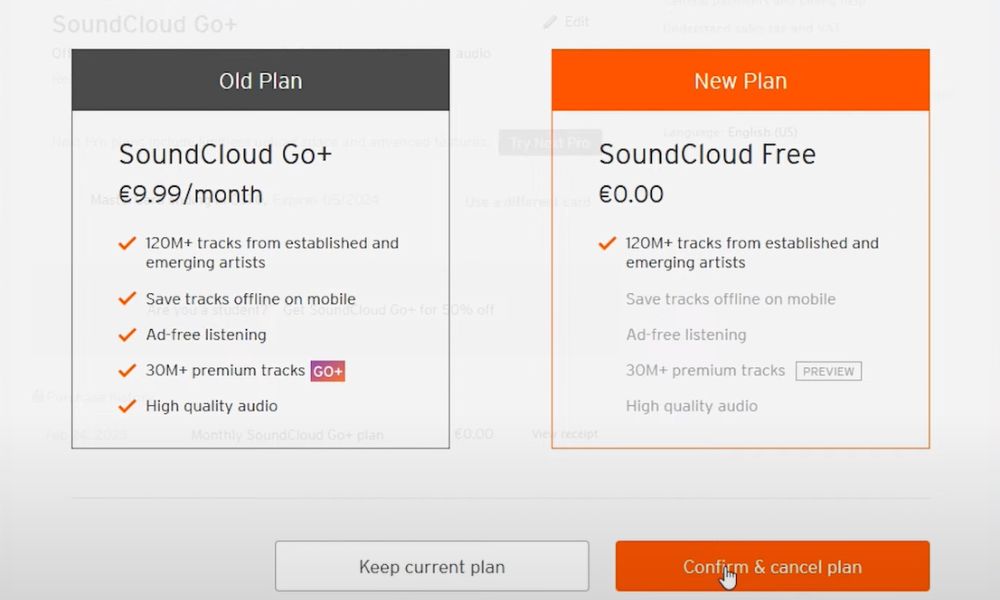
5. Check the screen for a cancellation confirmation message.
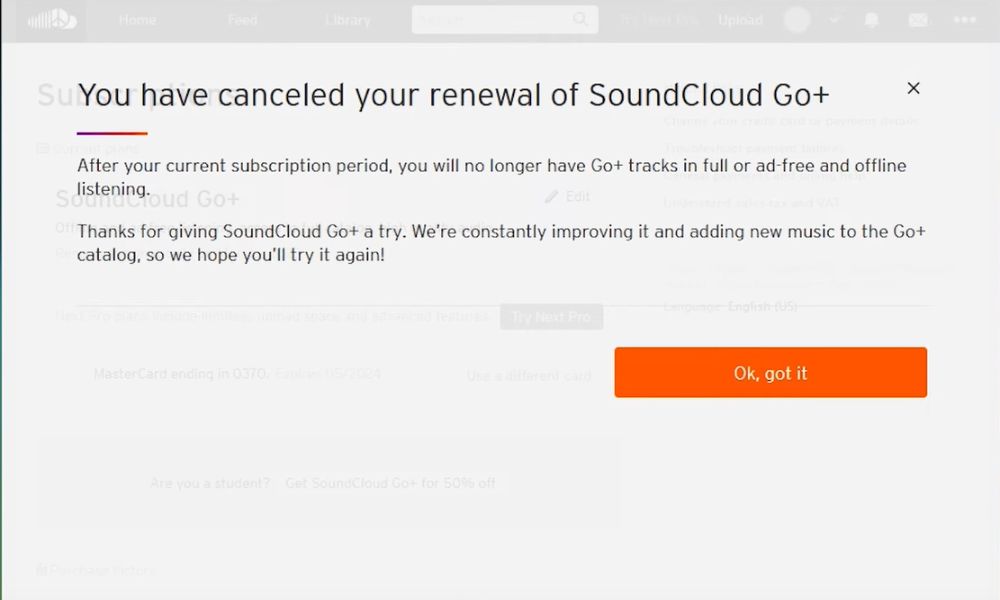
Look for a SoundCloud cancellation confirmation email in your inbox. Keep this email as confirmation of cancellation in case there are any further billing issues.
For Third-Party Subscriptions (When Subscribed Through SoundCloud Website):
Repeat steps 1-4 from the previous method.
If you see a notice saying that a third party is in charge of managing your subscription, click the link to access the relevant platform. In most cases, SoundCloud will either send you to the relevant cancellation page or give you instructions tailored to your billing method.
If there is not a direct link, note which billing provider you use and take the necessary actions for that provider in the sections below.
2. Canceling SoundCloud Subscription on iPhone or iPad
If you bought a subscription using the iOS app, you have to cancel using your Apple ID settings.
Through the Settings App:
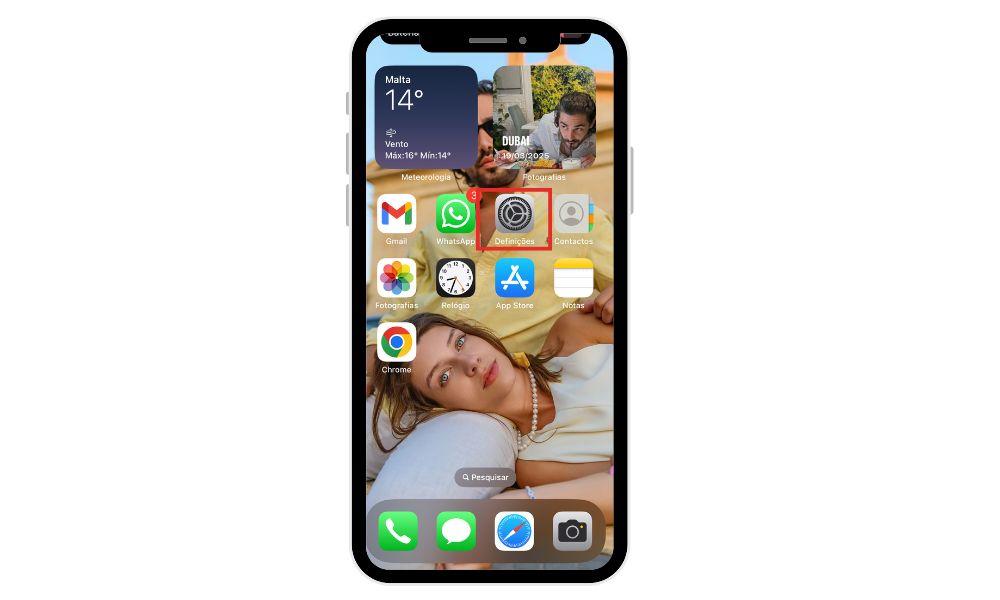
Open the Settings app on your iPhone or iPad.
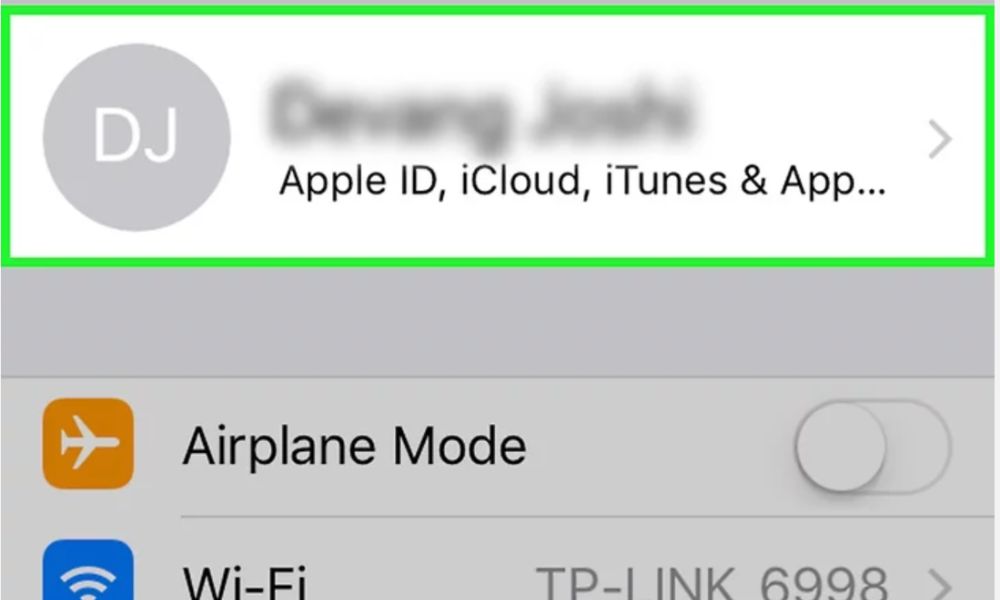
2. Tap on your Apple ID at the top of the settings screen
3. Select Subscriptions.
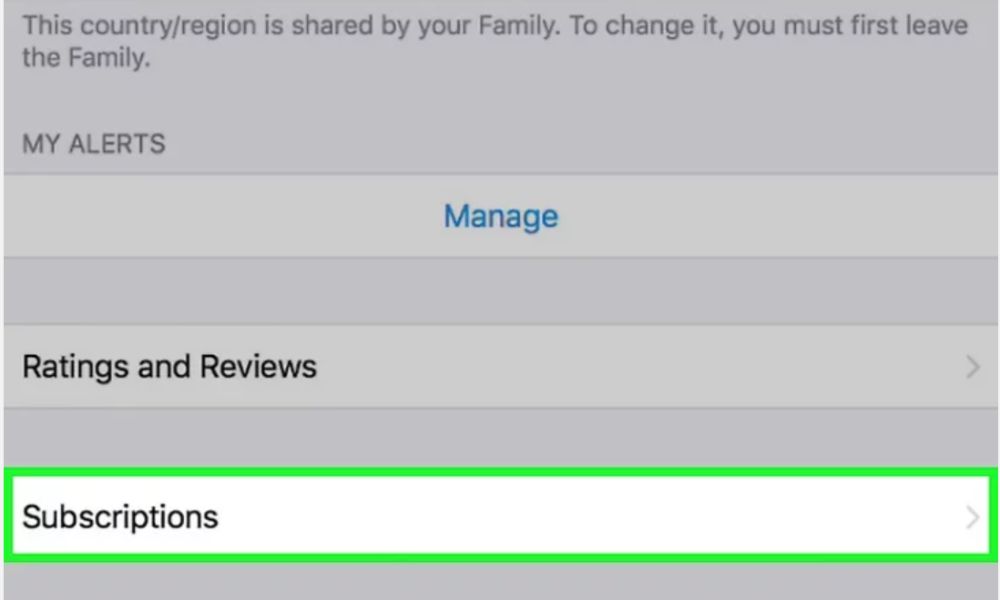
Find and tap on your SoundCloud subscription.
Tap Cancel Subscription at the bottom of the screen.
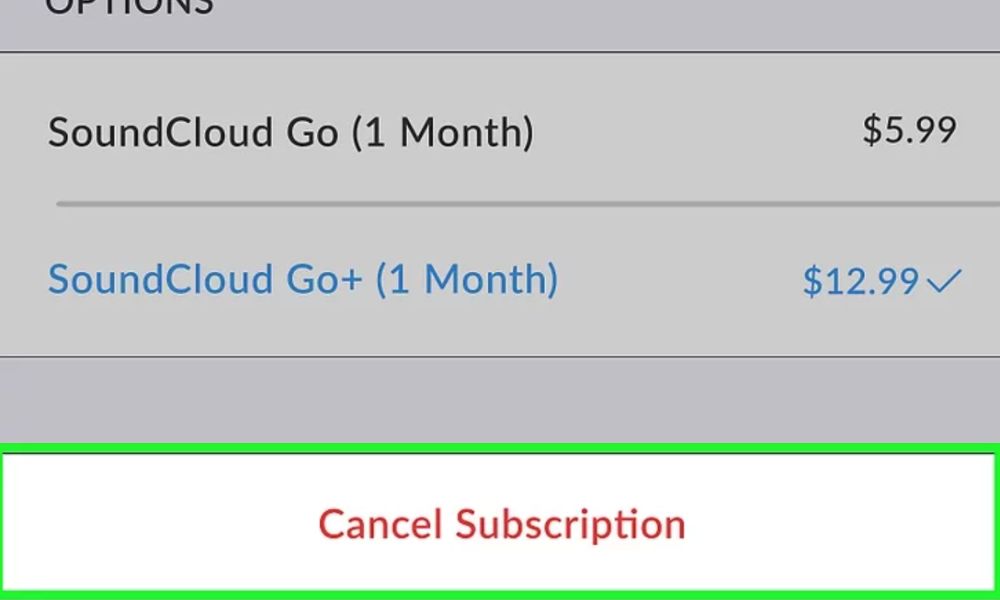
Confirm your subscription cancellation.
Following confirmation, the subscription’s cancellation date will be shown to you, letting you know when your access to premium features will expire.
Through the App Store:
- Open the App Store.
- Tap on your profile icon in the top-right corner.
- Select Subscriptions.
- Find and tap on your SoundCloud subscription.
- Tap Cancel Subscription at the bottom of the screen.
- Confirm your cancellation.
- The subscription will show an expiration date, indicating when your premium access will end.
3. Canceling SoundCloud Subscription on Android
If you subscribed through the Android app using Google Play, follow these steps
Through Google Play Store:
- Open the Google Play Store app on your Android device
- Tap on your profile icon in the top-right corner.
- Select Payments & Subscriptions.
- Tap on Subscriptions.
- Find and select your SoundCloud subscription from the list.
- Tap Cancel subscription.
- Following the instructions, choose a cancellation reason when prompted. Google Play will inquire about the reason for your cancellation; this information is used to enhance services.
- Tap Continue and then Cancel subscription to confirm your decision.
- You’ll see a confirmation message and the date when your subscription will end.
4. Managing Subscriptions Through Third-Party Billing Services
For PayPal Subscriptions:
For convenience and security, a lot of users choose to pay for their SoundCloud subscription using PayPal. If this is your case, follow these steps:
- Log in to your PayPal account at paypal.com.
Click on the Settings icon (gear icon) near the top right of the page. - Select Payments from the menu.
- Click on Manage automatic payments or Manage pre-approved payments.
- Find and select SoundCloud from the list of merchants.
- Click Cancel or Cancel automatic billing.
- Confirm your cancellation. PayPal will ask you to verify that you wish to halt SoundCloud’s automatic payments.
- PayPal should send you an email confirming the cancellation as soon as it is confirmed. Save this for your records.
5. Canceling Through Email (Alternative Method)
In case you are experiencing issues with the previously mentioned methods, SoundCloud provides an alternate way to cancel via email:
- Using the email address linked to your SoundCloud account, send an email to [email protected].
- Write a clear subject line like “Request to Cancel SoundCloud Subscription” in your email.
- Include the following information in the email:
- Your full name
- The email that is linked to your SoundCloud profile
- Your SoundCloud username
- The subscription plan you wish to cancel
- A clear statement requesting cancellation
- Wait for a confirmation email from SoundCloud support. Usually, they reply in one to two business days.
- Complete the cancellation by following any further directions they may have given in their response.
- If there are billing disputes, keep all correspondence for your records.
Conclusion
Canceling your SoundCloud subscription doesn’t have to be a complicated process. Depending on your device and subscription method, you can successfully cancel your premium plan without incurring any unexpected fees by following the right procedures.
You can optimize the value of your subscription by carefully planning when to cancel, as you will continue to have access to premium features until the end of your current billing cycle.
Whether you are cutting back on premium audio streaming, moving to a different service, or just trying to save money, properly terminating your subscription guarantees that you keep control of your digital subscriptions and money.
If you still want to grow your SoundCloud audience, consider using BuzzVoice’s SoundCloud services to improve your engagement.
FAQs
Will I get a refund when I cancel my SoundCloud subscription?
Usually, SoundCloud does not give refunds for plan cancellations. However, until the conclusion of your current billing period, you will still be able to access premium features. After cancellation, there will not be any further fees.
Can I cancel my SoundCloud subscription at any time?
Yes, you can cancel your SoundCloud Go or SoundCloud Go+ subscription at any time. There are no penalties or cancellation fees. Regardless of when you cancel during that cycle, your subscription will stay active until the end of your current billing period.
What happens to my playlists and saved music after I cancel?
You’ll lose access to premium features such as offline listening and ad-free playback. Your library will still contain the tracks you have saved, but tracks that are only accessible with a premium may no longer be accessible. Your SoundCloud profile will still display any songs you have uploaded.
Can I still use SoundCloud after canceling my subscription?
Yes, you can continue using SoundCloud with a free account after cancellation. Your profile, playlists, and social connections will remain intact.
How long before my renewal date should I cancel to avoid being charged again?
To avoid being charged for another billing cycle, you should cancel at least 24-48 hours before your renewal date.
Can I pause my subscription instead of canceling it completely?
There is not an official “pause” feature for SoundCloud subscriptions at the moment. You will need to cancel your subscription and resubscribe when you are ready to use the service again if you need a brief break.
Can I downgrade from SoundCloud Go+ to SoundCloud Go instead of canceling completely?
Yes, you have the option to modify your subscription plan rather than cancel completely. Explore the Subscription tab in your SoundCloud account settings to find ways to modify your plan.
How do I cancel my SoundCloud subscription if I can’t access my account?
You can still cancel through your billing company (Apple, Google, PayPal, etc.) even if you are unable to access your SoundCloud account. If you need help regaining access to your account, get in touch with SoundCloud Support. Be ready to have your identity and possibly other account details, including the email address linked to your account, verified.
I don’t see the Subscription tab in my settings. What should I do?
Ensure that the SoundCloud account you are logged into is the correct one. Verify each account if you have more than one. Your subscription might not be active, or it might be controlled by a third-party platform if you are still unable to see the Subscription tab. For help determining your subscription status, send an email to SoundCloud Support with your account information.
How do I contact SoundCloud Support if I’m having trouble canceling?
SoundCloud Support can be contacted via their Help Center at help.soundcloud.com. Look for the “Submit a request” or “Contact Us” options. Give specific details about the problem you are having and your account.
What if my cancellation didn’t process before my renewal date?
If you tried to cancel but were still billed for a subsequent billing cycle, get screenshots, emails, and other documentation of your attempt to cancel, and get in touch with SoundCloud Support and your payment processor. If you can prove that you tried to cancel before the renewal date, many billing companies will give you a refund. To support your claim, note the time and date of your cancellation attempt.

BuzzVoice
BuzzVoice is the best place to go when you need instant engagement services on social media. Offering a wide variety of packages for Instagram, Youtube, Facebook, Twitter, Soundcloud & Tiktok.