How to Turn Off ‘Content Warning’ on Twitter (X)
In 2026, Twitter, now officially X, is more than just a platform for news and memes. It’s where real-time culture is created, where niche creators build loyal communities, and where viral content shapes online conversation. But if you’ve ever seen the frustrating blur over a tweet that says “This Tweet might contain sensitive content,” you’ve probably wondered: how to turn off content warning on Twitter?
Whether you’re scrolling for creative inspiration, tracking the latest trends, or simply want full control over what shows up in your feed, disabling Twitter’s sensitive material warning can make a huge difference. For creators, artists, and meme pages with a bold edge, these filters don’t just limit what you see, they can hold back your content’s visibility and engagement.
That’s why we created this quick guide. We’ll show you exactly how to turn off content warnings on Twitter for both desktop and mobile, walk you through adjusting your privacy and media settings, and explain how creators should mark certain content correctly to stay compliant without killing their reach.
And with BuzzVoice backing you up, you don’t just unlock access, you gain powerful tools to grow your social media account with Twitter followers, retweets and likes.
How to Turn Off Content Warning on X (Twitter): Understanding the Feature
Twitter (now X) flags Tweets that may contain graphic, adult‑oriented, or potentially offensive media. You’ll see the message “This Tweet might contain sensitive content” over images or videos that are either manually marked by the user or flagged by the algorithm. Its purpose is to protect younger or sensitive users from unexpected exposure.
Disabling sensitive content warnings does not require making your account private. Privacy settings and content visibility controls are separate, so you can manage sensitive content warnings without changing your account’s privacy status.
Related: Can you remove followers on Twitter?
How to Turn Off Sensitive Content Warnings on X official website (2026)
On Desktop (X.com)
Log in to your account.
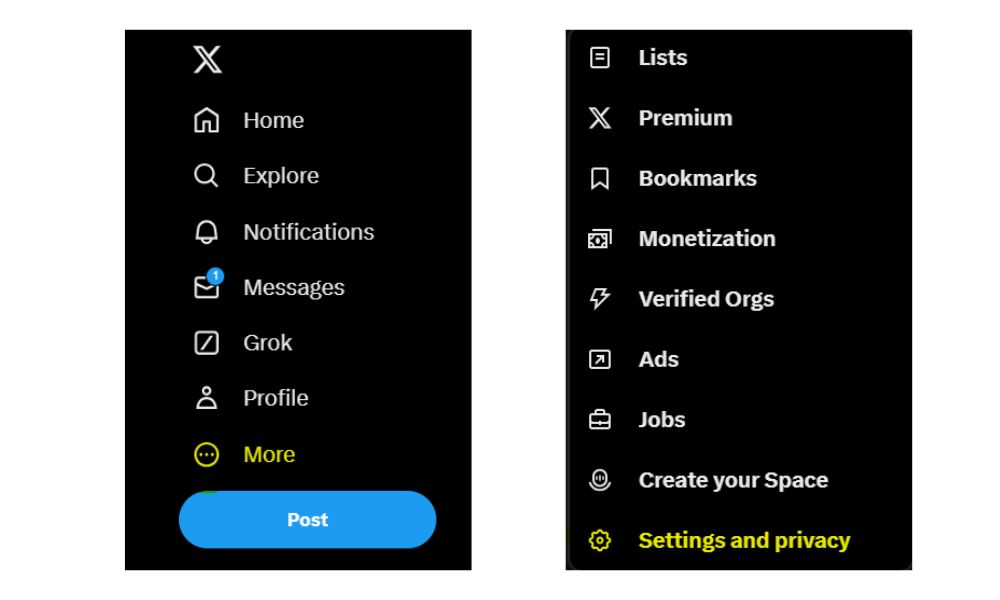
Click More → Settings and Privacy.
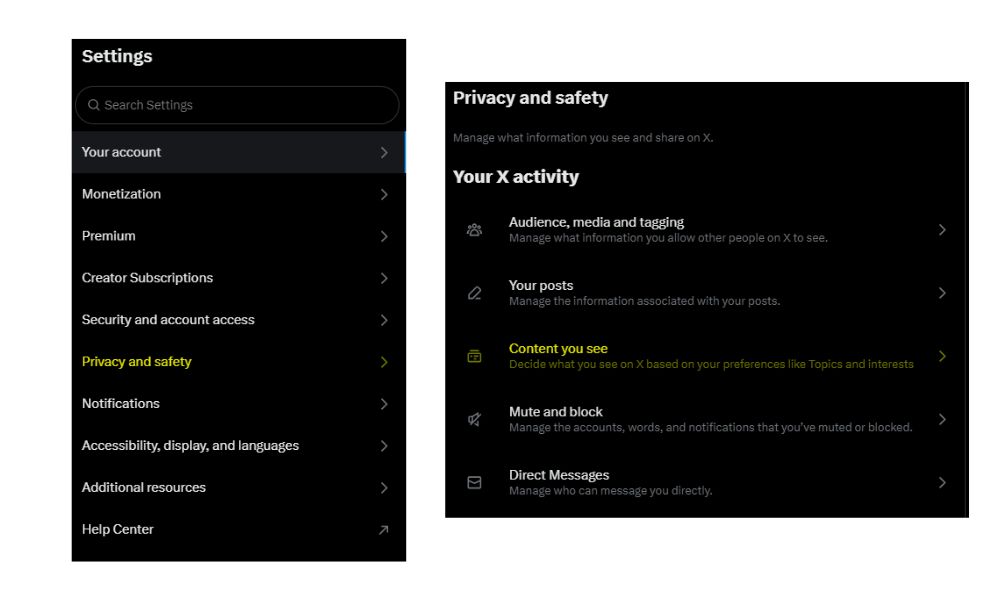
Go to Privacy and Safety → Content You See.
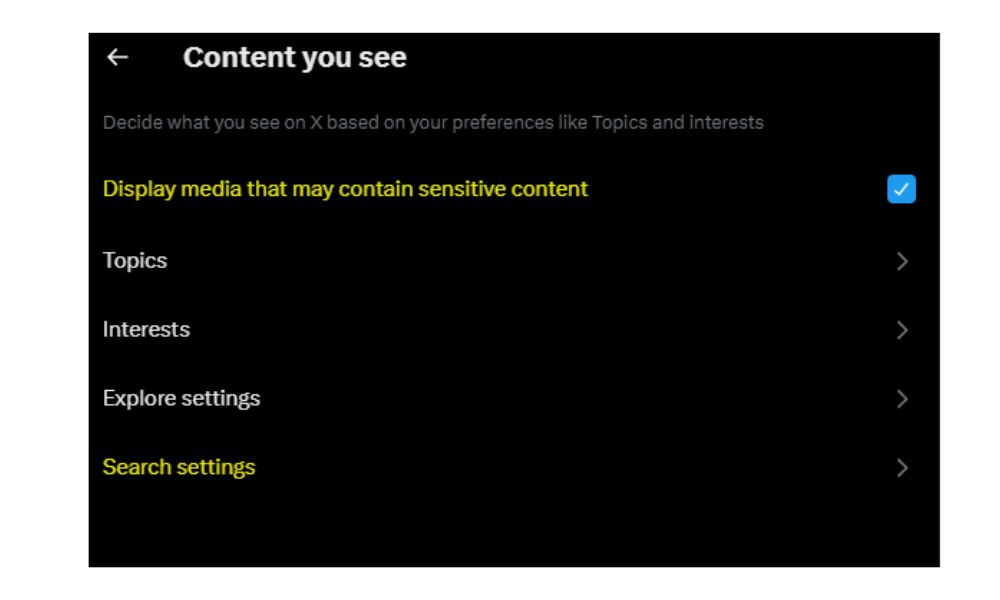
Check “Display media that may contain sensitive content.”
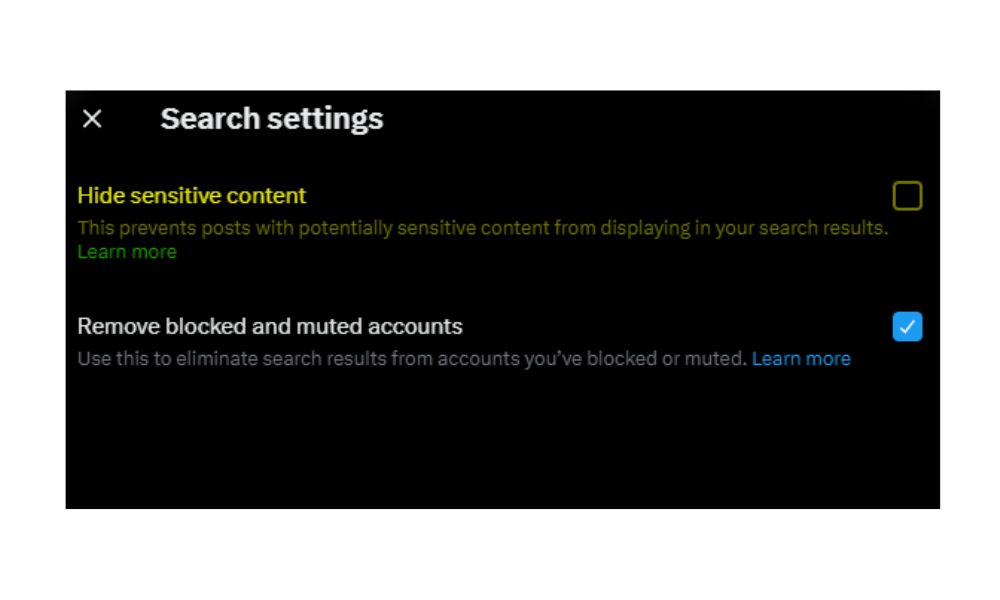
In Search Settings, disable “Hide sensitive content.”
Tip: Changes apply immediately. Refresh your Twitter feed to see uncensored media.
On Mobile (Android/iOS)
- Open the Twitter app or X app on your Android or iOS device, tap your profile icon → Settings & Support → Settings & Privacy.
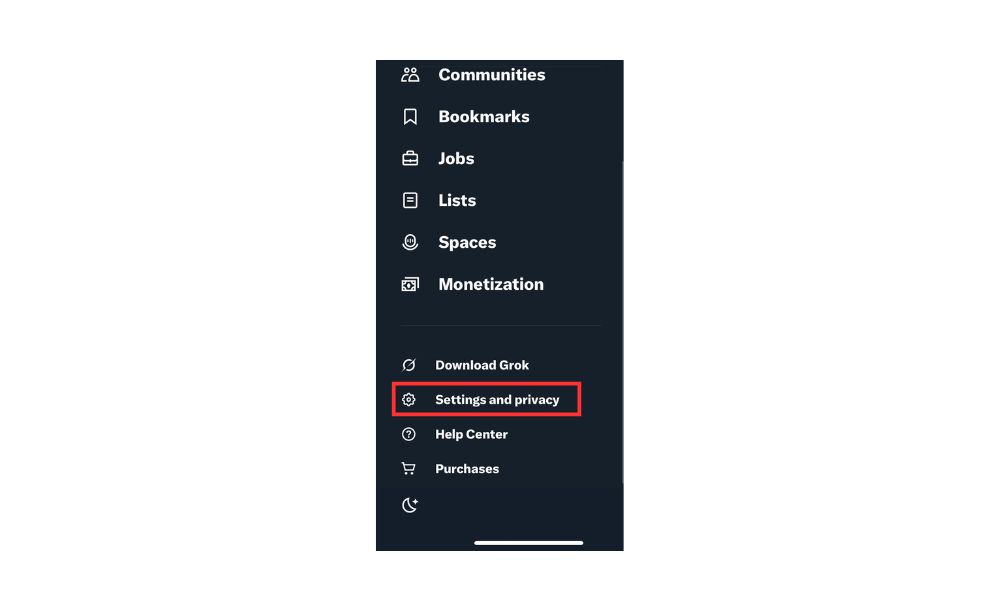
- Go to Privacy and Safety → Content You See.
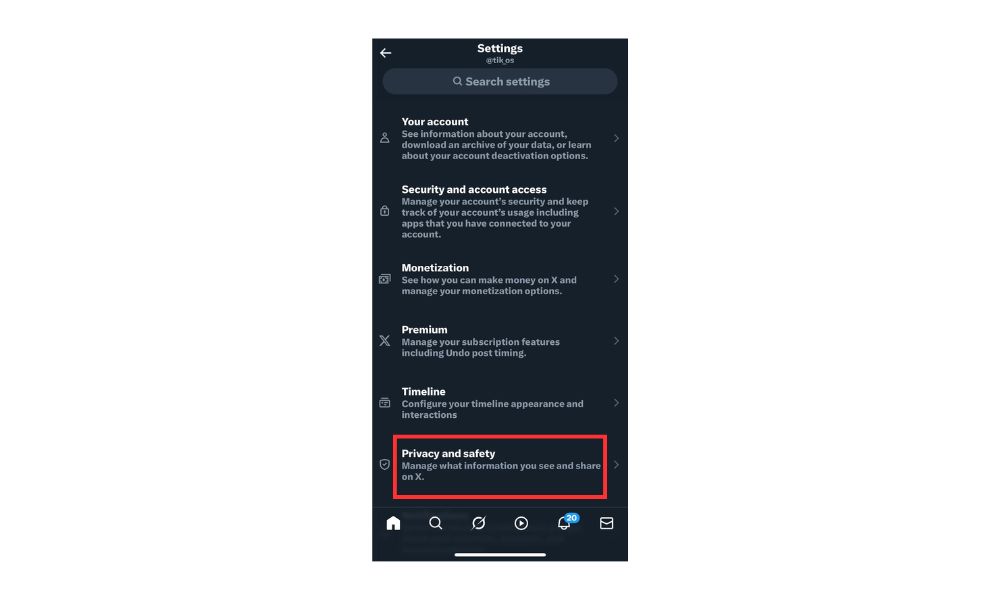
- Turn on “Display media that may contain sensitive content.” On Android devices, this toggle is available directly in the Android app. For iPad apps and iOS, you may need to use the web version or the desktop site to access this setting.
These settings allow you to unblock potentially sensitive content and view such content or such media without restrictions.
Note: If you abuse this setting or upload inappropriate content without proper labeling, X may permanently enable the sensitive content warning for your account.
Related: /blog/how-much-does-twitter-pay/
How Creators Can Control Their Content Warnings
Creators should proactively flag their media if it might be considered sensitive. Go to Settings → Privacy and Safety → Your posts, then enable “Mark media you Tweet as sensitive.” This ensures compliance with policies and avoids content removal or account penalties.
Desktop vs. Mobile Settings – Quick Reference Table
Turn off sensitive content filter: The sensitive content setting is found in X’s privacy settings, located in the same place on both desktop and mobile (where available). On the desktop, go to Settings > Privacy and Safety to disable the filter. On mobile, access it through your profile under Settings > Privacy and Safety.
View sensitive media (after toggle): This option is available via toggle on desktop. On mobile, it works on Android but may not be available on iOS due to platform restrictions.
Full content preference access: On the desktop, you have full access to all content preference settings. On iOS devices, access is limited, and some options may not appear.
If you want to grow your X account, check BuzzVoice services for real followers and retweets.
Why You Might Not See the Option
- Users under 18 are restricted from viewing sensitive content.
- Accounts flagged or under review may lose access to the sensitive content setting, and X may permanently enable this setting for accounts that violate policies or repeatedly upload inappropriate content.
- On iOS, viewing this option often requires visiting the desktop site due to app restrictions.
- Twitter/X occasionally resets sensitive content preferences after updates.
Reporting Inappropriate Content
If you come across sensitive photos on X that go beyond the platform’s guidelines, such as excessively gory media, media depicting sexual behavior, or illegal content, it’s important to report graphic content to help keep the community safe. Reporting is straightforward and can be done directly from the tweet:
- Find the tweet containing the sensitive media.
- Tap the three-dot icon (the pop-up menu) in the top right corner of the tweet.
- Select “Report Tweet.”
- Choose the reason, such as “It’s sensitive or explicit.”
- Submit your report.
Why This Matters for Social Media Creators
Sensitive content warnings can significantly reduce engagement; blurred images get fewer views, likes, and shares. For creators posting art, cosplay, fitness, or edgy memes, disabling the filter improves user experience.
But use self‑marking wisely: overuse can harm visibility, while under‑usage risks content removal or policy violations. Creators should flag adult content, violent sexual conduct, and gratuitous gore to comply with Twitter’s sensitive content policies.
Conclusion
In 2026, Twitter (X) is more customizable than ever, and knowing how to turn off content warning labels is a simple way to take control of your scroll. Whether you’re a casual user tired of blurred Tweets or a creator looking to boost visibility, adjusting your sensitive content settings gives you back the experience you want.
The good news? You don’t need to dig through confusing menus or change devices. With just a few quick toggles on desktop or mobile, you can start seeing the full picture, literally. And if you’re sharing bold, artistic, or meme-heavy content, understanding how to manage content flags on your posts is just as important.
If you’re aiming to grow your presence on X, BuzzVoice is here to help you go further. From smarter visibility strategies to tools that drive real engagement, as followers, retweets, and likes, we’re built to help creators stay ahead no matter how the algorithm changes.
FAQ
Can You Turn Off Warnings on Other People’s Tweets?
You can only adjust your settings, not others’. If someone chooses to upload sensitive media and marks their own Tweet as sensitive, only that person can control whether it is marked as such content. The warning remains for such content. But with your settings enabled, media won’t be blurred out unless policy enforcement overrides it.
Can I hide sensitive content on Twitter entirely?
Yes, simply disable “Display media that may contain sensitive content” in your settings. For search results, adjust the “Hide sensitive content” option under Search Settings.
This helps filter out tweets with graphic or adult nudity so you can scroll with fewer interruptions. It’s a useful setting for anyone who prefers a cleaner feed or shares a device with others, like kids or coworkers. Just remember that it won’t block everything; some content may still appear in replies or retweets.
Why doesn’t the toggle appear on my iPhone?
The iOS app often hides this setting; to access it, log in via a browser and either use desktop mode or edit preferences on X.com. Apple’s App Store policies restrict certain types of content exposure, which limits what Twitter/X can display directly in the app.
That’s why even if you’ve changed settings before, updates or phone changes can hide them again. For full control, use a browser to double-check your privacy and safety preferences.
Will this affect viewing live videos or banner images?
No, banner and live content follow separate rules and are always moderated. The toggle only affects Tweets containing flagged media. Live streams go through their own community standards and visibility filters based on audience targeting and event type.
Similarly, profile headers and banners are treated as public-facing visuals with separate moderation rules. If you’re trying to control all media exposure, you’ll need to manage each content type individually.

BuzzVoice
BuzzVoice is the best place to go when you need instant engagement services on social media. Offering a wide variety of packages for Instagram, Youtube, Facebook, Twitter, Soundcloud & Tiktok.