How to Add Original Audio in Instagram Stories Easily: 3 Methods
How to add your voice, music, or custom sounds to your Instagram Stories? In 2026, Instagram continues to offer creative tools that make personalizing your Stories easier than ever, and using original audio is a big part of that. Whether you’re a content creator, a small business, or just sharing a moment with friends, custom audio can make your Stories stand out.
In this guide, we’ll show you how to easily add original audio to your Stories — from recording your voice directly in the app, to uploading music or ambient sounds from your device. No complicated tools needed — just simple steps to help you express your unique sound and style on Instagram.
🚀 Boost Your Instagram Presence Before You Share
Make your profile impossible to ignore. Whether you’re growing a brand, promoting your content, or just want to stand out, start by increasing your visibility and credibility:
- 👉 Buy Real Instagram Followers – Grow your audience fast with authentic followers.
- ❤️ Get Instant Likes – Keep every post looking popular and engaging.
- 🎥 Increase Views on Reels & Videos – Amplify your reach and attract new followers.
How to Add Your Own Audio to Instagram Story in 2026?
Instagram gives users multiple flexible options to include their own audio in Stories. Whether you want to record your voice, capture background sounds, or upload videos with pre-edited audio, there’s a method for every need and style. Adding audio to Instagram Stories is a no-brainer for anyone looking to boost engagement.
Using original audio not only helps personalize your content but also increases engagement by making your Stories more relatable, authentic, and memorable. Adding your own audio gives a personal touch to your stories, helping them stand out from generic content.
Looking to grow your reach while you’re at it? Services like BuzzVoice can help boost your visibility and engagement with real followers, giving your content the audience it deserves. For even more advanced options, third-party tools are available to help with adding audio, editing, and enhancing your Instagram Stories.
Introduction to Instagram Stories (optional, for context if needed)
Instagram Stories have quickly become one of the most dynamic ways to share moments, promote brands, and connect with followers. With over 500 million people using Instagram Stories every day, this feature offers a powerful platform for both personal expression and business marketing. What sets a great Instagram Story apart isn’t just the visuals—it’s the audio.
Adding music, sound effects, or your voice can transform a simple story into an immersive experience that captures attention and boosts audience engagement. Whether you’re sharing behind-the-scenes moments, announcing a new product, or just having fun with friends, the right audio can make your Instagram Stories more memorable and impactful.
Method 1: Record Your Own Audio Directly in the App
This is the most straightforward way to add your own sound — using just your voice or any ambient audio around you.
- From your Instagram main feed, swipe left to open the Story creation interface.
- Open the Instagram app.
- Tap the camera icon in the top left or swipe left again if needed.
- Start recording by tapping and holding the record button. You will notice the music icon and sticker icon at the top right corner, but for this method, you can ignore them. Click here if you want to know how to add music sticker to your instagram story
- Once you finish, release the button to stop recording.
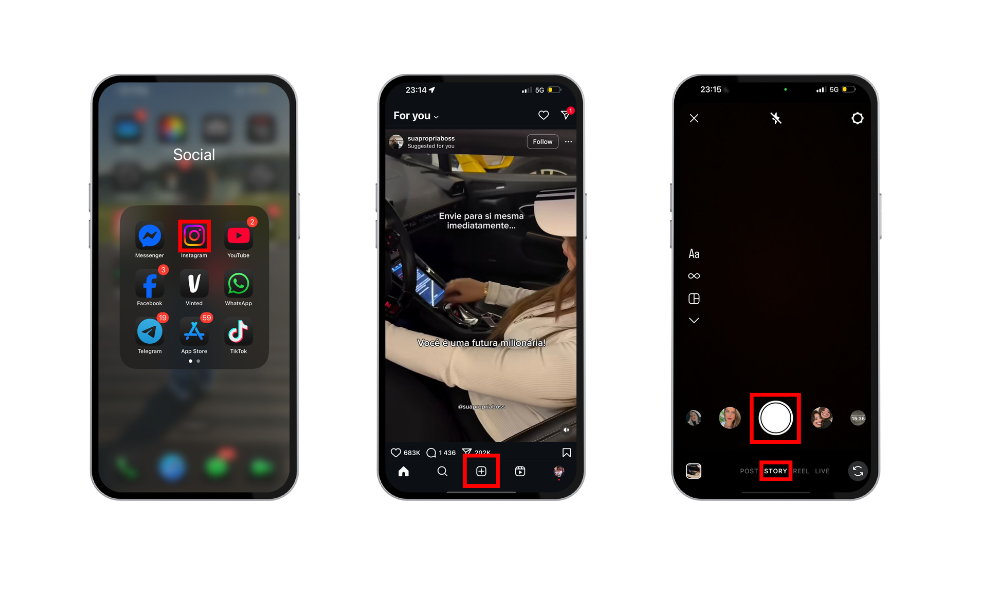
Tips for better results:
Speak clearly or capture interesting background sounds.
There are no music filters or copyright flags, since it’s your own audio.
Record in a quiet space to reduce unwanted background noise.
Method 2: Use Audio from Another App (Music, Voice Memos, TikTok Sounds)
Want to feature a specific song from Spotify, a sound clip from TikTok, something you recorded in your voice memo app, or even a track from Apple Music? First, make sure you have the Spotify app open or the Apple Music app open, and play your select music.
If supported, you can tap share or use the share icon in Spotify or Apple Music to send a song directly to Instagram Story. This method also works with audio files saved on your device, allowing you to add custom audio to your Instagram Story.
Steps:
Start playing the audio in your preferred app (e.g. Spotify, YouTube, TikTok, Voice Memos).
Without pausing the audio, open Instagram and go to Story mode.
Start recording your video while the audio plays in the background — your phone’s mic will pick up the sound.
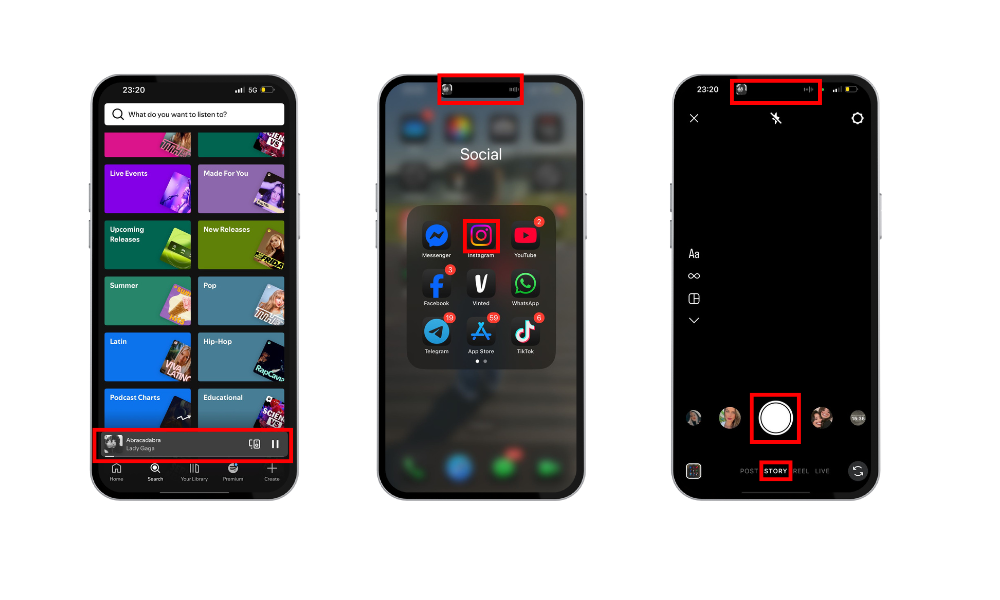
Why this method works:
No need for editing apps or file transfers.
It’s a great workaround to include non-Instagram music or sounds in your Story.
Let you create content with trending or custom audio that stands out.
Method 3: Add Audio to a Video Before Uploading
If you want full control over your sound—like volume levels, timing, or mixing different clips—editing your video beforehand is the way to go.
- Use a video editor to combine your video and audio files. Most video editors, such as Descript or FlexClip, allow you to import recorded audio, like a voice recording or a music clip, and add it to your video. Editing audio, such as trimming, adjusting volume, or enhancing background music, can be done directly in most video editors.
- Make sure your audio is in the desired format before uploading. Video editors typically support a range of audio formats, but converting your audio to the correct format ensures compatibility and smooth editing.
- After editing, export your new video with the added audio. This new video can now be uploaded to your Instagram Story.
Tip: Using original music from a music artist or your own recorded audio can make your story stand out and add a unique touch.
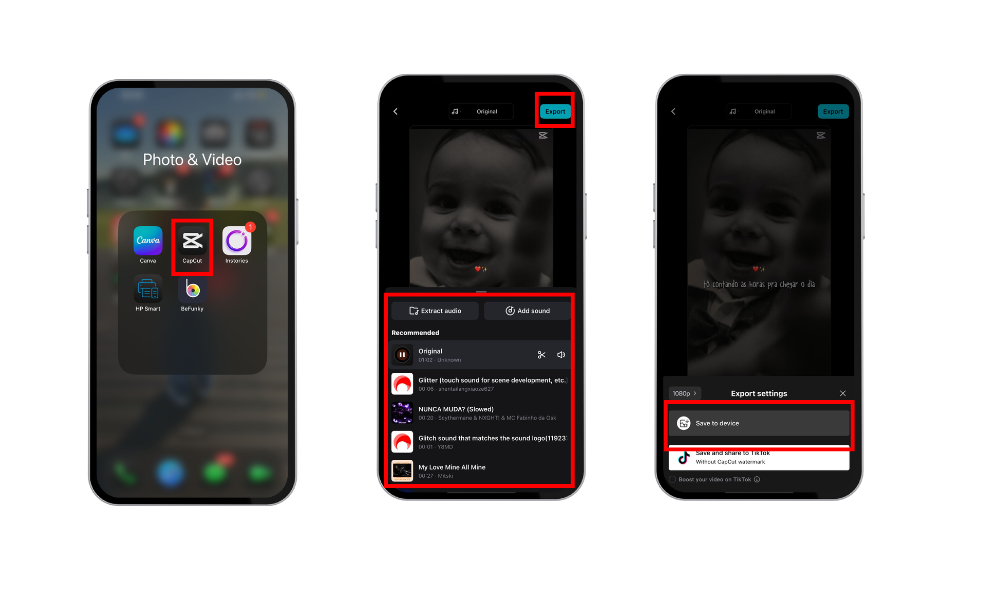
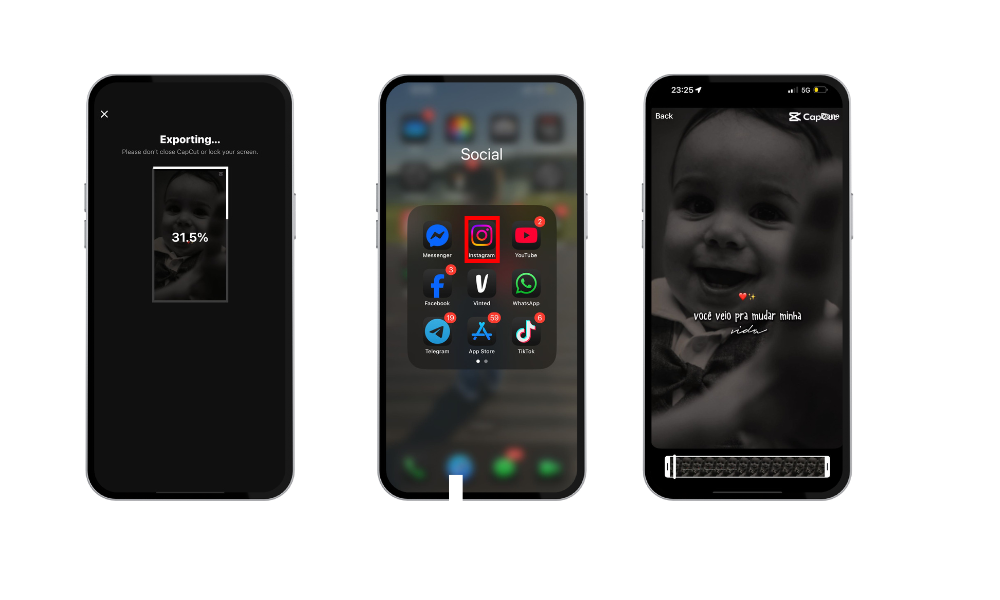
Benefits:
Professional-quality control over your audio and visual content.
Ideal for creators, businesses, or anyone looking to polish their content before sharing.
Looking to grow your reach while you’re at it? Services like BuzzVoice can help boost your visibility and engagement with real followers, giving your content the audience it deserves.
Recommended External Apps
|
App |
Type of Editing |
Free? |
Platform |
|
InShot |
Music, voice, effects |
Yes |
iOS & Android |
|
CapCut |
Audio + Visual Effects |
Yes |
iOS & Android |
|
VN |
Professional & intuitive |
Yes |
iOS & Android |
How to do it:
Use video editing apps such as InShot, CapCut, or VN to customize your audio.
Simply import your video, then add the sound you want — whether it’s music, a voiceover, ambient noise, or sound effects.
Save the edited video to your phone.
Once your video is ready, open Instagram and post it directly to your Story.
Why it works:
• Full control over audio placement and volume.
• A strong choice for storytellers and creators looking to enhance their Stories with high-quality visuals and original sound.
• Ideal for uploading audio to IG Story use cases.
Audio Quality and Optimization
When it comes to adding your own audio to Instagram Stories, sound quality can make or break your content. High-quality audio clips help your stories stand out, keep your audience engaged, and ensure your message comes through loud and clear.
Here’s how to optimize your audio for the best results:
- Record in a Quiet Environment: Minimize background noise by choosing a quiet space or using noise-cancelling equipment. This helps your voice or music come through without distractions.
- Use a Good Microphone: While your phone’s built-in mic works, an external microphone can deliver noticeably better sound quality. This is especially important for voice recordings or when you want to add your own music.
- Edit Your Audio: Take advantage of editing tools and apps to fine-tune your audio. Adjust volume levels, trim unwanted sections, remove background noise, and add effects to make your audio clips more engaging.
- Choose the Right Audio Format: For the best audio quality, use widely supported formats like MP3 or WAV when editing your clips before uploading to Instagram Stories. This ensures compatibility and clarity.
- Keep It Short and Engaging: Since Instagram Stories have a time limit, make sure your audio is concise and grabs attention quickly. Short, punchy audio clips are more likely to keep viewers watching.
- Use Royalty-Free Music: If you’re adding music, stick to royalty-free tracks from Instagram’s library or trusted third-party apps. This helps you avoid copyright issues and keeps your stories live.
- Test Before Posting: Always preview your story on different devices to check audio quality and make sure everything sounds just right.
By focusing on these tips, you’ll ensure your audio to Instagram Stories is crisp, clear, and compelling—helping your content shine and your audience stay tuned in.
Final Tip: Boost Your Story Views with BuzzVoice
Using custom audio helps you stand out, but combining great content with the right visibility tools takes you further. BuzzVoice offers growth services with real followers and organic engagement, helping your Stories get discovered by more people and perform better in the algorithm.
How to Label or Credit Your Audio as “Original Audio”
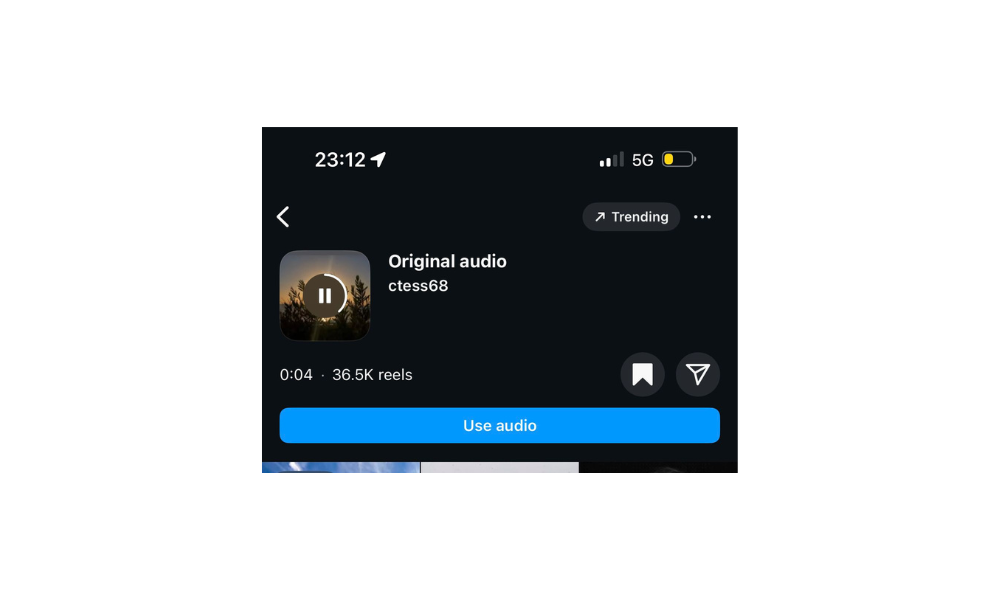
When you upload a video with unique or custom sound, such as a voice recording, Instagram often tags it automatically as “Original Audio”. This can help your content stand out, credit your username on the audio, and even allow others to reuse your sound, a great way to gain reach and recognition.
Tip: You can also add background music to your original audio using apps like InShot, CapCut, or VN Video Editor to further customize your story and enhance its appeal.
Related Article: How to Change Background Color on Instagram Story?
To make sure your audio is labeled as original:
Use custom sounds: Record your own voice, ambient noise, or original music.
Avoid copyrighted tracks: Songs with metadata or licensed content won’t be marked as original.
Edit your sound: Slight adjustments like trimming or mixing can help make the audio unique.
If your audio is recognized as original, your name will appear on it, turning your sound into a shareable asset that can boost your profile visibility.
Comparison Table: Methods to Add Audio
Final Thoughts
| Method | Requires Extra App? | Control Level | Sound Quality |
| Direct Recording on Instagram | No | Low | Medium |
| Background Sound from Another App | No | Medium | Variable |
| Editing in an App Before Uploading | Yes | High | High |
Adding your own audio to Instagram Stories is easier than ever in 2026.
Whether you:
Record your voice directly.
Play audio in the background.
Edit sound into videos beforehand.
You have multiple options to personalize and upgrade your content.
And if you want to reach more people, check out BuzzVoice’s Instagram growth tools, perfect for increasing reach, followers, and real engagement.
FAQs About Using Original Audio on Instagram
1. Can I add copyrighted music as my own audio?
No. Instagram may mute or restrict your Story if it detects copyrighted content not properly licensed. Use royalty-free or original audio to stay safe.
2. Why isn’t Instagram detecting my audio?
If your audio isn’t tagged as “Original Audio” it might be due to:
Low volume or unclear recording
Background noise
Copyrighted music metadata
3. Can I make my audio reusable by others?
Yes! If Instagram labels your clip as “Original Audio,” others can tap and reuse it in their Stories or Reel,s which is great for creators.
4. What format is best for uploading audio stories?
Use MP4 videos with embedded audio. Audio-only files (like MP3) can’t be uploaded directly, but you can pair them with a static image or video clip using editing apps.

BuzzVoice
BuzzVoice is the best place to go when you need instant engagement services on social media. Offering a wide variety of packages for Instagram, Youtube, Facebook, Twitter, Soundcloud & Tiktok.