How to Edit a Reel on Facebook Like a Pro (5 Steps)
In the fast-paced world of social media, attention is everything. Users with a Facebook account can access editing features for Reels, allowing them to personalize and enhance their videos. Facebook Reels have quickly become an effective tool for sharing short, dynamic videos with your audience. Whether you’re a creator, a business owner, or simply someone looking to stand out on social media, knowing how to edit a Reel on Facebook is essential.
Want to boost your reach after you’ve edited your Reel? Check out BuzzVoice’s Facebook Engagement Services: buy Facebook page likes, video views, post likes and shares, or comments to increase your visibility and Facebook growth.
How to Start Editing a Reel on Facebook (2026 Update)
Starting to edit your Facebook Reels is easier than ever in 2026, thanks to improved in-app tools and a more intuitive interface. Here’s how to get started, whether you’re creating new content or repurposing existing footage:
Step 1: Open the Facebook App and Go to Reels
Launch the Facebook app from any device, including smartphones and tablets, and tap the Reels tab at the bottom of the screen. This is your hub for creating and discovering popular short-form video content.
Step 2: Tap “Create Reel” or Select an Existing Video
- Record a new video directly in the app, or
- Upload an existing clip from your camera roll, ideal for creators who use higher-end equipment or edit outside of the app. This process works on both Android and iOS devices.
Related Article: 10 Best Reel Editing App Free for iOS: From Free to Pro Plans
If you’re repurposing Instagram or TikTok clips, remove the watermarks before uploading to maintain quality and avoid reach penalties.
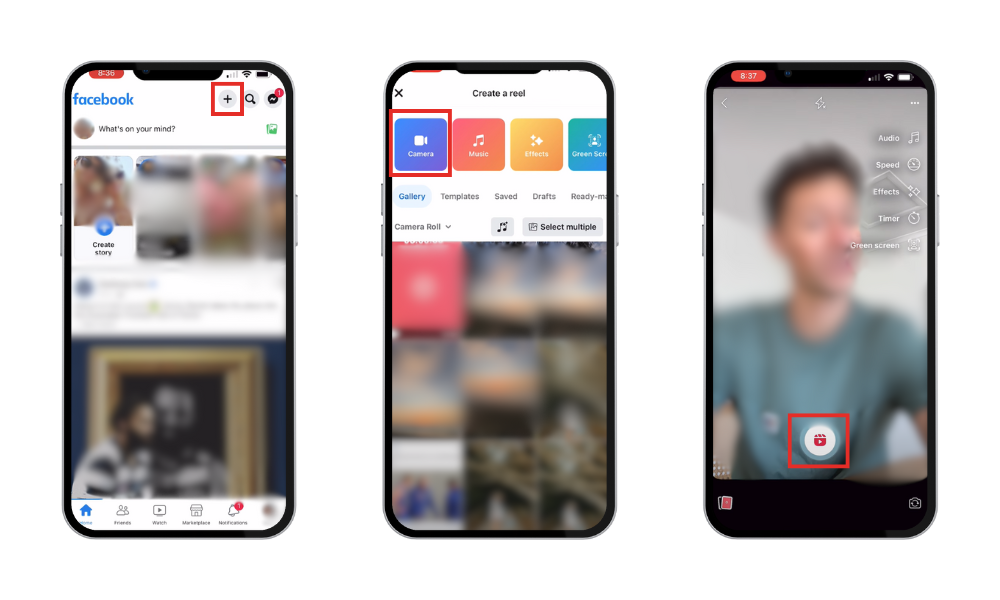
Step 3: Choose Footage from Camera Roll or Record Natively
- Tap your camera roll to choose clips, or
- Use the in-app camera to film live and apply filters and effects in real time.
Before selecting your footage, you can also adjust your camera or privacy settings to customize your experience.
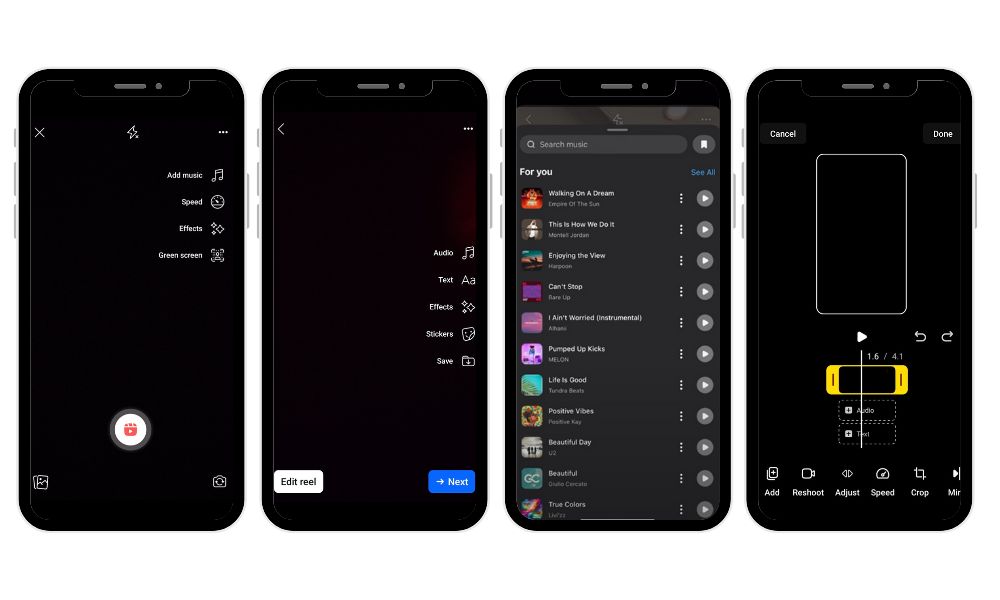
Step 4: Access Basic Editing Tools
After selecting your footage, the Facebook Reels editor opens, allowing you to:
- Trim clips for tighter storytelling.
- Adjust the speed to achieve slow-motion or fast-forward effects.
- Add filters and visual effects to enhance the aesthetics.
- Use layout tools to create split screens or side-by-side views.
These tools serve as the foundation for using powerful Facebook Reels editing tips without the need for third-party apps.
Want your edited reels to increase audience engagement? Try BuzzVoice’s Facebook video views, likes, or comment services to increase the visibility of your content immediately after posting.
Related: Does Facebook Pay for Reels
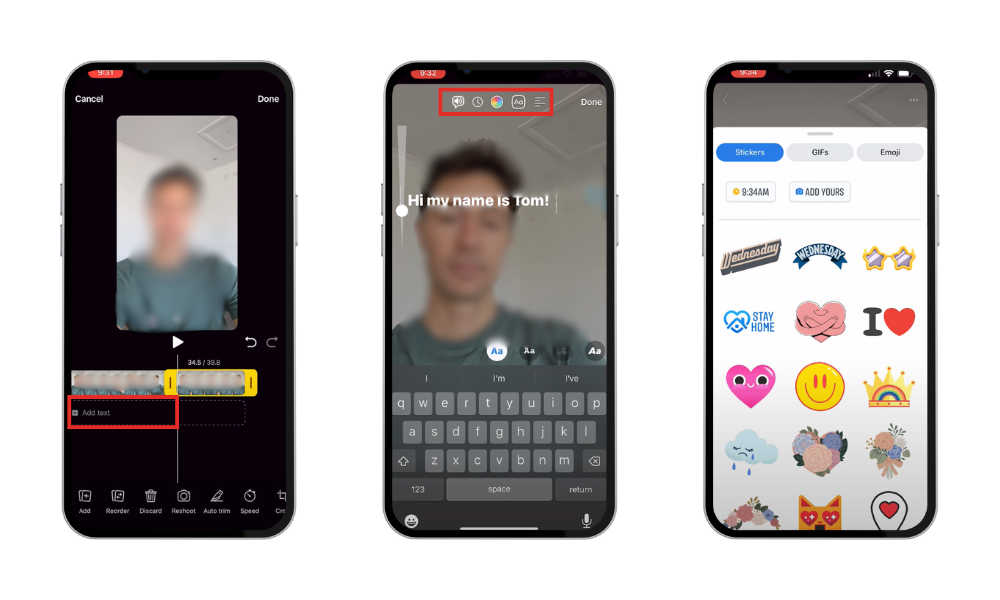
Key Editing Tools on Facebook Reels
Facebook’s native editing suite has come a long way, and by 2026, it will provide nearly everything you need to create compelling, scroll-stopping Reels right within the app. Let’s look at the tools you’ll need to improve your content and make your videos stand out.
Trim
The Trim tool allows you to quickly remove unnecessary footage from the start or end of your video. If you’re wondering how to cut and trim Facebook Reels, this is where you should start. If you want maximum retention and replays, keep your Reels to 15 seconds or less.
Text
You can overlay text anywhere on your Reel and set it to appear or disappear at specific times. The text tool improves accessibility and engagement by allowing you to add animated captions, quotes, and call-to-action buttons.
Filters
From subtle color correction to dramatic overlays, Facebook Reels filters can instantly change the tone of your content. Whether you prefer warm, moody, or vibrant tones, there is a filter for you.
Music/Sound
Facebook provides a large library of licensed tracks for you to use in your videos, as well as the ability to import original audio if you are a musician, podcaster, or voice-over creator.
Stickers & Overlays
Do you want to make your video interactive? Include stickers, emojis, polls, and reaction icons. These visual cues can make your Reel more entertaining and engaging.
Speed Control
The speed tool allows you to slow down or speed up specific parts of your reel. This is ideal for effects like dramatic slow-motion or quick recaps that feel lively and exciting.
After editing, increase your visibility with BuzzVoice’s Facebook page likes, video views, post likes and shares, and comments services to begin driving organic engagement right away.
Advanced Editing Tips for Pro-Level Reels
Once you’ve learned the fundamentals of editing a Reel on Facebook, it’s time to take your content to the next level. Advanced users can also experiment with the remix feature to create collaborative or reimagined Reels.
Use Transitions Between Scenes for Smoother Flow
To avoid jarring cuts, use subtle transitions between clips, such as fades, zooms, or directional wipes. Smooth scene transitions help keep viewers engaged in your story.
Align Text Timing with Music Beats
If you add music to Facebook Reels, make sure the on-screen text or visual changes match the beat. This produces a satisfying rhythm, which can increase replays and shares.
Choose music first, and then time your edits to match the waveform. It’s a trick that content creators use to make their videos appear professionally produced.
Add Voiceovers or Narration for Storytelling
Use Facebook’s built-in audio tools to record voiceovers or provide commentary. This is particularly useful for tutorials, storytime content, and product demonstrations.
Use Jump Cuts to Keep Energy High
Want to make long videos more engaging? Remove pauses and repetitive segments with jump cuts. This fast-cut style keeps the pace upbeat and the audience interested.
Preview Before Publishing and Tweak Until Polished
Always preview your Reel before hitting “Post.” Look for awkward cuts, unusual text, or distracting overlays. Tweak as needed; polished content works better.
Why Good Editing Matters for Facebook Reels
Higher retention = more reach
Facebook’s algorithm prefers videos that keep people watching. The longer someone watches your Reel, the more likely it is to be shared with others. Good editing—tight cuts, relevant visuals, and smooth transitions—helps viewers stay engaged until the end.
Polished Reels attract more engagement
A Reel that flows well and appears professional stands out in a feed crowded with raw, unedited content. Clean edits not only increase trust but also attract more likes, comments, and shares, which can accelerate your organic growth.
Easier to go viral with visually clear, well-edited content
A viral Reel is often more than just the content; it’s also about how well it’s presented. When your video is visually consistent and easy to understand, viewers are more likely to watch, rewatch, and share.
If you need a final push, BuzzVoice’s Facebook shares or video views can help your polished video gain traction.
Third-Party Apps for Next-Level Facebook Reels
While Facebook’s native editing tools are powerful, some creators want a little more creative freedom. This is where third-party video editing apps come in.
Top Editing Apps
- InShot – ideal for quick mobile edits, customized backgrounds, and text animations.
- CapCut – provides trending effects, auto-captions, and beat synchronization tools.
- VN Editor – ideal for timeline-based editing with precise control.
- Adobe Premiere Rush – offers professional-level editing in a mobile-friendly interface.
These apps allow you to edit Facebook Reels more precisely before uploading them to Facebook.
Export and Upload to Facebook Reels
Once your final cut is ready:
- Export the video from the app you’ve chosen.
- Make sure it’s in vertical format (9:16).
- Keep it under 90 seconds, as that’s the current max duration for Reels.
Then, simply open the Facebook app, navigate to the Reels tab, and upload your video as you would any other in-app Reel. After sharing, you can manage and view your shared reels on Facebook, making it easy to interact with your audience and keep track of your content.
Using third-party apps in conjunction with Facebook’s publishing tools is an effective strategy for creators looking to build an audience.
Related: How do you make money on Facebook
Conclusion
In 2026, knowing how to edit a Reel on Facebook will be as important as the content itself. Whether you use Facebook’s built-in tools or third-party apps like InShot or CapCut, the goal is the same: make your Reels fast, clear, and engaging, and focus on the little things that make a big difference in your final product.
Use text, music, filters, and jump cuts wisely. Perfect your transitions. Before posting, make sure to preview it. These are the details that differentiate professional Facebook Reels from the rest.
Use BuzzVoice’s full suite of Facebook Engagement Services, including Facebook page likes, video views, post likes and shares, and comments, to give your Reel the visibility it deserves.
FAQs
Can I re-edit a Reel after publishing it?
Unfortunately, Facebook does not currently allow you to re-edit a Reel after it has been published. If you find an error or want to make changes, delete the original Reel and upload a new version. That is why it is critical to thoroughly review your content before posting.
How do I add music to my Facebook Reels?
To add music to Facebook Reels, select the audio icon during the editing process. You can browse popular tracks, search by genre, or create your own unique sound. Timing your visuals to the beat is one of the best Facebook Reels editing tips for increasing engagement.
What’s the best length for a Facebook Reel?
The ideal length for a Facebook Reel is 15-30 seconds. Shorter videos receive more replays and higher retention, which the algorithm prefers. That being said, Facebook allows Reels of up to 90 seconds, so use it wisely if you’re telling a story or creating a tutorial.

BuzzVoice
BuzzVoice is the best place to go when you need instant engagement services on social media. Offering a wide variety of packages for Instagram, Youtube, Facebook, Twitter, Soundcloud & Tiktok.