How to Add Captions On Instagram Reels
Instagram reels have become one of the most powerful ways to create content, grab attention, and connect with audiences. With short videos, trending music, and a visually stunning style, reels dominate the Instagram app. Yet many users face a frustrating issue—no captions found for reels. Captions are more than just words beneath a post; they are a feature that adds personality, accessibility, and context to every video. When captions go missing, the entire viewing experience suffers for users and viewers alike.
This guide explores why captions sometimes fail, why they disappear, and how to add captions on instagram reels. From reel captions not working to step by step solutions, we’ll also cover creative captions, caption sticker tips, and advanced editing techniques to ensure your reels always include the perfect caption.
Grow your presence quickly. BuzzVoice provides real followers, impactful likes, and meaningful comments to maximize engagement and strengthen your brand.
Understanding Instagram Captions and Their Role
Captions play a crucial role across Instagram posts, reels, and even Instagram story updates. They do more than describe videos—they allow creators to add personality, include hashtags, and craft a message that resonates with viewers. For many, captions serve as a script that explains what is happening in the media, helping audiences who may not have sound on.
Moreover, captions increase accessibility. People with hearing challenges rely on subtitles to understand the audio, while global users benefit from captions in different languages. When you enable captions, your videos become more inclusive, ensuring your audience can watch and engage without barriers. Creative captions also provide an extra touch to highlight humor, emotions, or style, turning an ordinary reel into something memorable.
How to Add Captions on Instagram Reels
Adding captions is easy, but many users miss a step. Follow this step-by-step guide to ensure your reel captions appear correctly:
- Open Instagram App: Log in to your account and tap the camera icon to start creating a reel.
- Record or Upload a Video: Either record directly using the camera or upload a video from your media gallery.
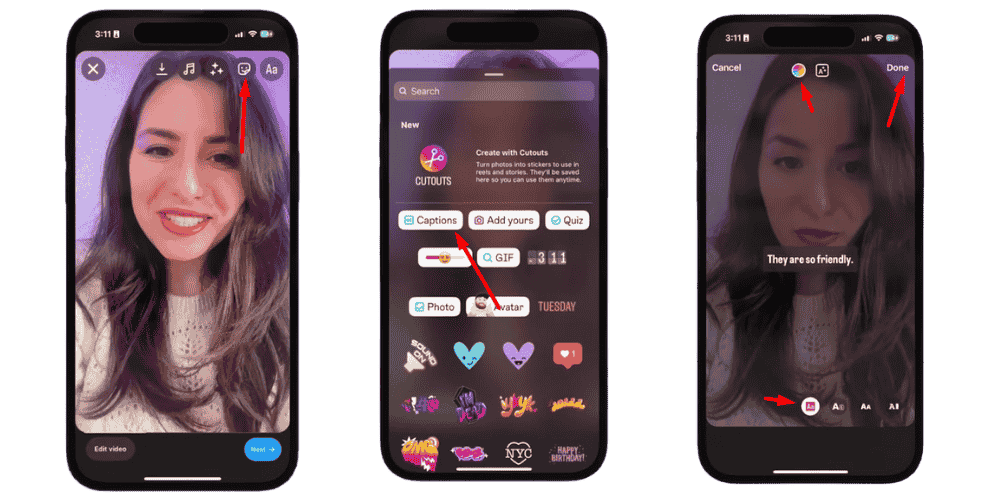
- Tap the Sticker Icon: After recording, tap the sticker icon at the top of the editing interface screen.
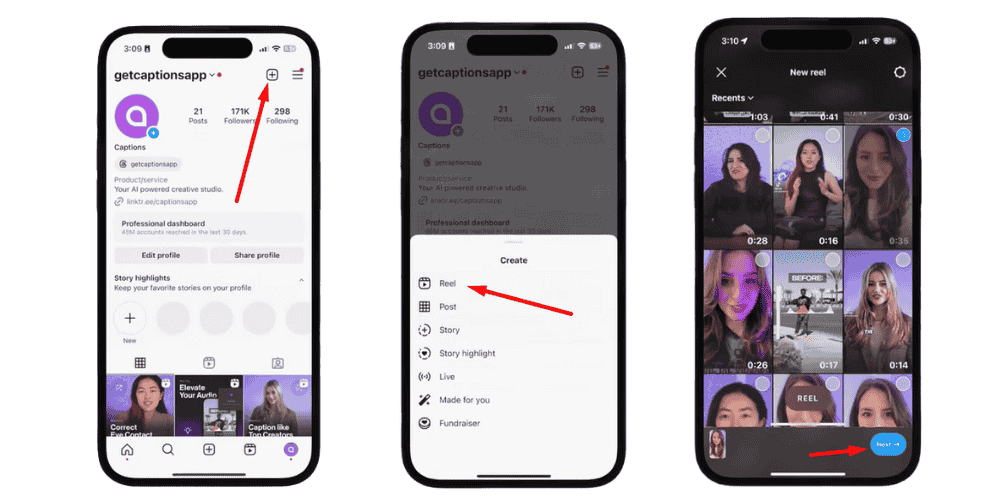
- Select “Captions” Sticker: Choose the caption icon sticker to automatically generate subtitles from your video’s audio.
- Wait for Processing: The app will transcribe the words; wait a few seconds for the captions to appear.
- Edit Captions: Use the edit tool to fix spelling errors, adjust fonts, tweak style, or add personality with emojis.
- Change Fonts & Colors: Customize captions with different caption fonts, styles, and colors to make them visually stunning.
- Position Captions: Drag and drop captions to a clear area of the screen so they don’t overlap with important visuals.
- Add Hashtags or Extra Text: Boost engagement by combining captions with hashtags, a call-to-action, or creative words.
- Post Your Reel: Once satisfied, upload the reel and captions will appear for your viewers.
Why Instagram Automatic Captions Sometimes Don’t Work
There are several reasons why captions fail to appear or don’t function properly on the Instagram app:
- Technical glitches: Updates and new feature rollouts often cause reel captions to malfunction.
- Poor video quality: Low-resolution recordings can reduce the accuracy of automatic subtitles.
- Excessive background noise: Distracting sounds or muffled audio make it difficult for the caption tool to recognize words.
- Loud music layering: When music plays louder than speech, subtitles may not generate correctly.
- Unsupported video formats: Uploading videos in incompatible formats can result in missing captions.
- Caption sticker not selected: Forgetting to add the caption sticker or tap the correct icon while editing reels may leave captions disabled.
💡 Pro Tip: Boost your Instagram likes with BuzzVoice and make every post stand out. More likes mean more credibility, visibility, and trust.
Captions Disappearing on Instagram
Sometimes captions appear during editing but vanish after upload. This issue frustrates creators who spend time designing visually stunning content only to see captions missing from the final post. Why does this happen?
1. Caption Sticker Not Saved Properly
In many cases, the caption sticker may not have been saved correctly during the upload process. If the sticker is not applied and confirmed, captions might vanish after posting.
2. App Bugs and Glitches
Instagram occasionally experiences bugs that cause reel captions to be removed or hidden after publishing. These technical issues are often temporary but can disrupt the user experience.
3. Conflicting Account Settings
Sometimes, settings within the account interfere with automatic subtitles. For example, if accessibility features are disabled, captions may not display for viewers even if they were added during editing.
4. Language Support Limitations
Captions may not appear in certain regions due to language restrictions. If your reel contains audio in different other languages, the system might fail to generate accurate subtitles, causing captions to disappear completely.
Related: What Does “CFL” Mean On Instagram? Explained
Instagram Reels Not Showing Captions: Root Causes
When Instagram reels fail to show captions, the root causes can be traced back to three main areas:
- Video Quality Issues: Low-resolution videos or recordings with background noise can confuse the caption tool, leading to missing or incorrect words.
- Language Detection Errors: The Instagram app may not properly detect different languages in the audio, causing captions to skip or remain blank.
- Music and Audio Conflicts: Using popular music tracks alongside spoken words can prevent subtitles from syncing, leaving users without captions.
The lack of captions not only hurts accessibility but also lowers engagement. Viewers who scroll quickly through reels might skip your video if there is no text to explain the message.
Fixing Auto Captions Issues: A Step-by-Step Guide
If you’re experiencing the “no captions found” issue, follow this step by step guide to fix it:
- Open Instagram and Check Settings: Log in to your account and head to the settings menu. Look for accessibility features and confirm that captions are enabled.
- Update the Instagram App: Outdated versions often cause caption issues. Visit your app store, update, and then re-upload your reel.
- Use the Caption Sticker: While editing, tap the sticker icon and select the caption sticker to automatically generate subtitles.
- Test Audio Quality: Ensure your recording has clear sound. Minimize background noise and speak directly into the camera for accurate transcription.
- Upload in High Quality: Select “Upload in HD” under settings to maintain video quality and improve caption recognition.
- Wait for Processing: Sometimes captions take time to appear. After posting, wait a few minutes and refresh before assuming they are missing.
- Tweak and Edit: If captions are inaccurate, use the edit tool to correct words manually.
Following these steps ensures your reels maintain accurate and engaging captions.
How do I turn on captions to Instagram reels?
Captions on Instagram Reels make it easier to enjoy videos when you’re in a quiet place, when you want to follow along without sound, or if you simply prefer reading while watching. They are also helpful for accessibility, allowing more people to understand and engage with content. If you’re not seeing captions automatically, you can turn them on manually through the settings inside Reels. The process is quick and only takes a few steps.
Steps to Enable Captions on Instagram Reels:
- Open the Instagram app on your phone.
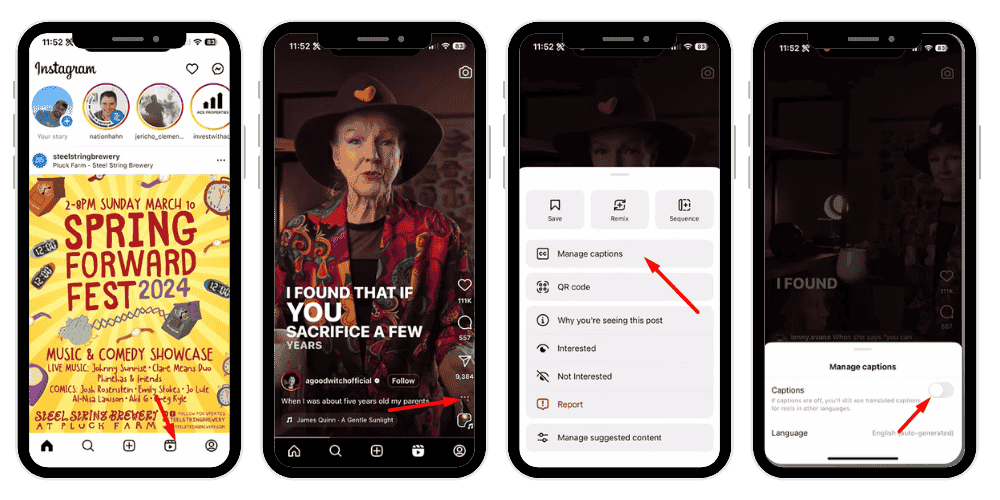
- Tap the Reels icon (play button) at the bottom of the screen.
- Start playing any reel.
- If captions don’t appear, tap the three dots (⋯) in the top-right corner.
- Select Manage Captions.
- Toggle the switch to ON.
- Choose your preferred language for captions.
Now generate captions automatically on reels when available.
Enhancing Captions for Maximum Engagement
Beyond solving caption problems, creators should focus on making captions engaging. A perfect caption doesn’t just describe; it tells a story, sparks a comment, or encourages a viewer to share.
Add Personality through Creative Captions
Adding personality can transform simple videos into conversation starters. Creative captions showcase style, humor, or emotion, making your reels stands out from the crowd.
Use Hashtags Strategically
Hashtags are powerful tools to boost engagement and help reels reach a wider audience. Including trending and niche hashtags ensures your content appears in more searches.
Experiment with Fonts and Style Options
Try different fonts and styles to make reel captions visually stunning. Bold or italic words emphasize emotion, while emojis add an extra touch that feels authentic and fun.
Encourage Interaction through Questions
Captions can also be used to invite viewers to engage. A short message followed by a question—such as “What’s your favorite song in this reel? 🎶”—encourages users to reply in the comment section.
💡 Pro Tip: Get full Instagram engagement with BuzzVoice. Likes, comments, followers, and views—all in one powerful growth solution.
Using Caption Generators for Instagram Reels
Sometimes, manually adding captions can feel tedious. That’s where caption generators come in handy.
- Automated Captions: These tools generate reel captions automatically, saving creators time and effort.
- Simple Workflow: Upload your video, review the generated subtitles, and make quick tweaks to improve accuracy.
- Support for Different Languages: Caption generators allow easy translation and enable captions for global audiences.
- Versatility across Media: Useful for Instagram story updates, reels, and long-form videos, ensuring messages are always clear.
- Customization Options: Many tools provide advanced features like customizable fonts, styles, and formats to reflect your reel’s personality.
Advanced Tips: Editing Captions with Ease
Once captions are added, refining them can improve accuracy, style, and overall impact.
- Ensure Accuracy and Consistency: Use the edit tool to fix spelling mistakes, adjust words, and keep captions aligned with your reel’s style.
- Keep Captions Concise: Shorten long sentences into punchy lines that are easier for viewers to follow.
- Sync with Audio and Music: Align subtitles with sound and music to avoid confusion and maintain a smooth viewing experience.
- Review before Publishing: Always check your captions and make tweaks where necessary to ensure professionalism.
- Boost Engagement with Extras: Add hashtags, insert call-to-action messages, or time text with specific video moments (e.g., “Swipe to watch more”) to grab attention.
Related: What Does the “Green Following Button” Mean on Instagram?
Making Captions Seamless Across Platforms
Consistency is key when sharing content across different media. Captions should flow seamlessly whether they appear in reels, Instagram story updates, or posts. This ensures viewers recognize your brand voice and style regardless of where they interact with your content.
Photos may rely on captions for context, while videos and reels depend on subtitles to explain sound and audio. Keeping captions aligned across platforms ensures your audience doesn’t miss important information.
By making captions seamless, creators maintain a professional appearance, boost audience trust, and deliver a consistent experience across Instagram and beyond.
Why Captions Are Essential
Captions go beyond being a simple Instagram feature—they are vital for accessibility, engagement, and global reach. They make your reels inclusive and help your audience connect more deeply with your content.
- Accessibility for All: Captions allow users with hearing difficulties to enjoy your reels.
- Inclusivity: Ensures no audience is left out, regardless of audio limitations.
- Sound-Off Viewers: Many people scroll with sound muted; captions keep them engaged.
- Instant Clarity: Subtitles provide a script that delivers your message even without audio.
- Better Retention: Viewers stay longer on videos with captions compared to those without.
- Support for Different Languages: Captions expand your reach by appealing to a global audience.
- Boost Engagement: Interactive captions encourage likes, comments, and shares.
- Professional Appearance: Well-crafted captions make your content visually polished and clear.
- Improved Discoverability: Including keywords and hashtags in captions enhances visibility.
- Brand Growth: Strong captions create stronger connections, leading to more followers and loyal viewers.
Conclusion
The “no captions found” error can be frustrating, but it doesn’t have to ruin your Instagram reels. By understanding common problems, checking settings, using the caption sticker, and refining words with editing tools, you can overcome these issues with ease.
Captions aren’t just text—they are a tool to add personality, style, and engagement to your media. They help viewers connect, encourage comments, and make videos more accessible. Whether you’re uploading photos, reels, or Instagram story updates, captions ensure every post delivers maximum impact.
FAQs
Why can’t I see captions on Reels?
If captions aren’t appearing on Reels, it could be due to disabled caption settings, outdated app version, or the creator not enabling captions. To fix this, go to Instagram Settings > Accessibility > Captions and translations and toggle on Show closed captions to display them.
What to do if captions are not working?
When captions don’t work, check your accessibility settings first. Go to Instagram Settings → Accessibility → Captions and ensure they are enabled. Also, update your app, clear cache, and make sure your internet connection is stable. If issues continue, reinstall Instagram to reset caption functionality.
How do you fix the caption glitch on Instagram?
Instagram glitches can prevent captions from working. To fix this, avoid using banned hashtags, don’t exceed character or hashtag limits, and check internet connectivity. Try re-adding your caption or updating the app. If nothing works, log out and back in or reinstall Instagram to refresh settings.
How to view reels without captions?
If captions are distracting, you can turn them off. Tap the reel you’re watching, select Options, and then go to Closed Captions. Toggle off “Show closed captions.” This hides subtitles so you can enjoy reels without text blocking visuals or interfering with your viewing experience.
Can you turn off captions on reels?
Yes, captions can be disabled anytime. Open the reel, tap Options, then go to Closed Captions. Switch the toggle next to Show closed captions to “off.” This ensures subtitles won’t appear, letting you watch reels cleanly without captions unless you decide to enable them again.

BuzzVoice
BuzzVoice is the best place to go when you need instant engagement services on social media. Offering a wide variety of packages for Instagram, Youtube, Facebook, Twitter, Soundcloud & Tiktok.