Why Can’t I Go Live on Instagram? Issues and Easy Fixes
Instagram Live is among the most effective platforms for real-time audience engagement. Going Live enables you to communicate instantly and authentically with friends and followers, regardless of whether you are a business owner, content creator, or just trying to interact with them. However, what occurs if the Instagram Live stream function does not work?
You’re not alone. Every day, thousands of users ask the same question: “Why can not I go live on Instagram?“ Whether your live video keeps crashing, the Live button is absent, or the feature is grayed out, this thorough guide explains the causes and, more crucially, the fixes.
In case you want to grow the number of followers, likes and comments to give more engagement to your Instagram stories and live streaming, account, visit BuzzVoice services.
9 Reasons Why Instagram Live Isn’t Working:
| # | Reason | Detailed Explanation | Solutions / Fixes |
|---|---|---|---|
| 1 | Requirements Not Met | Instagram restricts Live access to accounts that are at least 30 days old, have at least one follower, and appear authentic (with a profile photo, bio, and posts). Accounts with previous violations may be disqualified. | – Wait until your account is 30+ days old. – Add a profile photo, bio, and 5–7 posts. – Gain at least 1 follower. – Ensure no history of community guideline violations. – Consider switching to a Professional account for enhanced live features. |
| 2 | Outdated App Version | Older versions of the Instagram app may lack current Live features or have unresolved bugs. Instagram updates frequently (every 1–2 weeks), and missing updates may lead to malfunctioning features. | – Update the Instagram app via App Store or Google Play. – Android: Go to Settings → Apps → Instagram → Clear Cache/Data. – iPhone: Reinstall the app to refresh it. – Enable auto-updates to avoid missing important fixes. |
| 3 | Unstable Internet Connection | Live streaming requires a strong, stable upload speed of at least 3–5 Mbps. Weak or fluctuating connections can crash the stream or block it altogether. | – Toggle Airplane Mode to reset your mobile connection. – Move closer to your router or switch to Wi-Fi. – Restart your router/modem. – Disable VPN if it’s causing conflicts. – Use internet speed tests to confirm your connection. |
| 4 | Live Button Missing | The “Live” option might be missing in the Story camera due to temporary bugs, account issues, or app glitches. | – Log out and log back in to refresh server sync. – Reinstall the app to clear possible bugs. – Restart your device. – Try logging in from a different account to compare. – If Live works on another account, your original one may be restricted. |
| 5 | Shadowban or Visibility Restrictions | Accounts flagged for spammy or suspicious behavior may be “shadowbanned,” where visibility is reduced and features like Live may be hidden. | – Take a 48–72 hour break from posting. – Remove suspicious third-party apps or services. – Delete banned or overused hashtags. – Avoid bot-like behavior (spammy likes/comments). – Check for flags in Instagram’s Help > Support Requests. – Contact support if needed. |
| 6 | Community Guidelines Violations | Infractions like hate speech, harassment, copyright violations, or spam can trigger temporary or permanent restrictions, including Live bans. | – Visit Settings > Help > Support Requests > Violations. – File an appeal if you believe it’s an error. – Remove flagged content. – Wait out the restriction (can last 24h to weeks). – Avoid further infractions to prevent permanent bans. |
| 7 | Business or Creator Account Limitations | These account types have more monitoring. Sudden spikes in activity or promotional behavior may result in restrictions, despite being eligible for Live. | – Temporarily switch to a personal account (Settings > Account > Switch Account Type). – Reopen the app and test Live. – Switch back to Professional once issue is diagnosed. |
| 8 | Device Compatibility Issues | Instagram Live may not run properly on older phones or outdated OS versions. New features require adequate processing power, RAM, and storage. | – Ensure your phone runs iOS 13+ or Android 8.0+. – Clear at least 500MB–1GB of free space. – Close background apps to free up RAM. – Consider upgrading your phone if it’s older than 3–4 years. |
| 9 | Instagram Server Issues | Occasionally, Instagram itself experiences outages or technical glitches that impact all users or specific features like Live. | – Visit Downdetector to check outage reports. – Follow @InstagramComms on Twitter for official updates. – Be patient—server issues are usually resolved within hours. |
1. You Don’t Meet the Requirements
Instagram does not allow anyone to go live. You must meet a few baseline criteria:
Your Instagram account must be at least 30 days old. By doing this, spammers are deterred from making disposable accounts in order to distribute offensive material.
You must have at least one follower. This guarantees that you will not broadcast live to an empty room. You can grow your number of followers with the help of services like BuzzVoice, which helps boost your engagement.
Your profile should have a photo, bio, and a few posts to make it seem real.
Instagram requires that you have continuously complied with its community guidelines. Access to accounts with past infractions may be restricted.
Pro Tip: Before attempting to use Instagram Live, make sure your profile is complete with a recognizable profile photo, a detailed bio, and at least five to seven posts. Your chances of having Instagram live stream enabled are greatly increased this way.
Having a Professional Instagram account can provide additional features and benefits for live streaming, such as advanced production options and the ability to live broadcast from your desktop using Instagram Live Producer.
2. Outdated App Version
If you have not updated your app, Instagram Live might not function properly or at all. Older versions may have bugs or lack features that affect broadcasting.
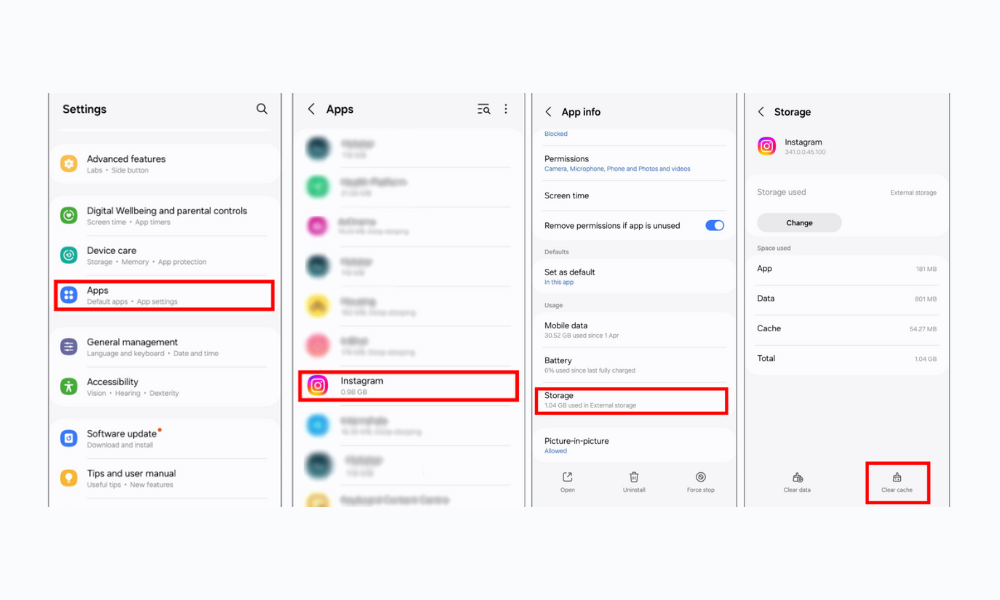
For Android Users:
- Go to Settings → Apps → Instagram
- Tap Storage & Cache
- Select Clear Cache and Clear Data
- Restart the app
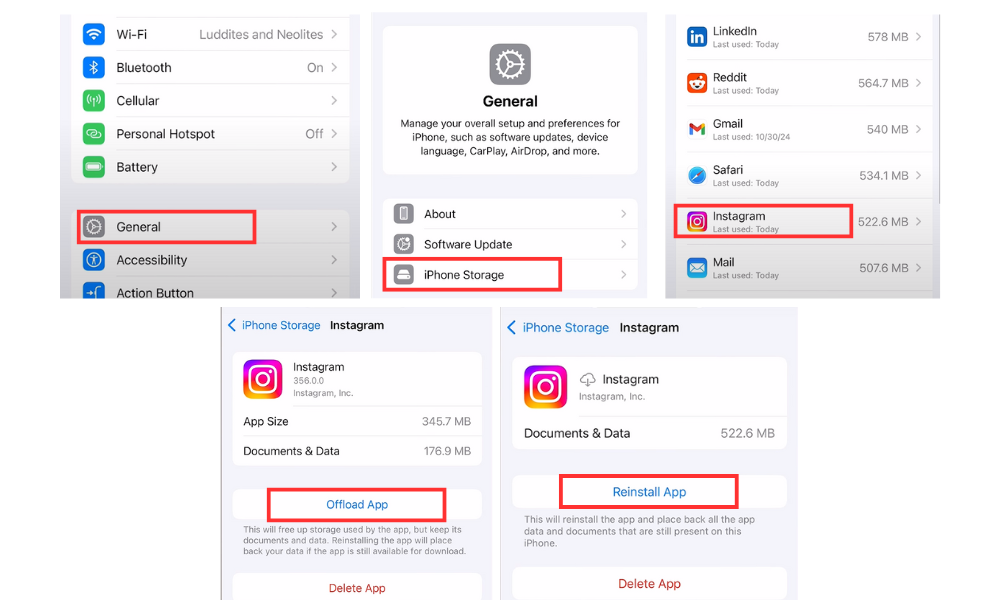
For iPhone Users:
Since iOS doesn’t let you clear the cache manually, delete and reinstall Instagram to refresh the app.
Important: Instagram updates once every one to two weeks. Be sure auto-updates are turned on to prevent missing important fixes.
3. Unstable Internet Connection
Because Instagram live video uses a lot of bandwidth, a steady upload speed of 3 to 5 Mbps is necessary for good quality. If you have a poor internet connection, you may experience frequent crashes or be prevented from going live entirely. This is one of the most common reasons why live streaming fails.
Quick Internet Fixes:
| Internet Issue | Possible Solution |
| Poor connection | Turn the Airplane Mode ON/OFF to reset the connection. |
| Poor mobile data signal | Move to a location with a stronger signal or switch to Wi-Fi |
| Wi-Fi connectivity issues | Restart your router or check your internet service provider’s status |
| VPN-related complications | Disable your VPN or contact your VPN provider for assistance |
4. The Live Button Is Missing
When you swipe into the Stories camera, if the Live button is not visible, it might be a brief bug or an indication of account problems. Ensure you are using the Instagram mobile app to access live features.
Take a look at these quick fixes:
- To reconnect to Instagram’s servers, log out and then log back in.
- Restarting your phone will resolve any system-level problems.
- To start over, reinstall the application.
- To find out if the issue is unique to your account, try another account on your device.
Your original account might be blocked for policy infractions or other reasons if the Live option is visible on another account.
5. Shadowban or Limited Visibility
If you have, even unknowingly, broken Instagram’s rules, your account may be shadowbanned. A shadowban limits your reach and may hide features like Live.
Signs of a shadowban:
- Unexpected decline in engagement for all kinds of content.
- Hashtags no longer reach non-followers.
- The live feature abruptly stops working.
- Explore and hashtag searches do not yield content.
Solution:
- To reset algorithmic penalties, refrain from posting anything for 48 to 72 hours.
- Take questionable third-party apps and links off of your posts and bio.
- Delete banned or overused hashtags from recent Instagram stories and posts.
- Make sure you are not being flagged for bot-like behavior by reviewing your engagement patterns.
- Look closely for any content in recent posts that might be against community standards.
- Check if your account has been flagged by going to Instagram’s Help Center.
If you believe your account has been incorrectly flagged, you should contact Instagram support for further assistance. Recovery period: After addressing infractions, the majority of users report that their shadowban has been lifted in 2–14 days, though more serious cases may take longer.
6. Violations of Community Guidelines
Instagram may block access to Live and other features because of:
- Content that is inappropriate, such as hate speech, violence, or nudity.
- Harassment or spammy actions like DM spamming, following/unfollowing, or leaving a lot of comments.
- Repeated infringements of copyright when using content or music that is protected.
- Using your profile to sell illegal goods or services.
- Impersonation of other individuals or brands.
To check for violations:
- Go to Settings > Help > Support Requests.
- To check if there are any restrictions on your account, tap on Violations.
- If necessary, file an appeal or watch for the restriction to end.
Important distinction: While some infractions result in immediate feature restrictions, others only cause warnings. Repeated violations may result in account termination or the permanent loss of features.
7. Using a Business or Creator Account
Accounts belonging to businesses and creators are frequently monitored. Even though these accounts can use Live, they might be subject to restrictions or increased scrutiny, particularly if there are unexpected spikes in activity or promotional content that violates platform guidelines.
Using a Professional Instagram account can provide access to features like Instagram Live Producer, which allows for high-quality live streams from a desktop.
To troubleshoot, try moving to a personal account:
- Go to Settings > Account > Switch Account Type.
- Choose “Switch to Personal Account.”
- Open the app again, then try Live once more.
Although temporarily switching account types can aid in problem diagnosis, keep in mind that using a personal account may prevent you from accessing analytics and other professional features.
8. Device Compatibility Issues
The newest Instagram features, like Live, Reels, and Broadcast Channels, might not work on older smartphones or operating systems.
Make sure:
- The most recent version of iOS or Android is installed on your phone. For full functionality, Instagram requires iOS 13+ or Android 8.0+.
- During live broadcasts, you have at least 500MB of free storage available for app caching.
- Close background apps to free up RAM. Instagram Live may require a lot of memory.
- There is enough processing power in your device. Video streams may be difficult to encode on low-cost or outdated phones.
In severe situations, switching to a newer device might be necessary to consistently access all of Instagram’s features. For the most part, mid-range phones from the past two to three years should be adequate for Instagram Live.
9. Instagram Server Issues
The issue may not always be with you. Occasionally, millions of users are impacted at once by server outages or feature-specific issues on Instagram.
Go to:
- To view real-time outage reports, use Downdetector.
- For official announcements, follow @InstagramComms on Twitter.
- Instagram’s official service information status page
You will just have to wait if other people are reporting outages. The majority of server problems are fixed in a few hours.
By following these steps, you can often resolve many of the technical issues that might be preventing you from going live on Instagram.
Advanced Troubleshooting Tips
1. Try a Different Device
Use a friend’s phone or another device to access your account. If Live functions there, there may be a hardware problem or system-level bugs with your original phone.
2. Check Instagram Permissions
Instagram requires access to a camera and microphone for Live to function. During OS updates, these permissions may occasionally be inadvertently removed. Additionally, check the general privacy settings on your phone.
3. Reduce Device Storage
When the storage on your phone is low, Instagram may malfunction. Try removing unnecessary files or apps to free up space. At least 1GB of free space should be your goal.
Preventing Future Live Issues
- Be Active Every Week: To keep your standing high, post stories, reels, or live streams at least once every week.
- Be Genuine: Respond to, like, and comment on messages at your own pace.
- Verify Your Information: Include your email address and phone number for legitimacy and account recovery possibilities.
- Steer clear of Copyright Triggers: Only utilize Instagram’s library of licensed music or royalty-free soundtracks.
- Build Organic Engagement: Your account’s “trust score” may rise with more sincere engagement.
- Follow Posting Best Practices: Avoid excessive hashtags, repetitive comments, or spam-like behavior.
- Use Instagram Stories: Promote upcoming live sessions and share recordings of past sessions to engage followers who missed the live broadcast.
- Utilize Other Social Media Platforms: Cross-promote live sessions to increase visibility and reach a larger audience.
Conclusion
Instagram Live issues can be annoying, but they are nearly always resolvable. You now have all the tools you need to identify and resolve any problems, whether they are caused by an out-of-date app, bad internet, or a hidden restriction.
Be consistent, participate in meaningful ways, and be sure to abide by Instagram’s guidelines. Building an engaged audience that appreciates your content enough to join your broadcasts is more important for successful Instagram Live sessions than technical ones.
FAQs
Why is the Live Instagram button missing?
First, make sure you have the most recent version of your app installed. Try logging out and back in again or reinstalling the app entirely if the problem continues. Temporary limitations may also be placed on your account; look for any infractions in the Support Requests section. Ensure you are using the Instagram mobile app to access live features.
Can I go live on Instagram with no followers?
Technically, you need at least one follower. But having more followers raises the possibility of engagement in addition to improving your visibility. Additionally, new accounts with a small following might experience brief feature restrictions.
Does a shadowban affect Instagram Live?
Indeed, shadowbans have the ability to limit access to a number of features, such as explore page placement, hashtag visibility, and live streaming. These limitations can keep you from using some interactive features and restrict the audience for your content.
Will reinstalling Instagram delete my data?
No, Instagram’s servers house all of your followers, direct messages, posts, and comments. Nevertheless, you will have to log in once more and might have to adjust some app settings.
Can I live stream from a laptop or desktop?
Desktop live streaming is not officially supported by Instagram. You’ll need third-party tools like Streamlabs, Yellow Duck, or OBS Studio. However, Instagram Live Producer allows users to stream live videos from their desktops using professional streaming software, and access to this feature requires a Professional Instagram account. Mobile broadcasting remains the most reliable and straightforward option.
How long do Instagram restrictions last?
Depending on the seriousness of the infraction, restrictions can last anywhere from 24 hours to several weeks. Generally speaking, first-time infractions are resolved more quickly than repeat ones. Certain severe infractions may lead to feature limitations that are permanent.
Can copyrighted music block my Live?
Yes. Instagram’s automated system may mute your audio or stop your stream if it detects copyrighted music. To get around this problem, use royalty-free music or Instagram’s built-in music library.
How do I improve my Live Stream quality?
Prioritize adequate lighting, a steady internet connection (at least 5 Mbps upload speed), high-quality audio (if at all possible, use external microphones), and a tripod or other stable mounting device. It is essential to pre-test your setup before going live. Additionally, use your Instagram feed to share teaser videos and promote upcoming live broadcasts to generate interest and encourage more followers to tune in.
Is there a time limit for Instagram Live?
The average Instagram Live session lasts four hours. This allows you to engage with your audience for a longer period because it is much longer than a typical Story.

BuzzVoice
BuzzVoice is the best place to go when you need instant engagement services on social media. Offering a wide variety of packages for Instagram, Youtube, Facebook, Twitter, Soundcloud & Tiktok.