How to Log Someone Out of Your Instagram Account
In 2026, millions of users rely on Instagram to grow their audience, share ideas, and connect with communities. However, as the platform evolves, so do the security threats, especially if you manage multiple accounts. If you suspect someone else has access to your Instagram account, you need to act fast.
In this complete guide, we’ll show you exactly how to log someone out of your Instagram account in 2026, protect your login activity, and prevent future intrusions. We’ll also show you how to boost your content’s reach using BuzzVoice, so your account grows safely and securely.
Want more eyes on your content, too? With BuzzVoice, you don’t have to wait for the algorithm.
Get real views, followers, and engagement — instantly.
Step-by-Step Guide
- Open Instagram: Launch the Instagram app on your device.
Note: This process works on any device, including an android device, computer, laptop, or tablet.
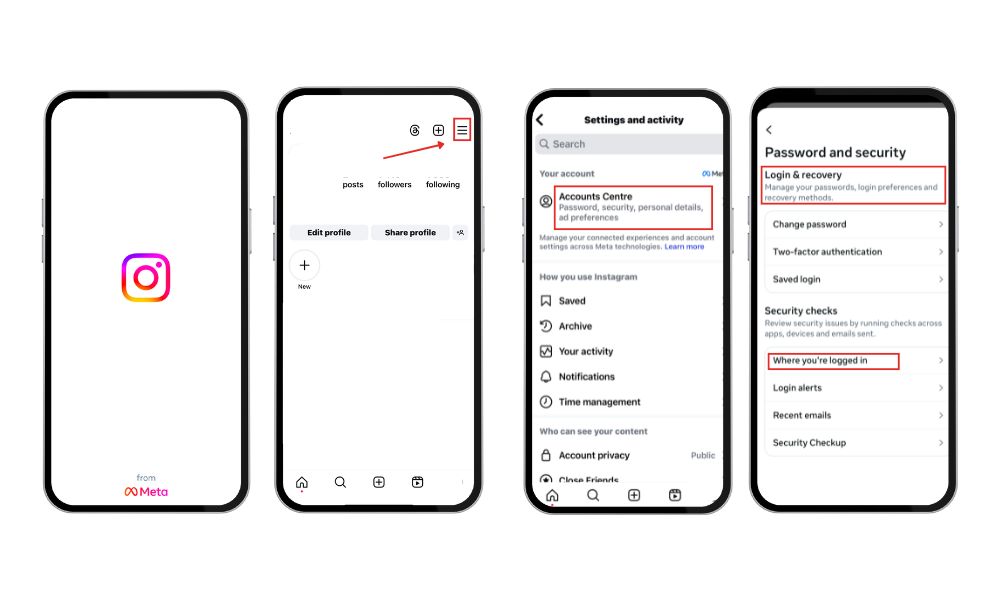
- Go to Profile: Tap your profile icon in the bottom right corner.
- Access Settings: Tap the three horizontal lines (menu) in the top right, then select “Settings and activity.”
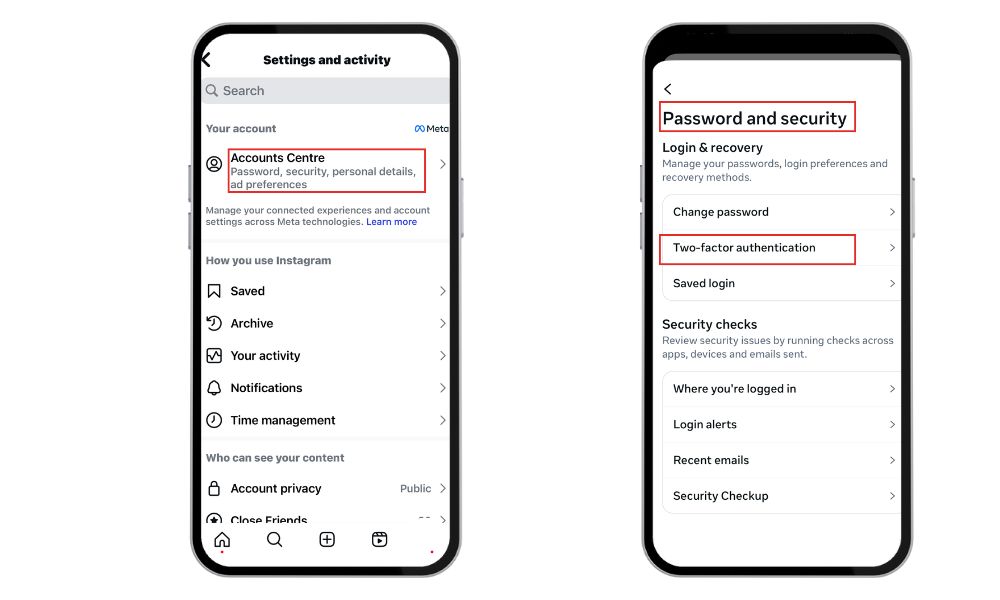
- Navigate to Security: Scroll down and tap “Accounts Centre,” then choose “Password and Security.”
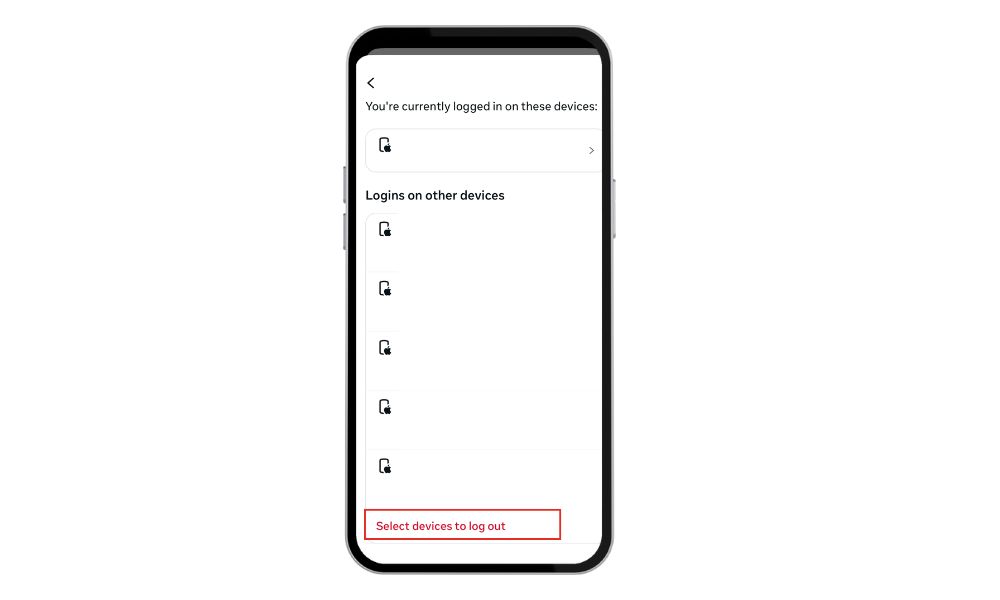
- View Login Activity: Under “Security Checks,” tap “Where you’re logged in” to see a list of all devices signed into your account. Here, you can find details about each session, such as device type and location.
- Log Out Unrecognized Devices: You can easily log out of another device by tapping the three dots next to it and selecting the log out option.
Tip: You can quickly check your login logs to find and remove any unfamiliar devices from your account for better security.
How to Use the “Login Activity” Feature
Instagram’s “Login Activity” allows you to monitor all devices currently logged into your account, and viewing your login activity provides valuable data about your account security.
- Access Login Activity: Follow the steps above to reach “Other devices you’re logged in.”
- Review Devices: Each entry shows the device type, location, and last active time. You can use these logs to monitor for suspicious cases, such as unauthorized access or the presence of multiple accounts.
- Take Action: If you see any unfamiliar devices, tap the three dots and select “Log Out.”
This feature is especially useful if you manage multiple accounts, as you can keep track of all active sessions.
How Many Devices do you have? Log Out of all
To ensure complete security, you must log out of all devices:
Change Password: Go to “Password and Security” in the “Accounts Center.”
Set New Password: Tap “Change Password” and enter a new, strong password.
Confirm Logout: Instagram will log out all devices except the one you’re using.
Signs Someone Else May Be Logged Into Your Account
Suspicious Activity or Unknown Login Locations
If you notice login attempts or active sessions from cities or countries you’ve never visited, it’s a strong sign your account may have been compromised. Even if the device seems familiar (like “iPhone”), unusual locations or times—especially in the middle of the night—should be investigated.
Check your login history frequently via: Settings > Accounts Centre > Password and Security > Where You’re Logged In.
Messages or Likes You Didn’t Send
If people mention receiving odd DMs from you, or if you notice comments, likes, or follows you didn’t initiate, it’s a red flag.
Hackers or unauthorized users often use compromised accounts to spread spam, phishing links, or crypto scams.
Review your recent activity, DMs, and interaction history for anything that seems out of place.
Related: How to know if someone restricted you on Instagram
Security Notifications from Instagram
Instagram may alert you if there are login attempts from new devices or if key account information like your email or phone number is changed. These alerts often arrive via email or in-app notifications, so don’t ignore them—act immediately if anything seems off. If you receive a login alert and it wasn’t you, open the app, go to login activity, and log out the suspicious session immediately.
Grow your Instagram profile and other social media with Facebook likes, TikTok comments or YouTube subscribers with BuzzVoice services.
What to Do After Logging Them Out
Change Your Password Immediately
After removing any unauthorized sessions, change your password right away.
Choose a strong password that includes a mix of uppercase and lowercase letters, numbers, and symbols.
Avoid using the same password across multiple platforms to prevent further compromise.
Turn On Two-Factor Authentication (2FA)
2FA adds an essential layer of protection by requiring a verification code along with your password during login. To enable it:
Go to Settings > Accounts Centre > Password and Security
Click Two-Factor Authentication
Choose your preferred method (SMS, authentication app, or WhatsApp) and follow the prompts.
2FA drastically reduces the chances of someone accessing your account, even if they have your password.
Review Connected Apps and Permissions
Third-party apps connected to your Instagram account may still have access, even after changing your password. These could include social scheduling tools, filters, or suspicious services that were authorized in the past.
Go to Settings > Password and Security > Apps and Websites
Review Active, Expired, and Removed apps
Revoke access to any tools you don’t recognize or no longer use
This prevents potential backdoor access to your account through external services.
Final Thoughts
Regularly monitoring your login activity and updating your security settings are crucial steps in protecting your Instagram account, especially as threats become more sophisticated in 2026.
By checking the “Where You’re Logged In” section frequently, you can spot unauthorized devices or suspicious locations before any damage is done. Make it a habit to review this weekly, particularly if you’re using your account on multiple devices for business, brand building, or influencer collaborations.
If your process of growing in the Instagram world is harder than it seems, combine BuzzVoice services with an engaging username, a high-quality profile picture, and consistent content.
FAQs
Can I see who is logged into my Instagram account?
Yes, you can view all active sessions by going to Settings and Privacy > Accounts Centre > Password and Security > Where you’re logged in. This section shows device type, location, and last active time for each login. It’s a powerful way to monitor access and spot suspicious activity early.
Will they be notified if I log them out?
No, Instagram does not send a notification when a device is remotely logged out. The person will simply be taken to the login screen the next time they open the app. However, if they have saved your password, they may try logging in again, so update your password immediately after logging them out.
Can someone still access my account after logging them out?
Yes—if they still have your password, they can log back in at any time. To fully block their access, change your password immediately after removing them. Also, enable two-factor authentication (2FA) for an added layer of protection.
What if I don’t recognize a device?
Log it out immediately through the “Where you’re logged in” section. Even if you’re unsure, it’s safer to log it out and reset your password to be cautious. This helps ensure that only you maintain full control over your Instagram account.

BuzzVoice
BuzzVoice is the best place to go when you need instant engagement services on social media. Offering a wide variety of packages for Instagram, Youtube, Facebook, Twitter, Soundcloud & Tiktok.