How To Limit Comments on Comments (4 Easy Steps)
Instagram is a powerful platform for connection and creativity, but sometimes the comments section can become a breeding ground for spam, bots, negativity, or inappropriate comments. Fortunately, in 2026, Instagram offers robust privacy tools to help you take control. So, how to limit comments on Instagram?
Whether you want to restrict comments on Instagram, filter offensive language, or stop spam bots, this guide will show you how to limit who can comment on your posts quickly and effectively.
Let BuzzVoice help your next post score with real custom comments, likes, and auto engagement—because great content deserves a bigger crowd.
How to Limit Comments on Instagram (Step-by-Step)
To access your comment settings:
Open Instagram and tap your profile picture in the bottom right corner to access your profile.
Tap the three lines (≡), also known as the hamburger menu, in the top right corner of the screen.
Access the menu in the top by tapping the appropriate icon, then tap Settings & Privacy.
Under “How others can interact with you,” tap Comments by tapping the menu item.
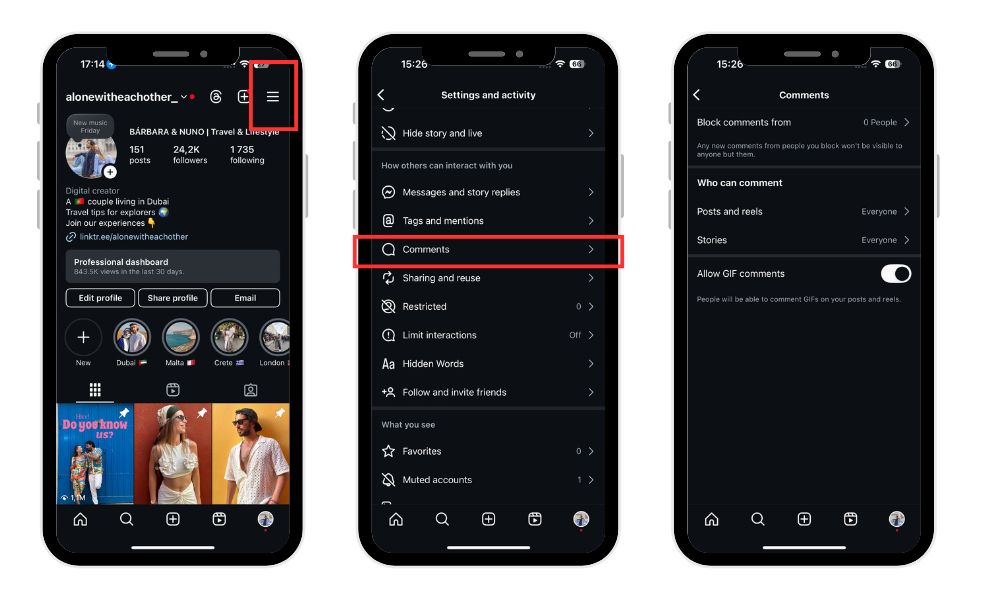
Now you can customize your preferences using these options:
Allow Comments From
Limit new comments from certain accounts or specific accounts.
Everyone
People You Follow
Your Followers
Both (mutuals)
Block Comments From
Block comments from specific accounts or accounts you want to restrict.
Select individual users silently — they won’t be notified.
Manual Filter
Add a custom word list of offensive words, any word, phrases, or emojis you want filtered out.
Turn Off Comments (per Instagram post)
When creating or editing a post, tap the three dots and select “Turn off commenting”.
After adjusting your settings, you may need to confirm your choices.
You can also manually hide comments that have already been posted. Additionally, you can limit who can send you messages or hide message requests from certain accounts. These privacy controls apply to your Instagram account and help manage who can interact with your content.
Why You Might Want to Limit Comments on Instagram
Comments can boost engagement, but not all attention is good attention. Here’s why more users are using Instagram privacy settings in 2026 to manage interactions:
Protect your mental health – Avoid exposure to toxic or hurtful remarks
Prevent spam and bots – Automated comments selling crypto, giveaways, or fake products are common
Control who interacts with your posts – Especially useful for creators or brands with large followings
Manage harassment or negativity – Viral posts can attract trolls or overwhelming attention
Note: Even with comment limits and filters, some unwanted comments may still appear, so manual review is sometimes necessary.
Understanding Comment Moderation
Effective comment moderation is the backbone of a healthy Instagram presence. By taking charge of your comment section, you can ensure that the conversations around your posts remain relevant, respectful, and on-brand.
Instagram’s comment moderation tools let you manage comments on your posts with ease, whether you want to block comments from specific users, limit interactions during busy periods, or create a custom list of words and phrases to filter out unwanted comments.
To get started, open the Instagram app and head to the “Comments” menu in your settings. Here, you’ll find options to block all the comments, manage custom words, and set up filters that automatically hide comments containing certain words or phrases.
These features empower you to decide who can comment, what kind of comments appear, and how your followers interact with your content. By regularly reviewing and updating your comment moderation settings, you can create a welcoming space for your community and keep your Instagram posts free from negativity and spam.
Use the “Limits” Feature for Temporary Control
Instagram’s Limits tool is ideal for moments when you’re getting a sudden burst of attention, like a viral Reel or controversial post. The Limits feature allows you to temporarily limit comments from certain users, helping you manage engagement and prevent spam or harassment.
Here’s how to activate it:
Go to Settings & Privacy > Limits
Toggle ON
Choose how long to limit interactions (e.g., 1 day, 7 days)
Choose who to limit:
Recent followers
People who don’t follow you (these are considered limited accounts)
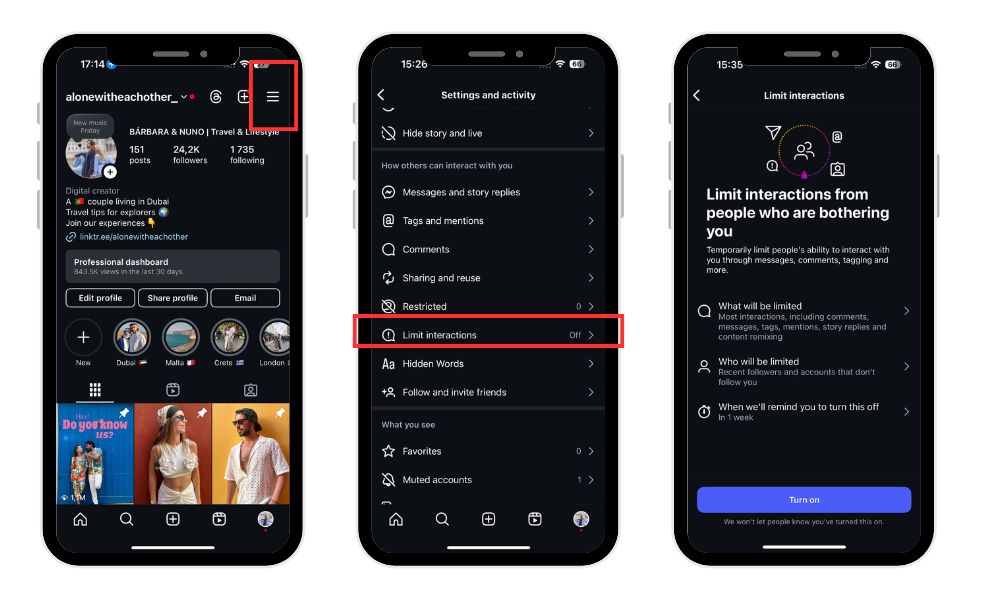
When Limits is turned on, these limited accounts will be limited in their ability to comment or message you — a lifesaver during digital chaos.
Related: How to unmute someone on Instagram Stories
Hiding Unwanted Comments
Keeping your comment section positive is easier than ever with Instagram’s tools to hide unwanted comments. The “Hidden Words” feature automatically hides comments containing specific words, phrases, or emojis you find inappropriate or disruptive.
To use this, simply tap “Hidden Words” in the Comments menu, then create your custom list of words and phrases you want to filter out. Any comments containing these will remain hidden from your posts, helping you limit comments that could harm the vibe of your community.
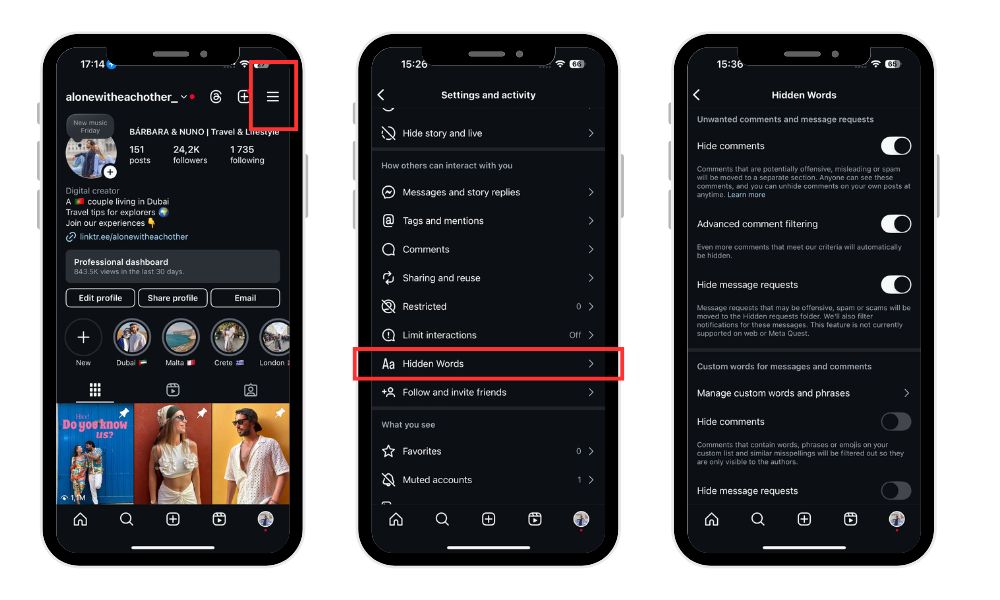
If you spot a comment you’d like to hide manually, just tap the three dots next to the comment and select “Hide Comment.” This is a quick way to remove inappropriate comments from view without deleting them outright.
By combining automatic and manual tools, you can ensure your comment section stays focused on meaningful, positive interactions—no matter how many followers you have or how viral your posts become.
Advanced Filtering and Keyword Blocking
Instagram uses AI-powered detection to block hateful or inappropriate language, but you can take it a step further:
Hide Offensive Comments
Automatically detects and filters toxic content using machine learning
Manual Keyword Filter
Add a custom word list of offensive words, phrases, emojis, or usernames you don’t want to see
Hide Most Reported Words
Instagram blocks terms that are commonly flagged across the platform
These advanced settings can be found in the same Comments section of your Privacy Settings.
Blocking and Deleting Comments
Sometimes, stronger action is needed to keep your Instagram comment section safe and welcoming. Blocking comments from specific users is a discreet way to prevent offensive comments from appearing on your posts.
In the Comments menu, select “Block Comments From” and search for the users you want to block. Once blocked, these users can still comment, but their comments will only be visible to them—not to you or your followers—effectively removing their impact from your community.
If you encounter a comment that crosses the line, deleting it is simple. Tap the three dots next to the comment and choose “Delete Comment.” This instantly removes the comment from your post, ensuring that offensive or unwanted comments don’t linger in your comment section.
By using these tools to block and delete comments, you can maintain a respectful and positive environment for everyone who interacts with your Instagram posts.
Tips for Managing a Safe Comment Section
Beyond filters and blocks, try these proactive strategies:
Pin positive comments to highlight supportive voices
Use Restrict or Mute on problematic users — their comments will be hidden from everyone but them
Regularly review flagged comments before they appear
Don’t engage with trolls — they thrive on attention
Even if you’re a brand or business, setting boundaries helps create a healthier relationship with your audience.
Want to boost your Instagram presence and grow faster with new followers, comments, without worrying about invisible blocks or shadowbans? BuzzVoice’s Instagram tools help!
FAQs
Can I turn off comments on one post only?
Yes. When posting or editing a post, tap the three dots (•••) and select “Turn off commenting.” You can also reverse it later if needed.
Will the person know if I block their comments?
No. If you block someone from commenting, they won’t be notified. They can still see your posts, but any comment they make will be invisible to others.
Can I limit comments on Reels?
Yes. Reels support all the same privacy tools as regular posts. You can limit, restrict, or turn off comments entirely from your Reel settings.
Does Instagram filter comments automatically?
Yes. Instagram uses AI to detect and hide offensive language, spam, or reported terms by default. You can customize these filters or turn them off in Privacy > Comments

BuzzVoice
BuzzVoice is the best place to go when you need instant engagement services on social media. Offering a wide variety of packages for Instagram, Youtube, Facebook, Twitter, Soundcloud & Tiktok.