How to Post a Video on Facebook: Expert Tips and Guide (2026)
In 2026, Facebook will continue to be a dominant platform for video content. With more than 2.8 billion active monthly users, Facebook offers a massive audience for video creators using both computers and mobile types of equipment. From video files like Reels to long-form video link tutorials, the platform supports creators in reaching a broader audience with compelling content.
Facebook supports multiple video formats, such as Stories, Reels, and feed posts. Whether you’re using a browser on your desktop or the Facebook app on your phone, each video type—short-form or long-form—can be uploaded and optimized for better visibility.
This guide walks you through everything you need to know: how to post videos, how to edit them, how to upload directly from a mobile device or computer, and how to ensure your Facebook account is properly configured for performance. You’ll also learn how to create engaging content and access advanced settings for targeting the right audience.
Pro Tip: Even perfectly edited videos might not reach their full potential. Use BuzzVoice to instantly boost your Facebook post likes, increase Facebook video views and buy FB followers!
Understanding Facebook Video Posting Options
When it comes to posting video files on Facebook, you have several options:
- Uploading to Your Profile – Share videos with friends or followers via your account.
- Posting to a Business Page – Upload high-quality content directly to your page for public visibility.
- Sharing in a Group – Engage niche communities with relevant video content.
- Posting a Facebook Story – Ideal for mobile users looking for temporary but impactful reach.
Uploading and editing videos on a computer allows for more precise control over video quality and settings. Additionally, managing a professional presence on Facebook through the use of Pages is crucial for brand building, audience growth, and connecting with followers.
When uploading videos to Facebook, it’s important to use the correct format and settings for optimal quality:
- Video Format: MP4 or MOV is recommended.
- Aspect Ratio: 16:9 for landscape, 9:16 for vertical videos (Stories and Reels).
- Resolution: At least 1080p for clear, high-quality playback.
- File Size: Keep your video file under 4GB.
Step-by-Step Guide to Posting a Video on Facebook
Step 1: Access the Post Section. Open Facebook via your browser on your computer or launch the app on your mobile. Navigate to your feed, page, or group.
Step 2: Click “Photo/Video” and Select a Video File. Choose the video file from your gallery or file manager and click upload.
Step 3: Add a Video Title, Caption, and Hashtags. Insert a compelling video title and add relevant hashtags for visibility. Tag a location if necessary.
Step 4: Choose Privacy Settings. Set who can view the video using the settings menu—public, friends, or custom audience.
Step 5: Click “Post” and Wait for Processing – Once uploaded, your video will process. The better the file optimization, the smoother the upload.
Even perfectly edited videos can fall flat without the right push. Buzzvoice gives your Facebook posts the momentum they need to reach more people and spark real engagement.
Related Article: 17 Ways How To Get More Engagement on Your Facebook Videos
How to Post a Facebook Video from a Mobile Device
Uploading videos from your mobile is just as easy as on desktop. Simply open the Facebook app, tap the post box, and select the video from your camera roll or gallery. You can also directly upload videos to Facebook Stories or as a Reel for more visibility.
The Facebook Lite app allows users to access Facebook’s core features even in low connectivity situations, making it a great option for uploading videos when network conditions are poor. Additionally, Android devices offer robust capabilities for uploading and editing videos using the mobile app, integrating AI-powered tools to enhance the video production process.
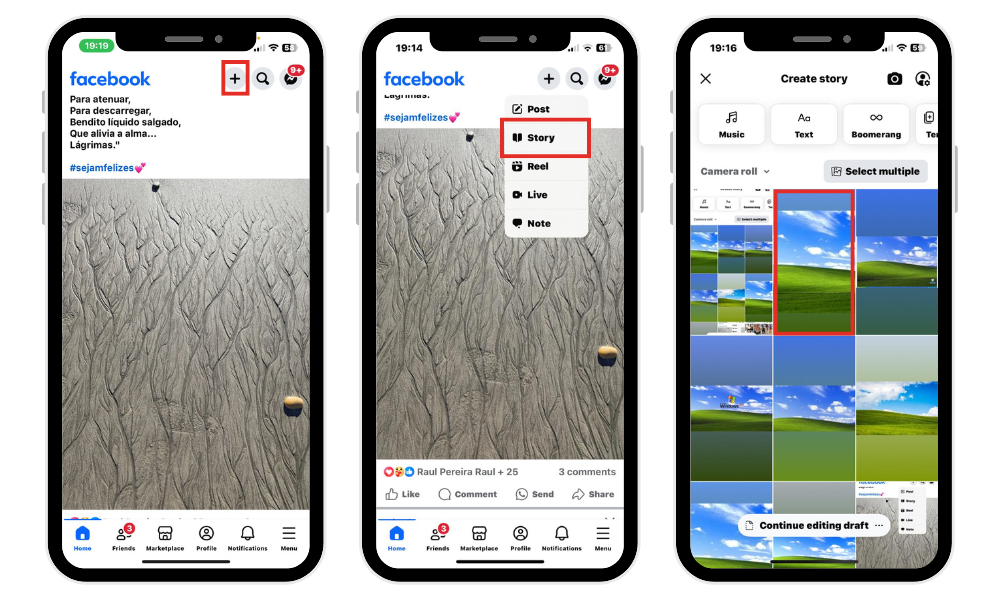
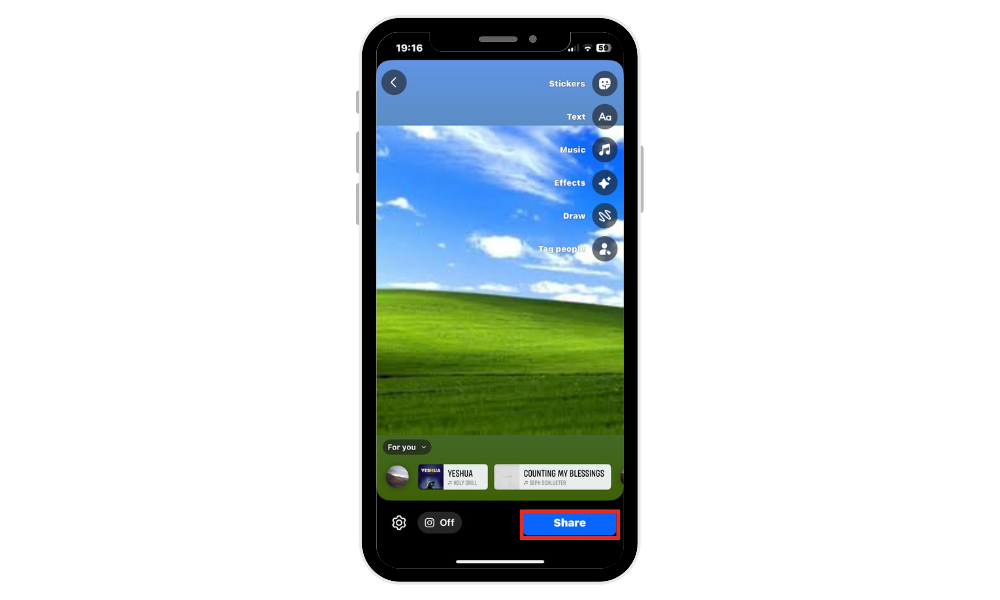
Tips for Optimizing Mobile Video Uploads – Ensure your mobile video is clear and well-lit. Keep your video’s file size manageable to avoid long upload times. Use vertical orientation for Stories and Reels, and make sure to use a strong, stable internet connection.
In the mobile app, you can also schedule video posts for later. This is especially useful for businesses or creators who want to post at optimal times without being online.
Best Practices for High-Engagement Facebook Videos
Use Eye-Catching Thumbnails to Grab Attention
Thumbnails are the first thing users see when scrolling through their feed, so make sure they are visually appealing and relevant to the video. A thumbnail that piques curiosity will drive more views and engagement.
Keep Videos Short, Engaging, and Mobile-Friendly
Most users browse Facebook on mobile devices, so it’s essential to produce short, engaging videos. Aim for videos under 1-2 minutes to keep your audience interested. Additionally, take advantage of AI-powered tools to trim video content, making the editing process more efficient. If you often share Facebook posts to Instagram, consider creating formats that perform well on both platforms.
Add Captions for Silent Viewing
A significant percentage of users watch videos without sound, so adding captions ensures that your message is still clear, even when muted.
Post at Peak Times for Maximum Reach
Timing your post is crucial. Aim to upload videos when your target audience is most active, typically during lunch hours or in the evenings. Use Facebook Insights to track when your followers are online. Learn tips and tricks from community members to optimize your posting strategy.
How to Post a Video on Facebook Stories
Facebook Stories are an excellent way to share bite-sized, engaging content that appears for just 24 hours. They are highly visible, often appearing at the top of the Facebook feed, making them perfect for promotions, announcements, and behind-the-scenes looks.
How to Upload a Video to Facebook Stories
Tap your profile picture on the mobile app to create a new Story. Select “Video” from your gallery or record a new one, then customize it with stickers, text, or music. For enhanced features like video uploads and screen recording, it is recommended to download the Padlet app. Here is the tutorial:
Additionally, ensure you manage permissions to control who can view or edit your video content, and specify which sites can embed your videos for better security.
Best Practices for Creating Engaging Story Videos
Stories are ephemeral, you’ll want to make your video compelling and interactive. Use stickers, polls, and swipe-up links to increase engagement and drive traffic.
Troubleshooting Common Facebook Video Upload Issues
Video uploading? How to Fix Common Issues
If your video isn’t uploading:
Check your internet (Wi-Fi or mobile data)
Compress video files over 4GB
Clear the browser or app cache
Try a different device
If you’re facing a format error, convert your file to MP4 or MOV using tools like HandBrake or Online-Convert. Tweak your settings to meet Facebook standards for playback.
Format Errors and How to Resolve Them
Facebook supports MP4 and MOV video formats, but errors can occur if a video is improperly encoded or in an unsupported format. To resolve this, ensure your video is in MP4 or MOV by checking its properties or using video metadata tools. If it’s in an unsupported format (e.g., AVI, MKV), use tools like HandBrake or Online-Convert to convert the video. If the error persists, re-encode the video using standard settings, ensuring compatibility with Facebook’s player.
Fixing Buffering and Playback Problems
Buffering often results from slow or unstable internet connections. To resolve this, check your internet speed using tools like Speedtest.net. If the speed is low, switch to a faster or more stable connection. Additionally, consider uploading your video at a lower resolution (e.g., 720p) to reduce load time.Avoid running heavy applications on the network or device to improve playback quality. By optimizing your settings and connection, you can prevent buffering and ensure smooth video playback.
Conclusion
To post a reel on Facebook, simply pick your format (feed, page, story, etc.), use supported video files, and edit with care. Whether using a computer or mobile, uploading consistently with strong settings and optimization techniques ensures success.
Spending time creating videos but not getting the views you hoped for? With Buzzvoice, you can skip the slow climb and instantly boost your visibility on Facebook. Whether you’re sharing stories, business promos, or personal clips, we’ll help your content get more real views, likes, and the engagement it deserves—starting today.
FAQ
How do I upload a video on Facebook?
To upload a video on Facebook, click on the “What’s on your mind?” section on your profile or Page, select the “Photo/Video” option, choose the video from your gallery, and click “Post.” You can also upload videos directly to Facebook Stories or Facebook Reels for better engagement.
What video formats are supported by Facebook?
Facebook supports MP4 and MOV formats for video uploads. Make sure your video is in one of these formats for smooth uploading and playback.
How do I schedule a video post on Facebook?
To schedule a video post, go to your Facebook Page, create your post, and instead of posting immediately, click on the downward arrow next to the “Publish” button. Select “Schedule” and choose the time and date you want your post to go live.
What is the difference between Facebook Stories and Facebook Reels?
Facebook Stories are temporary (lasting 24 hours) and appear at the top of your feed, making them great for quick updates, promotions, or behind-the-scenes content. Facebook Reels, on the other hand, are short videos (up to 90 seconds) that can be shared on both your feed and the Reels section of Facebook, providing a broader reach and higher engagement opportunities.
Can I upload videos to Facebook from my desktop computer?
Yes, you can upload videos directly from your desktop computer. Go to your profile or Page, click on the “Photo/Video” option, select your video file, and upload it. Uploading from a desktop gives you more control over video settings and file management.

BuzzVoice
BuzzVoice is the best place to go when you need instant engagement services on social media. Offering a wide variety of packages for Instagram, Youtube, Facebook, Twitter, Soundcloud & Tiktok.