Why Are Instagram Posts Blurry? Here’s How To Fix It
Are your Instagram photos looking pixelated or low quality? Learn why your Instagram posts are blurry and how to fix them for high-resolution uploads in 2026.
Instagram is a visual-first platform where high-quality images matter. But nothing is more frustrating than uploading a photo that looks great on your phone, only to find it looking pixelated or blurry after posting. Whether you’re a content creator, brand, or casual user, maintaining image clarity in 2026 is essential to engaging your audience.
In this guide, we’ll break down why your Instagram posts are blurry and show you exactly how to fix them using up-to-date practices, including the latest image specs, export settings, and insider tips.
Don’t let blurry posts hurt your engagement.
Use these expert tips to upload crisp, high-quality images—and when you’re ready to supercharge your growth, try BuzzVoice to boost your Instagram visibility with real followers, likes, and views that match your polished content.
Why Are My Instagram Posts Blurry?
There are several reasons why Instagram might make your crisp images look blurry. Blurry pictures and low-quality pictures on Instagram are common complaints from users, often caused by technical issues during upload or improper image preparation. Optimizing your photos on Instagram before uploading is essential to maintain clarity and prevent these problems.
1. Instagram Compresses Images
Instagram automatically compresses uploads to save bandwidth and load faster on mobile networks. This compression can significantly reduce image quality, especially if your image isn’t optimized beforehand.
2. Wrong File Size or Format
Uploading a file that doesn’t match Instagram’s recommended sizes (or using formats like HEIC or BMP) can trigger additional compression, leading to blurriness. Using the wrong file format, exceeding the maximum width (1080 pixels), or having an incorrect aspect ratio can cause Instagram to crop or compress your image, resulting in lower resolution and blurry pictures.
3. Bad Internet Connection
A poor Wi-Fi or mobile data connection during upload can interrupt or lower the quality of your post. Instagram may downscale your image without warning if it can’t process the full file during upload. Uploading images or uploading photos over an unstable connection can also result in incomplete uploads and further reduce image quality.
4. Low-Quality Exports
If your photo was exported from an app like Lightroom or VSCO at low resolution (72 DPI or lower), or the file was overly compressed, it’ll appear blurry when scaled for Instagram. The initial quality of your image depends on your phone camera and your phone’s camera quality, so taking photos with a high-quality camera and editing photos before uploading can help maintain sharpness.
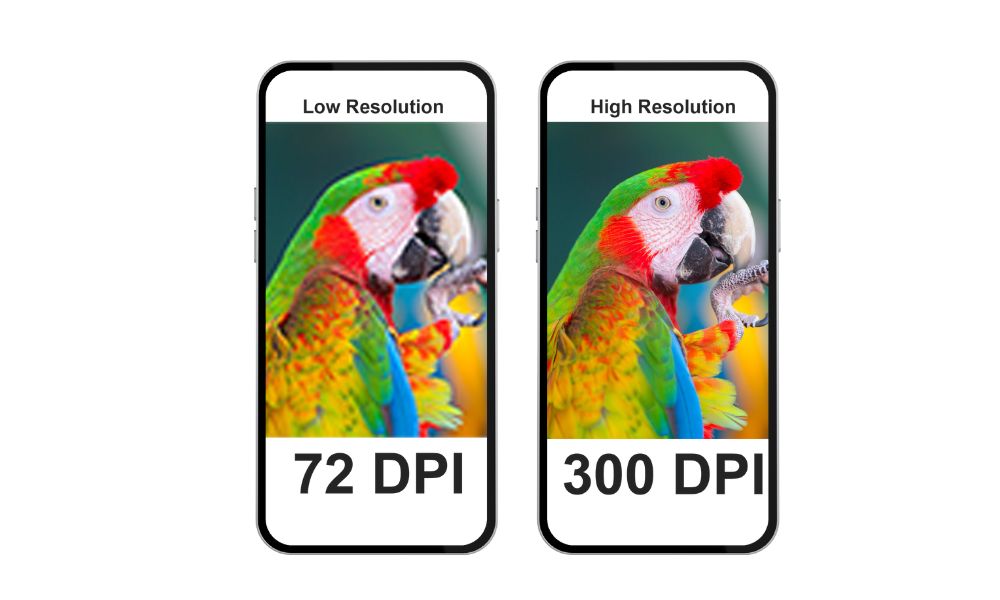
Additionally, resizing your image so the long edge does not exceed Instagram’s recommended dimensions helps prevent quality loss.
Related: Can you change the order of Instagram Posts?
Common Reasons for Blurry Instagram Posts
Here’s a breakdown of the most frequent causes:
| Cause | Why It Affects Quality |
|---|---|
| Wrong Dimensions | Resizing after upload reduces sharpness |
| Low Resolution | Screenshots or zoomed-in images pixelate easily |
| Over-Editing | Some filters or apps degrade image data |
| Instagram Compression | Auto-applies to images above size threshold |
| Poor Network | Incomplete or degraded uploads |
| Grainy Photos | Over-compression or poor lighting can result in grainy photos, which are difficult to fix after upload |
Many users search for ways to fix blurry pictures and troubleshoot blurry photos. The following sections will address these solutions and provide tips to improve your image quality.
Skyrocket your Reels, gain real followers, and rise above the social media noise with BuzzVoice! Get Instagram Likes, Instagram Followers, and Instagram Reels Views.
Optimal Instagram Image Specs in 2026
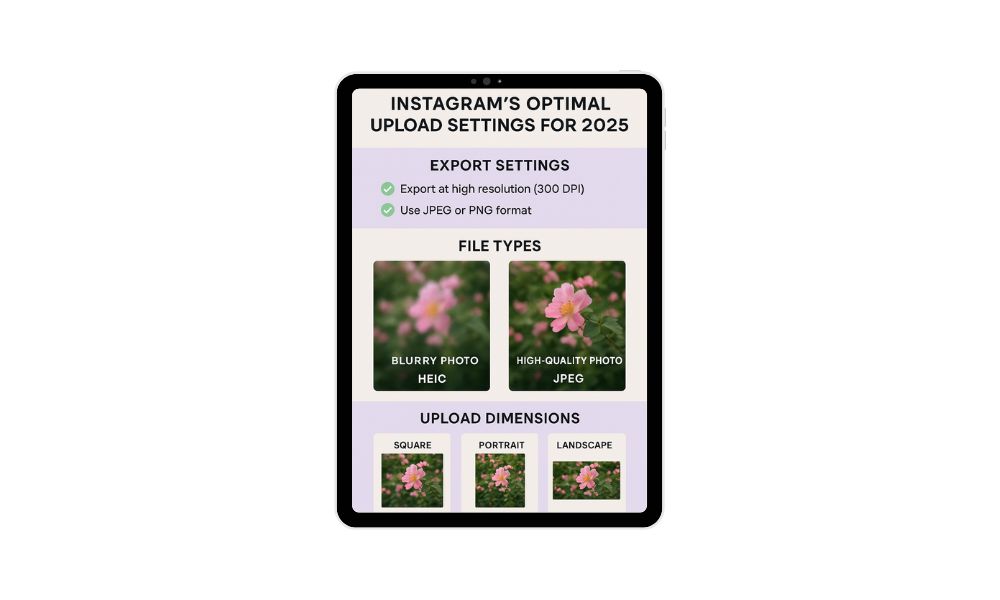
To prevent compression and retain clarity, use the following Instagram-recommended image sizes. Using high-quality images and enabling high-quality uploads in the Instagram app is essential to maintain sharpness and prevent blurriness during the uploading process.
| Image Type | Dimensions (px) |
|---|---|
| Square | 1080 x 1080 |
| Landscape | 1080 x 566 |
| Portrait | 1080 x 1350 |
- Recommended Format: JPEG or PNG
- Avoid: HEIC, TIFF, BMP, or images with non-standard aspect ratios
- Tip: Use a DPI of 300 when exporting for best results.
Note: Editing tools like Adobe Lightroom can help you resize, optimize, and export images to match Instagram’s recommended specs, ensuring your photos look their best after the uploading process.
How to Fix Blurry Instagram Posts
Follow these practical steps to ensure your posts look sharp:
1. Export Photos at High Quality
- Set DPI to 300
- Choose maximum quality JPEG or PNG
- Avoid in-app compression during editing
- If you use a third-party app for editing, make sure it does not compress your images before uploading to Instagram.
2. Use Instagram’s Recommended Dimensions
- Resize images before uploading
- Stick to aspect ratios: 1:1, 4:5, or 1.91:1
3. Avoid Third-Party Scheduling Apps
- Some apps compress images further before posting
- If needed, choose services that preserve original resolution (like Later or Buffer with high-res settings)
4. Upload Over a Strong Internet Connection
- Use Wi-Fi or 5G
- If Wi-Fi is unavailable, consider using cellular data for a more stable upload.
- Run a speed test to check for a slow internet connection, unstable internet connection, or poor internet connection before uploading.
- Uploading from other devices (like desktop or laptop) can sometimes reduce image quality; always check your export settings.
- When posting multiple images in a single post, ensure each image meets Instagram’s specs to avoid quality loss.
- For video uploads, use recommended formats and resolutions to maintain clarity.
- If your images are corrupted, use a repair process with appropriate software and upload only the repaired files.
- Make sure you have enough available storage space on your device, as low storage can affect app performance and upload success.
5. Check Your Phone Settings
- Activate Upload at the highest quality on Instagram
(Settings and activity > Media quality > Upload at highest quality) - To adjust data-saving features that may reduce image quality:
- Open settings in the Instagram app.
- Tap your profile icon in the top right corner.
- Navigate to Instagram Data Settings or Instagram Data Settings.
- Disable Save Data or data-saving mode. While this can help reduce data usage and use less data, it may also lower image quality. Disabling it can improve the clarity of your uploads.
Managing App Cache and Data
The Instagram app relies on cache to store temporary data—like images, videos, and text—to help your feed load faster. While this can make browsing smoother, over time, the app cache can become overloaded or corrupted, which may lead to issues such as blurry photos, grainy videos, or slow-loading images in your Instagram posts and stories.
A cluttered app cache can interfere with how new photos and videos are displayed, sometimes causing your freshly uploaded images to appear blurry or lower in quality than the original photo. This is especially common if you notice that only your Instagram app is showing blurry images, while the same photos look sharp elsewhere.
To fix blurry photos and improve image quality, it’s a good idea to clear your Instagram app cache regularly. Here’s how:
On Android:
- Open your device’s Settings.
- Tap on Apps or Applications and find Instagram.
- Select Storage.
- Tap Clear Cache.
On iOS: While iPhones don’t offer a direct “clear cache” button, you can offload the Instagram app:
- Go to Settings > General > iPhone Storage.
- Find and tap Instagram.
- Select Offload App (this removes the app but keeps your data).
- Reinstall Instagram from the App Store.
Regularly clearing your app cache helps the Instagram app run smoothly and ensures your photos, images, and videos display at their best quality. If you’re struggling with blurry Instagram photos or videos, managing your app cache is a quick and easy way to help fix blurry images and keep your Instagram posts looking sharp.
Tips for Maintaining Image Quality
Want consistently clean, crisp photos on your feed? Use these tips:
1. Edit with High-Quality Tools
Apps like Lightroom, Snapseed, and VSCO offer non-destructive editing and let you control export settings.
2. Export Before Posting
Avoid taking screenshots or re-saving the image multiple times. Always export directly from the editing app at the highest quality.
3. Keep Instagram Updated
Using the latest version of the app ensures you’re not affected by outdated compression or upload bugs.
4. Test on a Private Account
Try uploading to a test or private account to see how Instagram processes the image before posting publicly.
Final Thoughts
Blurry Instagram posts in 2026 are almost always the result of:
Incorrect image dimensions
Over-compressed or low-res exports
Instagram’s auto-compression
Poor network during upload
By following the best practices outlined above—especially around image sizing, export settings, and upload techniques—you can preserve the clarity of your photos and keep your feed looking professional and sharp.
Are you looking to increase your Instagram visibility? Check our Instagram engagement services, you can easily buy Instagram Views, Followers, Likes, Automatic Engagement and Comments to expand your reach.
FAQs
Why are Instagram Stories blurry, but my posts are fine?
Instagram Stories are subject to even more aggressive compression than feed posts, especially if recorded in-app. Also, Stories are often uploaded over mobile data, which further reduces quality. To fix this, try uploading Stories over Wi-Fi and avoid heavy editing filters.
Do iPhones post better quality than Android?
Generally, yes. iPhones tend to use more standardized photo formats (like JPEG or HEIC), and Instagram is optimized for iOS first. Android devices vary in camera processing and file handling, which sometimes leads to inconsistencies or more aggressive compression.
Does Instagram reduce photo quality on purpose?
Yes, but not maliciously. Instagram compresses images to speed up load times and reduce server strain. However, if your upload already matches their specs, Instagram won’t need to compress as heavily, so you can preserve more quality.
Can you re-upload a photo in better quality?
Yes. If your first upload came out blurry, re-export the image with the correct dimensions and quality settings, and re-upload it with a strong internet connection. Also, make sure “Data Saver” is off during the upload process.

BuzzVoice
BuzzVoice is the best place to go when you need instant engagement services on social media. Offering a wide variety of packages for Instagram, Youtube, Facebook, Twitter, Soundcloud & Tiktok.