How to send a DM on Instagram? (4 Ways!)
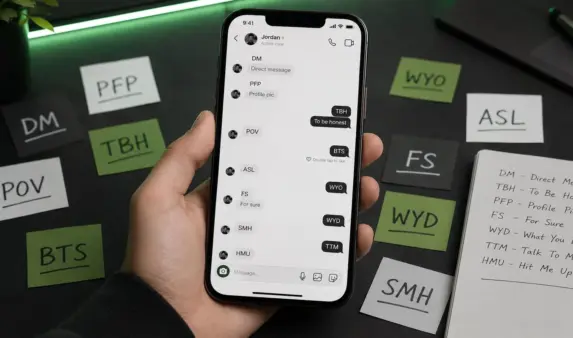
DM’s or Direct Messages are a form of chat on Instagram. In DM’s users can chat and exchange photos/videos from their camera rolls, create cool videos and snappy photos on the go as well as share posts made by other Instagram accounts. Finally, they can create group chats and do video chats or have fun, engaging convos about life, sports, fashion, etc.
Sending DM’s and using DM is very simple.
How To Send DM On Instagram: Step-by-Step Methods
Direct messaging (DM) on Instagram is a versatile way to connect privately with friends, family, and followers. Whether you want to send a quick text, share photos or videos, or start a group chat, Instagram offers multiple convenient methods to send DMs. Below are detailed step-by-step guides on how to send messages, photos or videos that can disappear after being viewed, share videos in chats, and manage message requests to make the most out of Instagram’s messaging features.
Take the time to learn about all the features Instagram offers for messaging to enhance your experience and stay up to date with the latest tools.
Method #1: How to send a message
- Open the profile of someone on Instagram you want to send the DM to
- Click the large white ‘Message’ button (located to the left of ‘Follow’ or ‘Following’)
- Voila, type in your message and hit ‘Enter’ on your keyboard or press ‘Send’ on the screen
Note: These steps work similarly on any device, whether you’re using a phone or computer.
Method #2: Sending disappearing photos
1. In your home screen, click the paper plane at the very top-right hand side
2. If you have chatted with the person before or if they sent you a message, you will find the chat history on the screen. Simply click on that and engage in a conversation.
3. If you haven’t been able to find the account on the screen or haven’t chatted with the person before, look for the icon at the top-right which kind of looks like a notepad with a pencil, crossing it
4. Click on it.
5. Type in the name of the person you wish to contact or select their account from the ‘Suggested’ list
6. Click ‘Chat’ once selected and begin DM’s
You can also create a group chat by selecting multiple people in the choices list, mentioned in step 5.
Method #3: Sharing videos in chats
If you wish to engage a conversation in DM’s by sharing a post, you need to find a post which you’d like to share (or story), or you can also share a photo, videos, or GIFs in chats, and click the paper plane icon (found below the feed post or at the bottom of the story screen).
Once you click on it, you can then select one person to send the post, photo, video, or GIF to, or multiple people to have the image sent to each and every one of them individually.
Method #4: Managing message requests
Create a group video chat called ‘A Room’ on Instagram. You can invite as many people as you like to begin a group video chat.
1. Click on the DM icon – a paper plane, found in the top-right side on your home screen
2. Click the camera icon at the top
3. Search for the users which you wish to invite or select them from the ‘Suggested’ list
Now you are officially licensed to slide into someone’s DM. 😊
Troubleshooting Common Issues with Instagram DMs
If you’re experiencing problems with Instagram DMs, there are a few steps you can take to resolve common issues. First, check your internet connection to make sure you’re online, as a weak connection can prevent messages, photos, or videos from sending. If you’re unable to send a message to a specific person, it’s possible they’ve blocked you or restricted your account, which can limit your ability to chat.
Related: How To Fix “Failed To Send Message” On Instagram (9 Ways)
For issues with message requests, tap the chat bubble icon to open your inbox, then select the “Requests” button to review any pending message requests. Here, you can accept or decline requests from people you don’t follow. If you’re having trouble with disappearing photos or videos, double-check that you’re using vanish mode correctly and that your app is up to date. Sometimes, updating the app or restarting your device can resolve glitches.
Instagram prioritizes privacy and security, so some messaging features may be restricted to protect users. Always review Instagram’s terms and privacy policies to stay informed about how your messages and content are managed. If problems persist, you can contact Instagram support for further assistance and ensure your account stays safe and secure.
Introduction to Direct Messaging
Direct messaging on Instagram is your gateway to private conversations, allowing you to send messages, photos, and videos directly to friends, family, or anyone you follow. Whether you want to share a quick update, send a funny video, or start a group chat, Instagram’s messaging features make it easy to stay connected. When you send a message, keep in mind the purpose of your communication—whether it’s sharing your thoughts, connecting with others, or supporting a cause. You can send a message to someone by clicking the “Message” button on their profile or by starting a new chat from your inbox in the app.
Instagram’s direct messaging isn’t just about text—you can share photos and videos, send disappearing photos in vanish mode, and even react to messages with emojis to keep conversations lively. Instagram is part of Meta’s family of apps, which allows for integrated messaging experiences across Meta platforms. If you want to make your chats more expressive, try sending stickers, such as a heart sticker, GIFs, or even a voice message. For those who love supporting causes, you can also send donations to fundraisers directly through messages, making it simple to manage your account and contribute to what matters most.
If you send a message to someone who doesn’t follow you, they’ll receive a message request, which they can accept to continue the conversation. This helps keep your inbox organized and your account safe. With features like message requests, sharing photos and videos, and the ability to react with emojis, Instagram makes it easy to connect, share, and express yourself. Just tap the “Send” button to start a conversation, and enjoy all the ways you can interact with people on Instagram.
Getting Started with Instagram Direct Messages
Before you can start sending messages on Instagram, you’ll need to have an account. If you’re new to Instagram, simply download the app on your device or visit the website on your computer, then follow the prompts to create and log in to your account. Once you’re logged in, you can explore Instagram’s features, including the ability to send messages, photos, and videos to your friends and other users.
To access your messages, look for the chat bubble icon at the top right corner of your screen—this is your inbox, where all your conversations are stored. From here, you can start a new chat by clicking the “New Message” button or the pencil and paper icon, depending on whether you’re using the app or the web version. Instagram makes it easy to connect with friends, send disappearing photos and videos, and manage your conversations all in one place. Whether you’re on your phone or computer, starting a chat is just a tap or click away, so you can stay connected and share moments instantly.
Step-by-Step Methods for Sending DMs
Sending a direct message on Instagram is simple and flexible, whether you’re using the app or your computer. Start by opening Instagram and tapping the chat bubble icon to access your inbox. To send a message, click the pencil and paper icon to begin a new chat. You can search for someone by their username or select from your list of friends and followers. Once you’ve chosen your recipient, type your message in the text field, or tap the photo icon to send a photo or video. Instagram also lets you send audio messages, share posts from your feed, or even send content from other profiles.
If you want to send a message to someone who doesn’t follow you, your message will appear as a message request in their inbox. They’ll need to accept the request before you can continue the conversation or share more photos and videos. This feature helps keep your chats secure and gives everyone control over who can contact them. Whether you’re sending a quick text, sharing a video, or starting a group chat, Instagram’s messaging tools make it easy to connect and share with anyone on the platform.
Getting Started with Instagram Direct Messages
Before you can start sending messages on Instagram, you’ll need to have an account. If you’re new to Instagram, simply download the app on your device or visit the website on your computer, then follow the prompts to create and log in to your account. Once you’re logged in, you can explore Instagram’s features, including the ability to send messages, photos, and videos to your friends and other users.
To access your messages, look for the chat bubble icon at the top right corner of your screen — this is your inbox, where all your conversations are stored. From here, you can start a new chat by clicking the “New Message” button or the pencil and paper icon, depending on whether you’re using the app or the web version.
Instagram makes it easy to connect with friends, send disappearing photos and videos, and manage your conversations all in one place. Whether you’re on your phone or computer, starting a chat is just a tap or click away, so you can stay connected and share moments instantly.
Step-by-Step Methods for Sending DMs
Sending a direct message on Instagram is simple and flexible, whether you’re using the app or your computer.
- Start by opening Instagram and tapping the chat bubble icon to access your inbox.
- Click the pencil and paper icon to begin a new chat.
- Search for someone by their username or select from your list of friends and followers.
- Once you’ve chosen your recipient, type your message in the text field, or tap the photo icon to send a photo or video.
Instagram also lets you:
- Send audio messages,
- Share posts from your feed,
- Send content from other profiles.
If you want to send a message to someone who doesn’t follow you, your message will appear as a message request in their inbox. They’ll need to accept the request before you can continue the conversation or share more photos and videos.
This feature helps keep your chats secure and gives everyone control over who can contact them.
Whether you’re sending a quick text, sharing a video, or starting a group chat, Instagram’s messaging tools make it easy to connect and share with anyone on the platform.
Tips for Using Instagram Direct Messages Safely and Effectively
While Instagram DMs are a fantastic way to stay connected, it’s important to prioritize your privacy and security.
- Always be cautious about sharing personal information.
- Be mindful of who you accept message requests from.
Instagram provides various privacy, security, and reporting tools to help you:
- Manage your account,
- Keep your conversations safe.
If you encounter any inappropriate messages or spam, you can report them easily within the app. Instagram’s reporting terms ensure that users can provide feedback and help maintain a safe environment.
Additionally, you can control who can send you messages by adjusting your privacy settings, helping you maintain control over your inbox.
If you experience issues with messaging, you can check the status of Instagram’s services through Meta’s status dashboard to see if there are any ongoing problems.
Additional Instagram Features to Enhance Your Messaging Experience
Instagram continues to expand its features to make messaging more engaging and interactive.
You can:
- Explore photos and videos shared by friends right within your chats,
- Use stickers, GIFs, and polls to make conversations more fun,
- Remove or unsend a message or reaction if you change your mind after sending something,
- Share posts directly to your DMs using the Instagram copy link feature, making it easy to share content without leaving the chat.
For those interested in supporting causes, Instagram’s videos messaging fundraisers feature allows you to send donations directly through messages, helping you manage your contributions seamlessly.
Whether you’re sharing photos or videos, or simply chatting, Instagram’s messaging features are designed to be helpful and user-friendly.
Frequently Asked Questions About How to Send DM on Instagram
How do I send a DM on Instagram?
To send a DM on Instagram, simply visit the profile of the person you want to message and click the prominent “Message” button located near their profile picture or bio.
After clicking, a chat window will open where you can type your message. Once your message is ready, click “Send” to deliver it instantly.
Alternatively, you can start a new chat from your inbox by tapping the paper plane icon at the top-right corner of your screen, then clicking the pencil and paper icon to compose a message. From there, search for the recipient’s username or select them from your contacts list to begin sending messages.
This method works seamlessly whether you’re using the Instagram app on your phone or accessing Instagram on your computer, making it easy to send messages anytime, anywhere.
Can I send photos and videos through Instagram DMs?
Yes, Instagram allows you to easily share photos and videos through direct messages.
You can:
- Send media directly from your camera roll.
- Create new photos and videos on the spot using Instagram’s built-in camera feature.
To do this, open a chat, tap the photo icon next to the message box, and select the images or videos you want to share.
Instagram also supports sending videos exploring photos and videos, allowing you to share engaging content with your friends or followers.
Additionally, you can send disappearing photos or videos using vanish mode for more private sharing.
This makes Instagram DMs a versatile tool for sharing moments, whether casual snapshots or important videos, all while keeping your conversations lively and interactive.
What is vanish mode in Instagram DMs?
Vanish mode is a special feature in Instagram DMs that lets you send disappearing photos and messages that vanish automatically after they’ve been seen or when you close the chat.
This mode is perfect for sharing sensitive or temporary content without leaving a permanent record in your chat history.
To activate vanish mode:
- Open a chat.
- Swipe up from the bottom of the screen until the mode activates.
Messages sent in vanish mode can include:
- Photos
- Videos
- Text
- Reactions
This feature enhances account staying safe privacy by giving you more control over what you share and how long it remains visible.
It’s a great way to keep your conversations private and secure while enjoying the fun of disappearing photos and videos in chats.
Can I send messages to someone who doesn’t follow me?
Yes, you can send messages to someone who doesn’t follow you on Instagram, but these messages will appear as message requests in their inbox.
The recipient must accept your message request before you can continue the conversation or send photos and videos.
This feature helps maintain safe privacy on the platform by preventing unwanted messages from automatically appearing in a user’s main inbox.
Important to note:
- Until the request is accepted, your ability to send photos, videos, or voice messages is limited to text only.
- This system ensures users have control over who can contact them, helping you manage your account and interactions securely while still allowing you to reach out to new people.
How do I manage message requests on Instagram?
Managing message requests on Instagram is straightforward and helps you control who can contact you.
To manage requests:
- Go to your inbox by clicking the chat bubble icon.
- Tap on the “Requests” tab to see messages from people you don’t follow.
- Review each message.
- Decide whether to accept or decline the request.
Accepting a request moves the conversation to your main inbox, allowing you to send photos and videos freely. Declining or ignoring a request keeps the sender from messaging you further.
This feature supports account staying safe privacy by giving you full control over incoming messages and helps keep your inbox organized and secure from spam or unwanted contacts.
Can I create group chats on Instagram?
Yes, Instagram allows you to create group chats easily.
When composing a new message, you can:
- Select multiple people from your contacts.
- Search for users by their usernames to add them to the group.
Once the group is created, you can send:
- Messages
- Photos
- Videos
- Disappearing photos
to all members simultaneously.
Group chats are perfect for coordinating with friends, family, or collaborators, making Instagram a versatile platform for both casual and professional conversations.
You can also:
- Name the group chat.
- Customize it with emojis or stickers.
This enhances the interactive experience while managing conversations efficiently.
How do I report inappropriate messages?
If you receive spam, harassment, or any inappropriate content through Instagram DMs, you can report the message directly within the chat.
To report:
- Open the conversation.
- Tap and hold the specific message you want to report.
- Select the “Report” option.
Instagram’s reporting terms ensure that users can flag harmful content, which is then reviewed by Instagram’s moderation team to maintain a safe environment.
Reporting inappropriate messages helps protect your account and the community by addressing violations of Instagram’s policies promptly.
Additionally, you can:
- Block the sender.
- Restrict the sender.
This prevents further contact, enhancing your privacy and security on the platform.
Is it possible to send donations through Instagram DMs?
Yes, Instagram supports sending donations through direct messages to fundraisers.
This feature allows you to contribute to causes you care about directly within your conversations, making it easy to support charitable organizations or friends raising funds.
To send a donation:
- Look for fundraiser posts or stickers in chats.
- Follow the prompts to complete your contribution securely.
This integration of donations manage within Instagram’s messaging system simplifies the process of giving and helps you stay engaged with important causes without leaving the app.
It’s a convenient way to make a positive impact while chatting with your community.
How can I keep my Instagram DMs safe and private?
Keeping your Instagram DMs safe and private is essential for a secure messaging experience.
Here are some tips:
- Use Instagram’s privacy settings to control who can send you messages.
- Adjust options such as allowing messages only from people you follow or limiting message requests.
- Be cautious about sharing personal information in chats.
- Avoid clicking suspicious links.
- Use tools to block, restrict, or report users who send harmful or unwanted content.
- Regularly review your message requests and privacy settings.
By leveraging these features and staying vigilant, you can enjoy Instagram’s messaging features with confidence, ensuring your account stays safe and your conversations remain private.
Conclusion
Knowing how to send DM on Instagram opens up a world of private and personalized communication. From sending simple messages and sharing photos or videos to creating group chats and supporting fundraisers, Instagram’s direct messaging is a versatile tool. Remember to use the platform’s privacy and security features to keep your account safe, and enjoy all the ways you can connect with friends, family, and followers.
Ready to start messaging? Just click message on a profile or open your inbox to click send and begin your conversation today!

BuzzVoice
BuzzVoice is the best place to go when you need instant engagement services on social media. Offering a wide variety of packages for Instagram, Youtube, Facebook, Twitter, Soundcloud & Tiktok.