Why Can’t I See the Comments on Instagram?Here’s how to fix it!
If you’ve ever asked yourself, “Why can’t I see the comments on Instagram?”, you’re not alone. Many users face this issue, and there are specific reasons why it happens. Fortunately, there are clear solutions to help bring your comments back.
In this guide, we’ll cover:
- Why Instagram comments disappear (common causes) in your official Instagram account
- Step-by-step fixes for every possible reason
- How to prevent this from happening again
By the end, you’ll have all the tools you need to restore your comment section and keep engaging with your audience.
If you wish to grow your Instagram or other social media platforms, check BuzzVoice services and view comments, likes, shares and most importantly, comments.
Why Can’t I See Comments on Instagram?
Instagram comments can vanish for several reasons, from app glitches to privacy settings and account restrictions. This can be frustrating for users who rely on Instagram for social interaction and engagement. You must recognize these common challenges to navigate them and maintain the flow of your conversations:
1. Instagram App Issues
- Bugs, glitches, or an outdated app version
- Cache build-up is causing loading errors
- Server issues affecting real-time updates
2. Network & Connectivity Problems
- Slow Wi-Fi or weak mobile data
- VPN interference blocking Instagram servers
3. Comment Restrictions & Privacy Settings
- Comment filters blocking certain words
- Blocked users (you or the other person)
- Private account settings limiting comment visibility
4. Instagram Moderation & Spam Detection
- Instagram’s AI filters delete comments flagged as spam
- Your account is being shadowbanned due to frequent actions
- Posting too quickly, triggering Instagram’s anti-bot measures
5. Hidden Comments & “Comments for You”
- Comments are hidden based on engagement levels or relevance
- “Comments for You” appear above, filtering conversations
- Some comments are only visible to the original poster or friends
6. Device-Specific Issues
- Outdated Android/iOS software
- Background Apps Interfering with Instagram
- Low device storage affects app performance
How to Fix Instagram Comments Not Showing: A Step-by-Step Guide
Step 1: Adjust Instagram Comment Settings
If your Instagram comments aren’t showing up, it might be due to some account restrictions. These restrictions can prevent your followers from seeing your comments, which can be frustrating!
Instagram automatically filters comments to block spam or offensive language. Sometimes, this setting is too aggressive and hides legitimate comments.
Some common restrictions that might cause this include:
- Private account settings, which limit comment visibility to approved followers
- Restricted accounts, which may have limited commenting capabilities
- Account age or activity restrictions, which can impact comment visibility for new or inactive accounts
How to Fix Comment Settings:
- Open Instagram Settings → Privacy
- Tap Comments
- Make sure “Allow Comments From” is set to “Everyone”
If a specific person’s comments are missing, make sure you haven’t restricted or blocked them. Understanding and fixing account restrictions can help you see comments again.
Step 2: Hidden Comments & “Comments for You”
Instagram sometimes hides comments based on relevance or engagement. If you don’t see all comments, they might be filtered under Instagram’s “Comments for You” feature.
How to check hidden comments:
- Open the post with missing comments.
- Scroll to the bottom of the comment section.
- Tap “View Hidden Comments” or “Comments for You” if available.
- Review the filtered comments and engage if necessary.
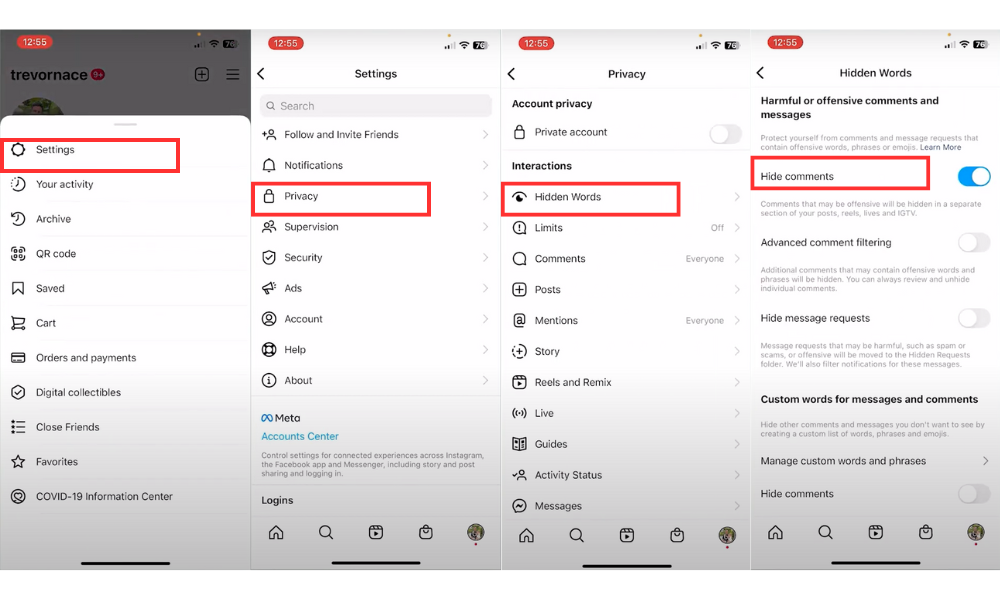
Step 3: Adjust Instagram’s Comment Filters
Instagram automatically hides comments flagged as spam, offensive, or irrelevant. If your comments or others aren’t showing, these filters might be the cause.
Fix it by adjusting comment settings:
- Go to Instagram Settings → Privacy.
- Check the Hidden Words section and disable automatic filters.
- Make sure “Hide offensive comments” is turned off.
- Remove any manually added blocked words that may be filtering out comments.
Step 4: Change Comment Sorting Order
If you can’t see recent comments, Instagram might be sorting them by relevance rather than time. Changing the sorting order can help.
How to adjust comment sorting:
- Open the post with comments you want to see.
- Look for the sorting icon (three horizontal lines or filter options).
- Tap it and choose “Most Recent” instead of “Most Relevant”.
- Refresh the page and check if new comments appear.
Step 5: Engage with Comments Regularly
Instagram’s algorithm prioritizes interactions with the people you engage with the most. If you’re not responding to comments often, some might not appear in your feed.
How to ensure comments show up:
- Reply to comments on your posts consistently.
- Like and interact with comments on your posts.
- Engage with users whose comments you want to see.
By staying active and responsive, Instagram is more likely to display comments from engaged users in your notifications.
Do you share your Instagram content in TikTok too? Click here to know how to grow your TikTok!
Step 6: Check for Instagram Shadowban
If only your comments are disappearing while others remain visible, Instagram may have shadowbanned your Instagram account. Instagram shadowbans are usually temporary, so avoid spamming to prevent them.
Signs you were shadowban:
- Your comments disappear instantly after posting.
- Fewer people are seeing your posts.
- You’re blocked from liking or commenting too frequently.
How to fix it:
- Stop commenting for 24-48 hours (Instagram might flag rapid activity as spam).
- Avoid using too many hashtags or repetitive comments.
- Check if your account has been flagged by going to Instagram’s Help Center.
Step 7: Restart Instagram & Your Device
Before diving into deeper fixes, try this first:
- Close and reopen Instagram.
- Restart your phone (sometimes, this refreshes the app).
- Try commenting on a different post to see if the issue persists.
If comments are still missing, move to Step 8.
Step 8: Check Your Internet Connection
Since Instagram is an online platform, a weak internet connection can stop comments from loading properly. If you find yourself staring at posts with missing comments, the first thing to do is check your internet connection. So, ensure your connection is solid to keep the chatter flowing and never miss out on the fun!
Quick Internet Fixes:
| Internet Issue | Possible Solution |
| Poor connection | Turn the Airplane Mode ON/OFF to reset the connection. |
| Poor mobile data signal | Move to a location with a stronger signal or switch to Wi-Fi |
| Wi-Fi connectivity issues | Restart your router or check your internet service provider’s status |
| VPN-related complications | Disable your VPN or contact your VPN provider for assistance |
By fixing your connection issue, you can solve your problem with your Instagram comments. Always keep an eye on your network connection. This will make commenting on Instagram easier and ensure your comments reach others.
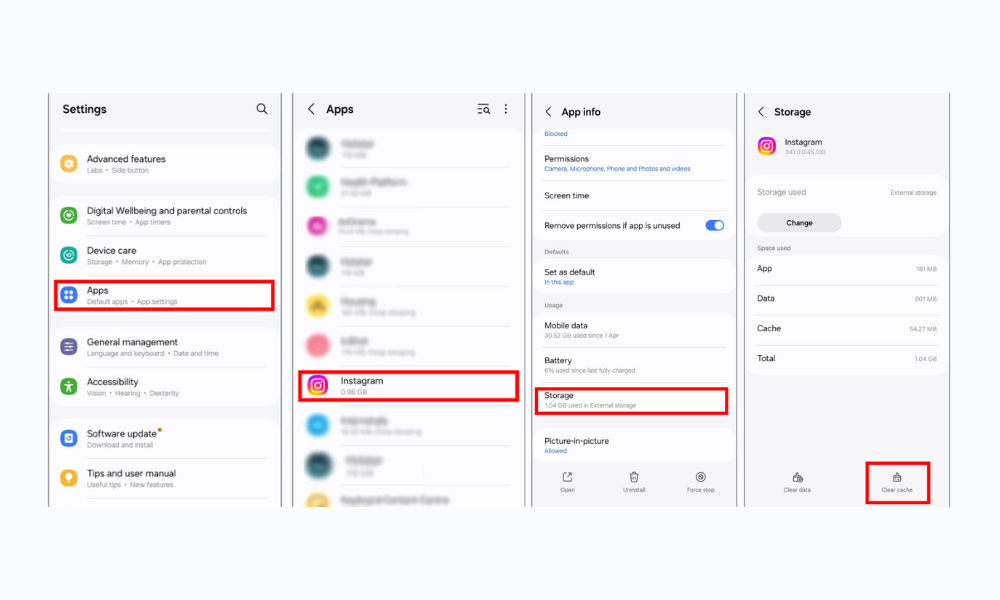
Step 9: Clear Instagram Cache & Data
Sometimes, a cluttered cache can prevent comments from appearing as they should. Over time, Instagram stores temporary files that can interfere with app performance. To get back on track, clear the cache and data, and start fresh. Here’s how you can do it.
For Android Users:
- Go to Settings → Apps → Instagram
- Tap Storage & Cache
- Select Clear Cache and Clear Data
- Restart the app
For iPhone Users:
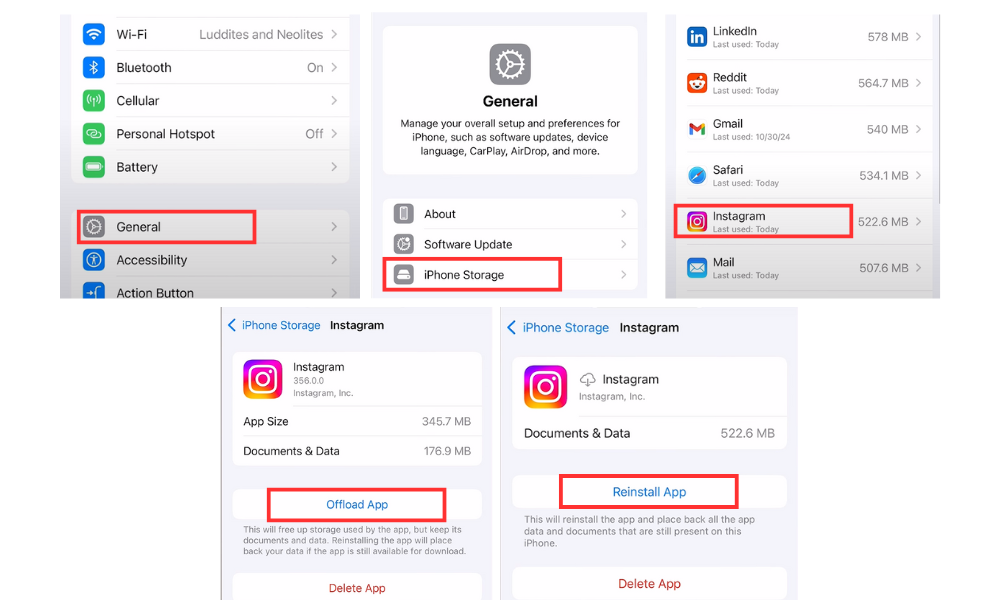
Since iOS doesn’t let you clear the cache manually, delete and reinstall Instagram to refresh the app.
This will remove any files that are preventing your Instagram comments from showing up. Clearing the cache boosts Instagram performance and prevents future issues. Follow these steps to tackle the Instagram comment issue, reconnect with your followers, and start interacting.
Clearing cache and data is easy and fixes many issues, including your missing comments on Instagram.
Step 10: Check Instagram’s Server Status
Sometimes, the issue isn’t you—it’s Instagram. If Instagram’s servers are down, comments might not load properly.
How to check Instagram’s status:
- Search “Instagram Down” on X or Google for real-time updates.
If Instagram is having issues, wait a few hours and try again.
Step 11: Log Out & Log Back In
Sometimes, Instagram glitches cause temporary issues. Logging out forces a refresh of your Instagram account.
How to Log Out & Back In:
- Go to Profile → Menu → Settings
- Scroll down and tap Log Out
- Close the app, reopen it, and log back in
This refreshes your account session and often restores missing comments.
Step 12: Update Your Instagram App
Wondering why you can’t see comments on Instagram? App updates and version conflicts can also play a big role. If you’re using an outdated version of Instagram, it might lead to comment disappearances. So make sure to check for updates often.
Keeping the Instagram app updated can solve version problems. Here’s how to do it:
- Open the App Store (iPhone) / Google Play Store (Android)
- Search for Instagram
- Tap Update
- Install the latest version of the Instagram app
- Restart the device to ensure the update is applied correctly
Using an old app version can lead to compatibility issues. This can make comments disappear. It’s important to update the app to avoid these problems and enjoy a smooth experience.
Also, using a beta version of Instagram can lead to comment visibility issues. It’s best to use the stable version to avoid problems. This way, you can reduce the chance of comments disappearing and have a better experience.
Step 13: Reinstall Instagram
If you’re still having issues, try reinstalling the Instagram app.
For iPhone: Delete Instagram, restart your phone, and reinstall the app.
For Android: Uninstall the app, clear its storage, and reinstall the app.
This process forces a complete refresh, eliminating any glitches.
Step 14: Contact Instagram Support
If your comments still aren’t visible, it’s time to contact Instagram support directly. The Instagram support team usually responds within a few days.
How to report your problem:
- Go to Settings → Help
- Tap Report a Problem
- Select “Something Isn’t Working”
- Describe the issue in detail and submit it
Step 14: Contact Instagram Support
If your comments still aren’t visible, it’s time to contact Instagram support directly. The Instagram support team usually responds within a few days.
How to report your problem:
- Go to Settings → Help
- Tap Report a Problem
- Select “Something Isn’t Working”
- Please describe the issue in detail and submit it
In case you are facing this problems with the comments on Twitter, take a look to this article.
Conclusion: Keeping Your Instagram Comments Visible and Engaging
Instagram comments are a key part of engagement, and when they disappear, it can be frustrating. But now, you have all the solutions to fix the issue. The solutions in this guide can help you fix these problems.
Here you have a summary:
| Issue | Possible Cause | Solution |
| Can’t see comments on my post | Privacy settings are too strict | Adjust the comments settings in Instagram Privacy settings |
| Comments disappear after posting | Instagram flagged as spam | Avoid repetitive comments, reduce hashtags, and space out your activity |
| Can’t see comments on a public post | Instagram filters blocking them | Check “Hidden Words” settings and clear app cache |
If you still have Instagram comment issues, try more troubleshooting or contact support. Keeping up with the latest updates and best practices is key to using Instagram smoothly.
FAQ: Why Can’t I See Instagram Comments?
Why can’t I see the comments on my Instagram posts?
You might not see comments on your Instagram posts for a few reasons. It might be a simple app glitch, a network problem, or a setting that’s blocking certain comments. This guide will walk you through the most common reasons and how to fix them.
What are the common issues that can cause Instagram comments to disappear?
Comments can disappear due to app bugs, internet connectivity issues, account restrictions, or Instagram’s moderation system. If your comments keep disappearing, it might be because of spam filters, restricted accounts, or shadowbanning.
Can the Instagram app cache and data affect comment visibility?
Yes! Over time, Instagram stores temporary data (cache) that can cause glitches, including hidden comments. Clearing the app cache and data can refresh Instagram and resolve many display issues. If you’re on an iPhone, reinstalling the app is the best way to do this.
How does network connection impact the visibility of Instagram comments?
A weak Wi-Fi signal or poor mobile data connection can prevent comments from appearing in real time. Fixing these issues can make comments visible again. Try switching between Wi-Fi and mobile data, or reset your internet connection to see if that helps.
How can account restrictions impact the visibility of comments on Instagram?
Some of the privacy settings can restrict comments on your posts. If your account is set to private, only approved followers can interact with your content. So changing your account settings can help. Also, if you’ve enabled comment filters or hidden words, some comments may be automatically removed without you realizing it.
What Instagram comment settings and filters can impact comment visibility?
Instagram has built-in comment controls that filter out spam, offensive language, and blocked words. If comments aren’t showing up, check your “Hidden Words” settings and adjust them. Adjusting these can help manage comments. Also, make sure your account isn’t restricting certain users from commenting.
Are there any device-specific solutions for Instagram comments not showing?
Yes, there are steps for Android and iOS devices, but the main fixes apply to both. If you’re on Android, you can clear Instagram’s cache directly in your phone’s settings. However, iPhone users, need to delete and reinstall the Instagram app to refresh the cache. Keeping your device software and Instagram app updated is also essential. This prevents compatibility problems.
How can Instagram app updates and version conflicts affect comment visibility?
If you’re using an older version of Instagram, it might not work properly. Instagram regularly updates its app to fix bugs and improve performance. So ensure your App is updated. Go to your App Store (iPhone) or Google Play Store (Android) and check for updates. Checking for updates and avoiding beta versions can help your comments be visible.
What are some quick fixes for Instagram comment visibility issues?
Quick fixes include restarting the app and checking settings. Being patient and persistent can also help. Check our guide and follow these simple steps to solve your comments problems.

BuzzVoice
BuzzVoice is the best place to go when you need instant engagement services on social media. Offering a wide variety of packages for Instagram, Youtube, Facebook, Twitter, Soundcloud & Tiktok.