How To Post A Video On Instagram? (3 Ways)
Posting videos to Instagram is very simple. You can post videos from the mobile app, mobile browser, or via content management tools (third-party apps).
Before posting, it’s important to focus on creating videos that meet Instagram’s requirements and are optimized for the platform to ensure the best quality and compatibility. However, the exact process depends on whether you are going to post in the feed, upload a story, or an IGTV video. We’ll cover the processes one by one.
Want to grow quickly on Instagram? BuzzVoice offers effective growth services like buy Instagram followers, buy Instagram likes and buy Instagram views to boost your visibility and build a strong digital brand.
Types of Instagram Content
Instagram offers a diverse range of content options to help users express themselves and achieve their goals. You can share photos, post videos, create engaging Instagram stories, or go live to interact with your followers in real time. Videos are especially popular, with options to share them as feed videos, short Instagram story clips, or creative reels.
Each Instagram video format serves a different purpose. Feed videos are great for regular posts, stories are perfect for quick updates, and reels help you reach new audiences with trending content. When planning your video content, consider which format best suits your message and audience, and make sure your videos are optimized for the right format to maximize engagement.
Related: How to post a video on Facebook
Posting feed videos from the mobile app
You can post a video to your main feed or regular feed by following these steps:
- Look for the “+” icon, which is located at the bottom center of the screen in the latest version of Instagram’s app.
- Click on it.
If the video is from the camera roll/gallery
- If the video is in your camera roll/gallery, look for it by browsing through it.
- After selecting your video, the preview screen will appear, allowing you to check the aspect ratio and see how your video will display. Here, you can ensure your video fits Instagram’s requirements for short videos (up to 60 seconds), long videos, or longer videos (up to 60 minutes for in-feed posts), and follow Instagram’s guidelines for best results.
- For optimal display, use portrait mode (9:16). You can edit your video using Instagram’s built-in tools and other features like effects, stickers, and filters to enhance your content.
- Add captions to improve accessibility and engagement.
- Select a cover image (thumbnail) for your video.
- Make the appropriate quick edit selections (Scale-out or in, make a boomerang, select multiple videos)
- Add other details such as tags, location, and sharing options.
- Tap share to post a video. Once posted, it will appear in your main feed.
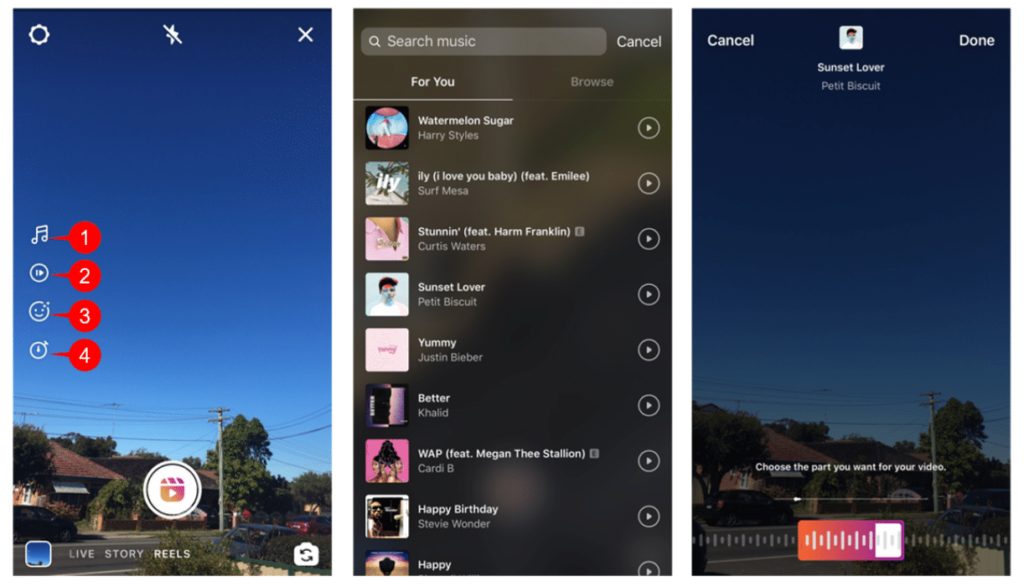
If the video needs to be recorded
- When you’re in video, look for the bright white button at the centre-bottom. It is the record button.
- Press on it and hold to continue recording. If you lift your finger, it will stop recording, but you can resume filming by pressing the button again.
- Click on to switch between cameras (optional).
For best results on Instagram’s feed, record your video in portrait mode (vertical orientation), as this format is optimized for Stories and Reels.
Then continue with editing and publish the video. The latter option is only available on the app and not from PC or Mac. The recordings will stop after 60 seconds.
Related: How To Save Instagram Reels To Camera Roll (5 Methods)
Posting story videos from the mobile app
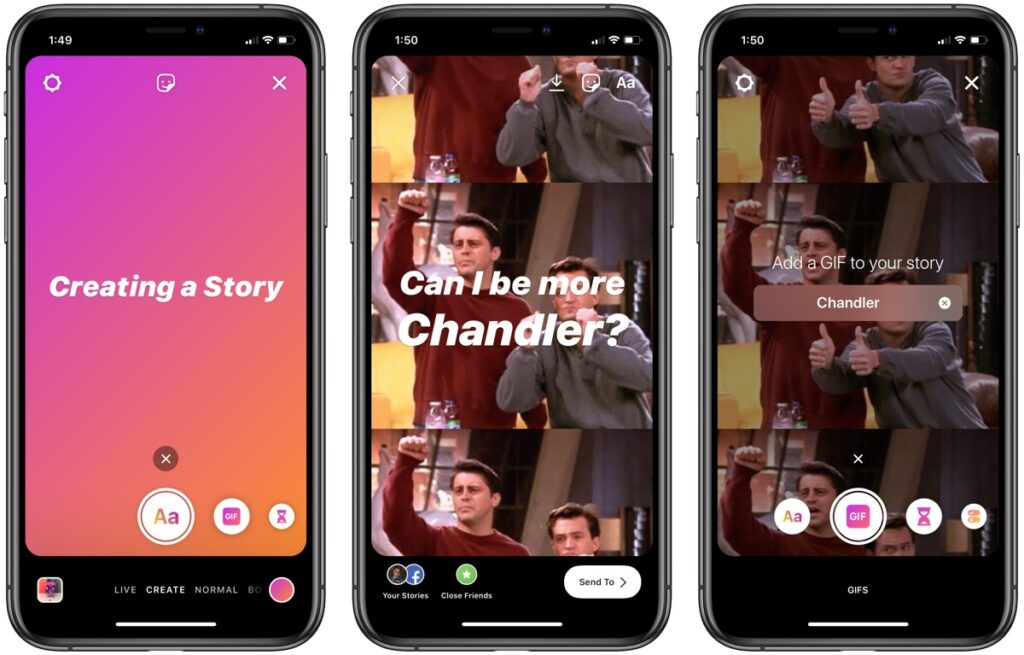
- To create engaging, ephemeral Instagram story videos, swipe to the right to open the Story camera, or tap the ‘Your Story’ icon represented by your profile photo in the top left corner of the home screen.
- You can tap the camera icon to access the story camera, then record new short videos in portrait mode or upload from the camera roll/gallery.
Related Article: How to Turn On Dark Mode on Instagram?
If the video is from the camera roll/gallery
- Click the square icon at the very bottom left of your screen
- Scroll the list to find the video (you can select multiple videos on iOS), or you can simplify the search by clicking on the ‘CAMERA ROLL’/’GALLERY’ text and selecting ‘VIDEOS’ to see only them
- Click on the video
- Make the edits by adding stickers, possibly muting it, drawing, or typing text
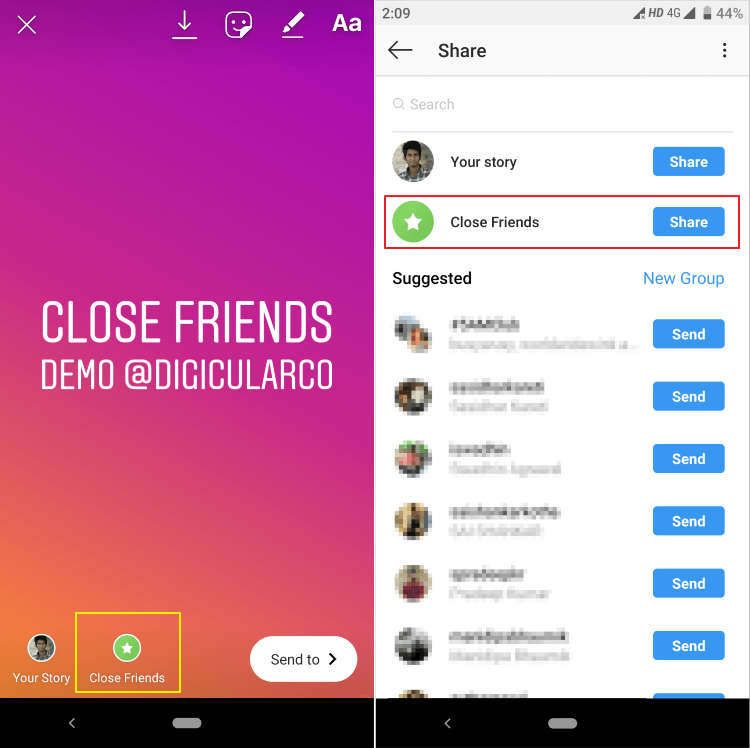
- Click ‘Next’ and select to upload it to your story or only to ‘Close Friends’
If the video has to be recorded
- Hold the record button, which is at the centre (you can apply filters or flip the camera)
- After recording, you can edit the video further or upload it by pressing ‘Your Story’ to make it public to your followers or everyone, or select ‘Close Friends’ to make it visible only to those who are in the ‘Close Friends’ list.
Want more reach on your posts? Buy real engagement from BuzzVoice and boost your visibility instantly.
Posting IGTV videos
Posting IGTV videos from the mobile app; Method #1
1. Click on the IGTV button. It is located in the ‘Explore’, at the top (see image below).
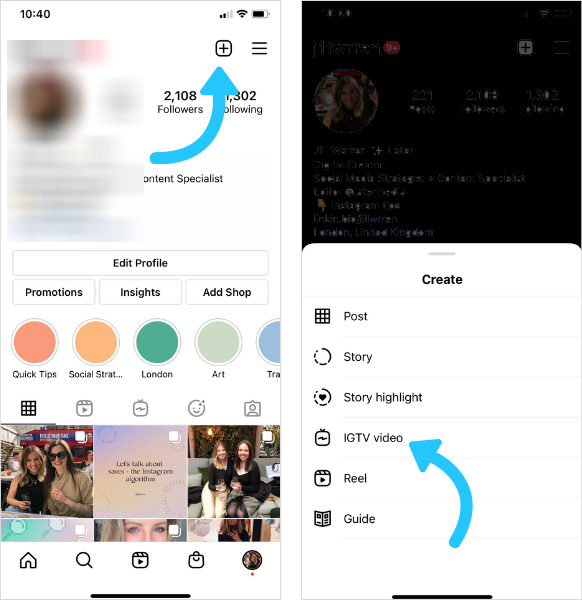
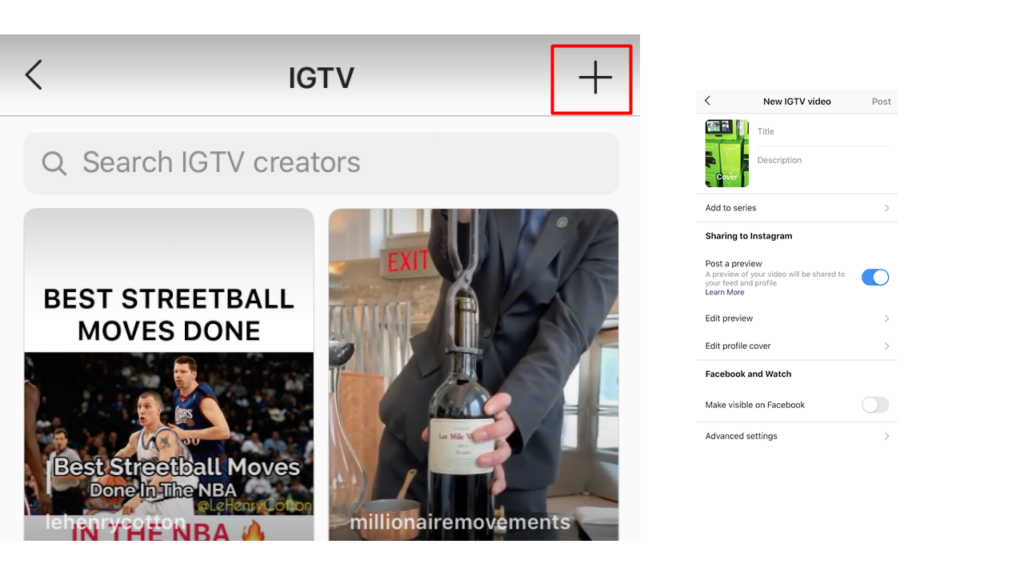
2. Click the ‘+’ icon at the top-right
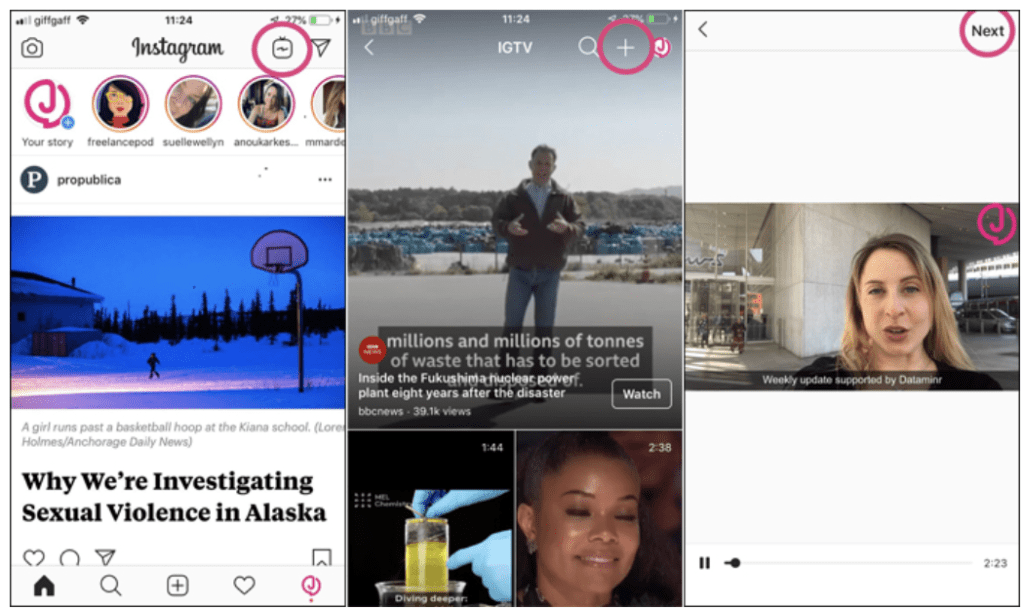
3. Select the video that you want to upload (the eligible videos will appear normal ,while ineligible ones from your camera roll will appear blurred)
4. Preview the video
5. Select the cover photo from the video or add one from your camera roll/gallery
6. Click ‘Next’
7. Add a video title and description
8. Edit other settings and preferences
Posting IGTV videos from the mobile app; Method #2
1. Click the icon which is located at the bottom-centre of the screen
2. Pick the video you want to upload (longer than 60 seconds) and select ‘PCLong Video’
3. Proceed with the same, aforementioned editing process
Posting IGTV videos from the mobile app; Method #3
You can also use the IGTV standalone app to upload videos. It might be easier if you upload to IGTV frequently.
Posting IGTV videos from PC
1. Go to the www.Instagram.com
2. Go to your profile page
3. From there, select the IGTV
4. Press ‘Upload’
5. Select the video or drag & drop the file that you seek to upload
6. Add the description, title, and edit it
7. Press ‘Post’
Related: 25+ Instagram Content Ideas (For Every Niche)
Posting videos from PC or Mac
You can’t post feed and story videos from PC or Mac regularly. You need third-party apps or to use some Inspect Element trickery to enable uploading via Desktop and Laptop devices. You can learn this trick in this article.
After posting your video, consider giving it an initial visibility boost. For example, you can buy Instagram views to jumpstart your video’s exposure on the platform. This can help a new post appear more popular right away, signaling to the algorithm that it’s engaging content worth showing to more viewers.
Related Article: Can You See Who Views Your Instagram Videos?
Video Editing and Enhancement
To make your Instagram videos truly stand out, it’s important to take advantage of editing and enhancement tools. Instagram provides built-in features that let you add music, apply filters, insert captions, and adjust the aspect ratio to fit your needs.
For even more creative control, you can use third-party apps or AI tools to enhance video quality, stabilize footage, or add special effects. Ensuring your videos are visually appealing and meet Instagram’s standards for high-quality content will help you capture attention and keep viewers engaged.
Conclusion
In summary, posting videos on Instagram is a powerful way to connect with your audience, share your story, and grow your brand. By understanding the different Instagram video formats, editing your video clips for maximum impact, and following best practices for posting videos, you can create high-quality content that stands out in your followers’ feeds.
Whether you’re sharing an existing video, creating a single post, or experimenting with multiple photos and videos in the reels tab, the key is to stay creative and consistent. Use the Instagram app to its fullest, optimize your posts for discoverability, and always aim to deliver value to your audience. With the right strategy, your Instagram videos can help you achieve your goals and make a lasting impression on Instagram.
If you want to accelerate this process and get expert support, BuzzVoice is here to help. Whether your goal is to buy Instagram Likes, increase YouTube Views, or grow your TikTok Followers we provide effective services designed to boost your online presence and take your brand to the next level.
FAQ: How To Post A Video On Instagram (3 Ways)
What’s the maximum video length I can post on Instagram?
Instagram allows:
- Feed videos: Up to 10 minutes (or 60 minutes for verified accounts via desktop).
- Reels: Up to 90 seconds (but can be extended in some updates).
- Stories: Each video can be 15 seconds (longer videos are split automatically).
- Live videos: Up to 4 hours.
What video formats does Instagram support?
Instagram supports:
- .MP4 and .MOV files.
- Recommended settings: H.264 codec, AAC audio, 1080 x 1920 resolution (for vertical), and under 4GB in size.
Can I schedule video posts on Instagram?
Yes, you can schedule video posts using:
- Meta Business Suite (free and official).
- Third-party tools like Later, Buffer, or Hootsuite (some features may require paid plans).
How do I add music to a video before posting?
- For Reels and Stories, you can add music directly inside the Instagram app.
- For Feed posts, you can now sometimes add music too (feature rollout varies by region).
- Alternatively, edit your video using apps like InShot or CapCut before uploading.

BuzzVoice
BuzzVoice is the best place to go when you need instant engagement services on social media. Offering a wide variety of packages for Instagram, Youtube, Facebook, Twitter, Soundcloud & Tiktok.